Small businesses face many of the same device and data risks as larger organisations. Developing an acceptable use policy for IT gives staff clear rules for using company systems, handling information and accessing work resources on personal devices. It sets expectations before a mistake or misunderstanding disrupts work.
A formal policy may seem like unnecessary paperwork for a small team. But clear, proportionate rules help everyone understand what is acceptable, what needs protecting and what to do if something goes wrong. This article explains why an acceptable use policy matters, who should help shape it and how to set workable BYOD rules for personal devices accessing company data. It also shows how to make the policy useful in day-to-day work.
Key Takeaways
- Give a named person responsibility for maintaining and enforcing the policy, with input from the people who use and manage your systems.
- Set clear expectations for creating and securely storing passwords so staff know how to protect access to business accounts.
- Define how personal devices may access, store and transmit company data, taking data protection requirements into account.
- Keep the policy proportionate to your business and its risks, then make sure staff understand the rules and what to do if something goes wrong.
Who is responsible for policies and procedures in an organisation?
In a small business, assign clear ownership before staff begin using the policy. Set out who handles reports, reviews changes and applies the rules consistently.
-
Assign Policy Enforcement Responsibility
Name a policy owner, such as the person responsible for IT or security, and identify a manager who can address employee concerns. The owner coordinates updates and explains expectations; managers reinforce them in day-to-day work. Specify who receives reports about misuse, phishing or unsafe internet activity. Avoid leaving enforcement to an informal group without a clear decision-maker.
-
Monitor, Report, and Enforce
Describe what monitoring may involve and how employees can report a concern. Where the relevant software supports it, system activity logs can help identify possible policy breaches. Explain who reviews reports, what information to include and how staff should raise urgent security concerns. State that breaches may have consequences, and apply the process consistently rather than making exceptions without a clear reason.
- Set a review process that reflects changes in technology and working practices. Invite feedback from employees and other relevant stakeholders, then record revisions so the business can see what changed and why. For a school introducing a new acceptable use policy, review how it is working after the first three weeks, then set intervals for ongoing evaluation. This can reveal implementation issues early.
- Make enforcement practical by linking each rule to a responsible person and a clear response. For example, an employee who spots a suspicious email should know whether to alert their manager or the designated IT contact. Explain how reports will be handled, and make updates available to everyone affected. Documented responsibilities, reporting routes and review dates make the policy easier to maintain as the organisation changes.
Since my business is small, should I develop an Acceptable Use Policy?
Yes. An acceptable use policy gives employees clear boundaries for using business technology, even in a small team. Keep it proportionate by covering the systems, information and everyday behaviours that matter to your organisation.
- Use your System Security Plan to identify what users need to know. Map its security processes to everyday actions, such as accessing shared files or reporting a suspicious email. Include any input those processes require from end users. A template can help you get started, but adapt every rule to your systems and working practices. Developing an acceptable use policy for IT should reflect the risks your business actually faces.
- Set clear password rules and storage expectations. Explain that employees should use distinct passwords for business accounts and never share them with colleagues. Tell staff to store credentials in an approved password manager, not an unprotected document or note. Describe how to report a suspected compromise and who can help restore access. Clear steps make the rules easier to follow.
- Include physical security for equipment. Tell staff to lock screens when stepping away, keep devices secure while travelling, and avoid leaving a company laptop visible in a parked car. Explain how to protect equipment in shared workspaces, and where to report loss or damage. If your security controls need to support these expectations, Cyber Security support can help align them.
- Explain acknowledgement and consequences. Ask employees to read and acknowledge the policy before receiving access to business systems. State how the business will handle breaches through a fair process that reflects the issue and its impact. For example, accidental misuse may call for guidance, while deliberate access to restricted information may require formal action. Review the rules when systems or working practices change, then share the updated version with staff.

Setting rules for personally owned devices accessing company data
Cover email, social media, cloud services and AI tools. State which uses are permitted and what information staff must keep out. Address risks such as phishing, lost devices, unauthorised access and sharing sensitive data with an unsuitable service.
-
Set Personally Owned Device Rules
Define which personal devices may access company data and for what purpose. Require a screen lock, current security updates and prompt reporting if a device is lost. State whether business information may be stored locally, copied to personal accounts or shared with family members. Glasgow Kelvin College’s policy identifies the Data Protection Act 2018 and GDPR as relevant to protecting personally identifiable and sensitive data.
-
Define Network Access and Security
Set out how personal devices can connect to company networks and services. Specify approved access methods, such as a secure work login, and prohibit unknown or public connections for sensitive work unless the business has approved a safe method. Explain that staff must not bypass security controls or share credentials. Restrict access to the systems each person needs for their role.
-
Set Information Handling and Access Rules
Classify the information staff may access and explain how to handle each type. For example, limit customer records to authorised users and keep confidential files in approved business storage. Explain whether users can download, print or forward work documents from a personal device. Include a clear route for reporting accidental disclosure or suspected unauthorised access.
-
Cover Email, Social Media, Cloud Services, and AI Tools
Set practical rules for each channel. Require staff to check recipients before emailing sensitive files, avoid posting confidential details on social media, and use approved cloud services for business information. Tell employees not to enter personal or commercially sensitive data into AI tools unless authorised. Provide a reporting route for suspicious links, phishing messages or unexpected requests for information.
Why small businesses need an acceptable use policy
- Document the rules people need to work safely. Even a small team uses email, shared files, phones and internet access to handle business information. State which activities are acceptable and which are not, with examples such as sharing a customer file only through approved channels. A written policy gives employees a practical reference instead of leaving them to rely on informal assumptions that may differ between colleagues.
- Address risks that can affect routine work. Social media can expose sensitive information, and phishing scams can arrive in ordinary messages. Explain how staff should handle suspicious links, unexpected requests and accidental disclosures. For example, tell employees to report a questionable email rather than replying or forwarding its attachment. Clear reporting steps help staff act quickly without guessing who should respond.
- Build awareness into everyday decisions. Use onboarding to explain why the rules matter, then reinforce them when systems or working practices change. A short example can clarify the policy: before posting a workplace photo, check whether a screen or document reveals confidential information. Ask employees to acknowledge the rules, and make the current document easy to find when questions arise.
- Keep the policy proportionate and usable. A small business doesn’t need rules for technology it never uses. Focus on actual systems, information and work habits, then review the document as those change. Give each instruction a clear purpose and practical action. If staff use company phones or calling systems, discuss business mobile and VoIP use as part of setting sensible expectations.
Cornerstone Business Solutions
Cornerstone Business Solutions helps small businesses connect acceptable use rules with the technology employees rely on. If you’re shaping a policy for company systems, Microsoft 365 or personal devices accessing business data, its Managed IT Support and Cyber Security can help align practical controls with your working needs.
A useful policy should reflect how people actually access information, communicate and work remotely. Cornerstone Business Solutions can help you consider those everyday practices alongside your IT environment, so expectations are clear and workable rather than generic. As your systems or working arrangements change, reviewing the policy alongside your technology helps keep it relevant.
Contact Cornerstone Business Solutions to discuss your IT policy and the support your business needs.
Make your policy part of how your business works
An acceptable use policy works best when it grows alongside your business. As your team adopts new tools or changes how it handles information, revisit the rules and keep them practical. Developing an acceptable use policy for IT is not a one-off paperwork task; it is an opportunity to make responsible technology use part of everyday working habits.
If you’d like support connecting your policy to the systems your team relies on, Cornerstone Business Solutions offers Managed IT Support, Microsoft 365 and Cyber Security. The right next step is a conversation about your current setup and the expectations you want staff to follow.
Contact Cornerstone Business Solutions to talk through your IT policy and how to move it forward with confidence.
Frequently Asked Questions
What is an IT Policy?
An IT policy sets an organisation’s expectations for using and managing technology. It can cover how staff request new software, who approves access to shared systems and how equipment is returned when someone leaves. For example, a clear software approval rule helps prevent teams from installing unreviewed tools that store business information outside the organisation’s usual environment.
What is the difference between IT policy and cyber security policy?
An IT policy sets broader rules for technology use, while a cyber security policy focuses on protecting systems and information from threats. The two work together: an IT policy might explain who can request new accounts, while the security policy sets controls for protecting those accounts. Keep the documents consistent, and direct staff to the right process for their situation.
What is an IT acceptable use policy and what should it cover?
An IT acceptable use policy explains the conduct expected of people using workplace technology. Alongside device and data rules, it can clarify whether staff may install browser extensions, connect removable storage or use work accounts for personal subscriptions. Explain the reason behind each restriction and provide a route for requesting an exception. This makes the policy more useful than a list of prohibitions.
What rules should an acceptable use policy set for devices, networks and internet use?
Set rules for who may use each device, which networks are appropriate for work and what internet activity is acceptable. Include practical examples: prohibit installing unapproved applications, restrict connecting unknown storage devices, and explain whether work internet access may be used for personal tasks. Tell staff what to do if a device behaves unusually, so they report the issue instead of ignoring it.
How should an IT acceptable use policy address personal devices and remote working?
Explain which work tasks employees may complete on personal devices and how to separate work from personal activity. For remote work, cover private conversations, screen visibility in shared spaces and safe handling of printed documents. State how access should be removed when someone changes role or leaves. For example, a departing employee should return business equipment and lose access to work accounts.
What disciplinary actions can follow breaches of an IT acceptable use policy in the UK?
Depending on the breach, consequences may include disciplinary procedures, dismissal or criminal prosecution.
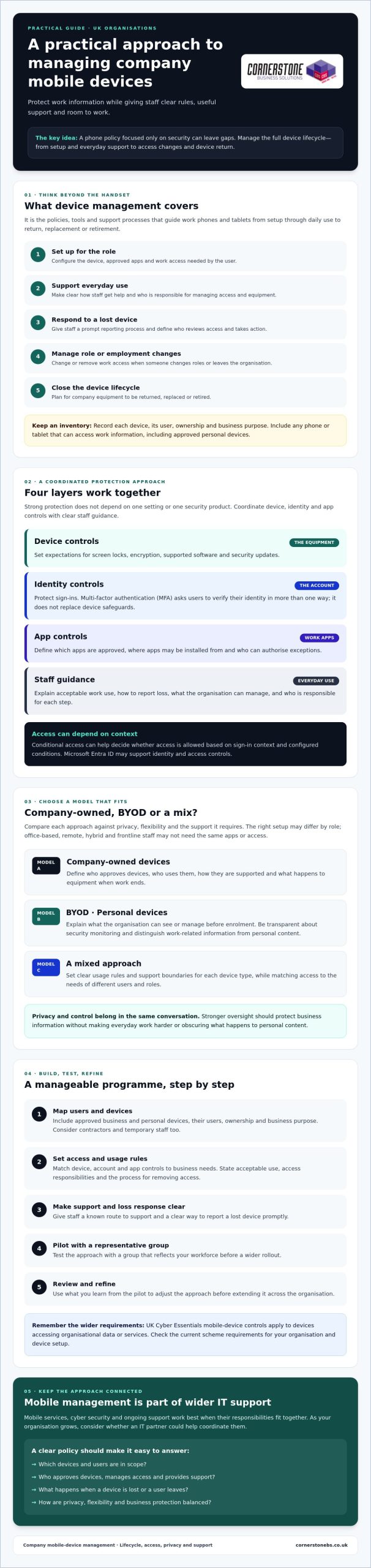
A phone policy that focuses only on security can still leave your business exposed. Managing company mobile devices means overseeing the full lifecycle, from setting up access and supporting staff to responding to a lost phone or an employee leaving the organisation.
It’s understandable to want stronger control over business information without making everyday work harder. That balance can be more complicated when employees use personal phones, devices are shared, or responsibility for configuration and support is unclear. A clear approach helps protect business accounts while respecting staff privacy and giving people the flexibility they need.
This guide explains how to build a practical mobile-device policy for your UK organisation. You’ll learn how Mobile Device Management (MDM) differs from Mobile Application Management (MAM), what to consider when choosing company-owned devices or BYOD, and how to plan for security, access, support and device changes. It also covers how mobile services, cyber security and wider IT support can work together as your workforce grows.
Key Takeaways
- Managing company mobile devices means planning for setup, everyday support and device changes, not just security settings.
- Match device, account and app controls to your business needs, and make staff usage rules clear.
- Compare company-owned, BYOD and mixed approaches against privacy, flexibility and the support each requires.
- Pilot your approach with a representative group, then review and refine it before a wider rollout.
- Consider whether an IT partner could help coordinate mobile services, cyber security and ongoing support as your organisation grows.
What does managing company mobile devices involve?
Managing company mobile devices means setting the policies, tools and support processes that guide work devices from setup through everyday use to return, replacement or retirement. It can cover smartphones and tablets, the business apps installed on them, user accounts, and access to company email, files and other information.
That’s broader than buying handsets or paying mobile network bills. Those tasks provide hardware and connectivity. A management approach defines how each device is configured, who can use it, how staff get help and what happens when access needs to change. A consistent process makes setup more reliable, keeps access organised and gives staff a clear route to support. It also clarifies who approves devices, manages access and handles equipment when a device is lost or a user leaves.
Which devices and users should a company include?
Start with every phone or tablet that can access work information, whether it belongs to the business or is an approved personal device. Consider how office-based, remote, hybrid and frontline staff work. One setup may not suit every role. Contractors and temporary staff also need defined access, support boundaries, and a process for removing access and returning company equipment when their work ends.
Keep an inventory that records each device, its user, ownership and business purpose. This can reveal untracked devices and help you apply suitable rules to different roles, rather than assuming every employee needs the same apps or access.
What is mobile device management in plain English?
Mobile device management is central oversight of approved phones and tablets, their settings and their access to work apps and information. The term Mobile device management (MDM) describes this approach to managing devices across an organisation.
In practice, authorised staff can apply standard configurations, make approved apps available and set security requirements. Depending on the tools in use, they may also be able to take remote action, such as restricting a device’s access to work resources. The aim is to make devices dependable and safer to use without adding unnecessary barriers.
Effective management connects technical settings with clear staff guidance. For example, a new starter’s phone should be prepared for their role, given only the access they need and covered by a known support process. If it’s lost or the user leaves, the organisation should know who reviews access and what steps to take. This makes device management part of wider IT support and business continuity, rather than a one-off purchasing decision.
Strong protection comes from layers that work together. Device controls secure the phone or tablet. Identity controls check who is signing in, app controls govern which tools can access work information, and staff guidance explains how to use those tools safely. Managing company mobile devices effectively means coordinating all four, rather than relying on one setting or security product.
A practical policy should set expectations for screen locks, encryption, operating-system updates and approved apps. It should explain how staff report a lost device, what counts as acceptable work use, and how access changes when someone changes roles or leaves. Keep the rules clear enough to follow, and state who is responsible for each step.
Which controls belong in a company mobile-device policy?
Set a process for keeping devices on supported software and applying security updates promptly. Limit app installation to trusted, approved sources, and decide who can authorise exceptions. For personal devices, explain what the organisation can see or manage before enrolment. Make security monitoring transparent, distinguishing work-related security information from personal content.
UK Cyber Essentials requirements may also be relevant: its mobile-device controls apply to devices accessing organisational data or services. Check the current scheme requirements for your organisation and device setup before setting policy. Your written process should also cover prompt loss reporting and removing work access when it’s no longer needed.
How do identity and device controls work together?
Identity controls protect accounts, while device controls protect the equipment accessing them. Multi-factor authentication (MFA) adds an account safeguard by asking a user to verify their identity in more than one way. It doesn’t replace a screen lock, encryption or software updates. Conditional access can help an organisation decide whether to allow access based on sign-in context and configured conditions. Microsoft Entra ID may support identity and access controls, but available features depend on configuration and licensing. Check your current setup before relying on them.
Device management can reduce risk by combining encryption, screen locks, timely updates, approved apps, controlled account access and clear loss-reporting steps. It can’t prevent every incident: phishing, malicious apps, unsafe networks, theft and human error remain possible.
For a broader view of the people, processes and technology involved, explore business cyber security guidance alongside your mobile-device policy. If you’re reviewing how mobile services and security fit into wider IT support, Cornerstone Business Solutions’ information on business mobile and cyber security may help you consider the services together.
Which company mobile-device management model suits your workforce?
The right choice depends on the information staff need, how they work and how much support your organisation can provide. A finance team handling sensitive records may need tighter standardisation than staff who use a phone only for basic work communication. There’s no single model that suits every business.
Use this comparison to start your decision:
Company-owned: The business selects and configures devices, which makes consistent setup easier and gives it more control. Employees may have less separation between work and personal use if they also use the phone privately. The organisation takes on purchasing, administration and support responsibilities.
Bring your own device (BYOD): Staff use a personal phone or tablet for work. This can offer flexibility, but the business has less control over the whole device and must clearly separate work access from personal use. Agree what support covers and what happens to work information when access ends.
Mixed model: The organisation provides devices for roles with specific security, support or operational needs, while allowing approved personal devices for other work. This can suit different roles, but requires clear rules so users and support teams understand which arrangements apply.
Assess each option against five practical factors: control over device settings, employee privacy, support workload, flexibility for staff and the work the device must perform. Managing company mobile devices is easier to sustain when the model fits real working patterns instead of forcing every employee into the same setup.
Company-owned devices versus bring your own device
When should a business consider unified endpoint management?
Unified endpoint management (UEM) is an approach to coordinating oversight of different endpoint types, such as phones, tablets and computers. It may suit a workforce using several kinds of devices if consistent policies and administration would make support clearer. Before adopting a broader approach, consider whether your current tools and team can manage the range of devices effectively. UEM isn’t automatically necessary for every organisation.
As device needs grow, review how mobile management fits with managed IT support for growing businesses. The right model should protect business access while remaining practical for employees and the people supporting them.
How to set up a manageable company mobile-device programme
A workable rollout starts with business needs, not a tool purchase. Use this sequence to clarify responsibilities and test the approach before it affects everyone.
- Inventory needs. Record devices, owners, operating systems, users, work apps and the information each role needs to access. Note where staff share devices or work away from the office.
- Choose a model. Decide which roles need company-owned devices, whether approved personal devices are suitable, or whether a mix fits best.
- Write the rules. Set out enrolment, acceptable use, updates, support ownership, lost-device reporting, and how access and equipment are handled when someone changes role or leaves.
- Check and configure. Confirm the chosen tools work with your devices and apps. Check compatibility and licensing before committing to specific controls or costs, then configure settings to match the policy.
- Enrol and pilot. Prepare a representative group of users and devices, including different roles or working patterns. Give them setup instructions and a clear way to report access problems or a lost device.
- Review and refine. Collect feedback, check whether the process works as intended and adjust avoidable friction before extending the rollout. Revisit the inventory and rules as your workforce or technology changes.
This checklist gives each stage an owner and a clear outcome. It also connects device setup with onboarding and offboarding, rather than treating enrolment as a one-off technical task.
How can staff privacy and adoption be protected?
Explain what administrators can manage, what information they can see and what remains private. Be specific about the difference between work data and personal content, especially for BYOD. Give staff straightforward instructions for setup, replacing a device and resolving access problems. Clear communication builds trust and helps people follow the process.
During the pilot, ask participants what worked and where controls interrupted legitimate tasks. Use their feedback to improve guidance or configuration before wider enrolment. Keep a defined support route, and make sure staff know who to contact if a device goes missing. Clear instructions support day-to-day work and a consistent response when circumstances change.
Managing company mobile devices is easier to sustain when the policy, configuration and support process are designed together. Cornerstone Business Solutions offers Business Mobile, Cyber Security and Managed IT Support. Find out more about its services when considering how these areas could fit your organisation’s requirements.
When should you manage mobile devices with an IT partner?
Consider additional support if device setup varies between teams, staff aren’t sure where to report a problem, or access changes are difficult to coordinate when someone changes roles or leaves. Your internal team may also need extra capacity or specialist knowledge as the number of devices, platforms or working arrangements grows. The goal isn’t to outsource by default. It’s to make ownership and support dependable.
With internal management, your team retains direct responsibility and can work closely with existing processes, but must have the time and knowledge to maintain them. External support may add capacity and help coordinate mobile services with wider IT and security arrangements. The division of responsibility matters: agree who owns policy decisions, handles user requests and manages each task, and clarify what response arrangements apply. Don’t assume a provider’s service includes specific devices, platforms or management tools without checking.
What should you ask a mobile-management support provider?
Before agreeing a scope, ask who handles device enrolment and configuration, user support, security incidents and access changes. Confirm which operating systems, devices and business apps are covered, and what falls outside the arrangement. Ask how issues are escalated, what reporting you’ll receive and how mobile support connects with your existing IT and security processes. Get responsibilities in writing, including what remains with your own team.
How does mobile management fit into wider IT support?
A phone’s work access relies on more than its settings. User accounts, business applications, security policies and staff onboarding all need to line up. For example, setting up a new starter may involve preparing an approved device and arranging the right account access. Offboarding needs a clear process for withdrawing that access. If your organisation uses Microsoft 365, include account and application requirements in the conversation. Microsoft 365 planning for business can help frame those wider considerations.
Look for an approach that connects mobile support with the rest of your technology, rather than leaving staff to navigate separate processes. Ask how incidents are handed between teams and who keeps the device inventory and access arrangements up to date.
Cornerstone Business Solutions provides Business Mobile, Managed IT Support and Cyber Security for organisations across the UK. Before choosing an arrangement, discuss your workforce, existing processes and support needs, and confirm which responsibilities the service would cover.
Build a mobile approach your team can grow with
Managing company mobile devices works best as an ongoing business process, not a one-off technology decision. The right approach gives staff practical access to the tools they need while making responsibilities, support and security expectations clear. Choose a model that fits your workforce, then review it as roles and requirements change.
Keep the focus on a workable balance: protect business information, respect employee privacy and make it straightforward for people to get help. A consistent plan can support smoother day-to-day work and give your organisation a clearer foundation for managing change.
Cornerstone Business Solutions is a multi-award-winning IT services provider, with services in Business Mobile, Managed IT Support and Cyber Security. Its technology partnerships include Microsoft, IBM and Cisco. If you’re considering how these areas could work together for your organisation, contact Cornerstone to discuss a practical mobile-device approach for your business.
Frequently Asked Questions
What is the best way to manage company mobile devices?
Start by listing the devices, users and business information that need protection. Choose a company-owned, personal-device or mixed approach, then document clear rules for access, updates, support and lost-device reporting. Select tools that fit your existing environment, explain privacy boundaries before enrolment and review the policy when your workforce or technology changes. Assigning an owner to each step helps make managing company mobile devices a consistent process.
Can a business manage personal phones used for work?
Yes, a business can manage work access on personal phones if it explains the boundaries clearly. Tell employees which work apps and data are managed, what administrators can see or change, and how work access will be removed when someone leaves. Exact controls depend on the device, platform and configuration. Check those capabilities and explain them before asking staff to enrol a personal device, so expectations are clear from the start.
What happens if a company phone is lost or stolen?
Staff should report a lost or stolen phone promptly using the contact route in your policy. The business can assess which accounts and information may be at risk, restrict access where appropriate and use available device controls. Options vary by platform and configuration. Keep a record of actions taken and follow your incident process. Tell employees in advance who to contact and what information to provide when reporting a missing device.
Does mobile device management let an employer see personal data?
Not necessarily, but what an administrator can access depends on device ownership, operating system, configuration and the apps used. Don’t promise that all personal information is hidden or assume every activity is monitored. Before enrolment, explain the actual settings, what information administrators can access and the purpose of any monitoring. Check the platform documentation and relevant legal obligations, particularly for personal devices used for work.
What is the difference between MDM and UEM?
Mobile device management (MDM) generally focuses on administering and securing phones and tablets. Unified endpoint management (UEM) describes a broader approach that can coordinate management across different endpoint types, including mobile devices and computers. These terms describe categories, not a guarantee of particular features. Before choosing a solution or service, check which operating systems, controls, devices and support tasks it actually covers.
How often should a company review its mobile-device policy?
Set a regular review schedule, and revisit the policy sooner if devices, working practices, apps or security risks change. A lost-device incident or staff feedback may also reveal unclear instructions. Check that enrolment, access, update, privacy and offboarding procedures still match how the organisation works. Record any revisions and explain them to staff, so employees know what’s changed and where to find the current guidance.
Can an IT support provider manage company phones and tablets?
Some providers offer mobile support, but the scope varies. Confirm which devices and platforms are covered, who handles setup and user queries, how incidents are escalated and whether security tasks are included. Ask how the service connects with your existing IT and cyber security processes. Cornerstone Business Solutions lists Business Mobile, Managed IT Support and Cyber Security among its services. Confirm the specific support responsibilities before agreeing an arrangement.