A backup that can’t be restored when you need it isn’t a recovery strategy. A Microsoft 365 backup and recovery strategy should protect Exchange Online mailboxes, SharePoint sites and OneDrive with independent copies, defined retention, and a tested restore process. It should also match the business’s recovery point and recovery time objectives.
It’s easy to assume Microsoft 365’s built-in recovery tools cover every kind of data loss. They help with common recovery needs, but a dependable plan also needs to account for accidental deletion, ransomware, retention requirements and the risk of losing access to backup copies. This guide sets out seven practical parts of a comprehensive approach, from choosing what to protect and how long to retain it to securing backups, documenting restores and testing recovery. You’ll also see how to assess implementation options and where Microsoft 365 Backup fits, so you can build a plan around the data your organisation relies on.
Key Takeaways
- Set recovery objectives for Exchange Online, SharePoint and OneDrive, then shape backup coverage and retention around the data your organisation depends on.
- Reduce the risk of backup copies being deleted or encrypted by separating backup access from normal user accounts and including immutable storage.
- Match the restore method to the incident, from recovering an individual item to restoring a wider service, and document the steps.
- Assess implementation options for workload coverage, restore granularity, security and reporting, then test recovery so the process is ready when needed.
7 Steps to a Comprehensive Microsoft 365 Backup Strategy
Microsoft 365 availability and backup solve different problems: service resilience helps keep systems running, while recovery planning helps restore data after loss. Build protection around the workloads, retention needs and restore times your organisation requires.
- Identify critical Exchange Online mailboxes, SharePoint sites, OneDrive accounts and Teams content.
- Set recovery point and recovery time objectives for each workload.
- Choose native recovery, Microsoft 365 Backup or another suitable backup approach.
- Define retention periods that support operational and compliance needs.
- Restrict backup access and protect stored copies from deletion.
- Document restore workflows for individual items and larger recovery events.
- Test recovery regularly and update the plan when workloads change.
Teams Files and Message Retention
Teams files generally follow SharePoint or OneDrive recovery behaviour, while Teams message retention follows separate compliance and retention paths. This distinction matters: restoring a file will not necessarily recover a conversation, and preserving messages does not back up files. Include both content types in your coverage decisions and document their separate restore workflows.
Compliance Retention and Operational Backup
Microsoft Purview retention and eDiscovery support compliance preservation and discovery, not operational restores with recovery point or recovery time guarantees. Retention policies can retain content, delete it, or retain it before deletion to support compliance and lifecycle management. Align these policies with your requirements, but use a separate backup and restore process to recover data after deletion or corruption.
Backup Schedules and Shared Responsibility
Microsoft’s shared responsibility model means service resiliency includes replicated customer data and self-service recovery for common accidental deletions; organisations still need to plan retention, access and recovery. Microsoft 365 data can be purged from the Recycle Bin after 93 days, so don’t treat it as a lasting backup. Set backup schedules around acceptable data loss, use independent copies, and define a retention rotation. For example, full backups may run monthly or less often, with incremental backups weekly, daily or hourly as recovery needs demand. Test restores quarterly and record the results.
Append-only backup storage and deletion protections
Append-only storage keeps backup copies from being altered or erased during their protection period. For stronger ransomware resilience, keep at least one immutable backup copy and one air-gapped copy, separated from everyday user access. This helps limit damage if an attacker or compromised administrator reaches the Microsoft 365 platform.
Microsoft 365 recovery has workload-specific limits. Exchange Online deleted items are recoverable for 14 days by default, and administrators can extend that period to 30 days. Microsoft 365 Backup supports Exchange Online, SharePoint and OneDrive, while Teams files generally follow SharePoint or OneDrive recovery behaviour; Teams messages use separate retention and compliance paths.
For OneDrive and SharePoint, Microsoft 365 Backup can restore selected files and folders from recovery points within the most recent 14 days. Its recovery windows can be configured for 3 months, 6 months, or whole-number durations from 1 to 10 years. Exchange Online policies offer 3 months, 6 months, 1 year or 2 years. Choose periods based on operational recovery needs and retention requirements.
Accidental deletion, malicious insiders and ransomware call for different safeguards. Separate backup administration from everyday user accounts, apply MFA and conditional access, and review administrator activity. Document break-glass access for emergencies. During a ransomware incident, isolate affected systems, ensure restored data is safe before recovery, patch the cause and check copies for threats. A clean copy matters as much as a fast restore.
Recovery depends on timing, configuration and whether the data remains within an available recovery window. Build those limits into mass-deletion continuity plans, including who can approve restores and how teams communicate during recovery. A documented disaster recovery plan can connect backup protections with those decisions.
What Everyday Data Loss Scenarios Threaten Your Microsoft 365 Environment?
Accidental edits, mistaken deletions, sync errors and ransomware can all disrupt Microsoft 365 data. The right restore depends on what changed, which workload was affected and whether you need one item, a folder or a whole service. A clear incident process helps teams choose the smallest safe recovery rather than replacing useful current data.
For example, if an employee overwrites a OneDrive document, OneDrive can restore the account to a point in time within the previous 30 days. For a single file or folder, a granular restore can reduce disruption. Microsoft 365 Backup can restore OneDrive and SharePoint data to its original location or a new URL. Restoring to the same location can roll back content and overwrite newer changes, so a separate destination can help preserve current work during investigation.
Deleted items need a different response. Microsoft 365 Backup doesn’t restore items still in Deleted Items, because users can recover them themselves. If a user empties the folder, loses access or discovers deletion later, the available recovery path depends on timing and configuration. Exchange Online mailbox data restores to the current mailbox, so teams should plan how recovered content will be distinguished from existing messages.
Ransomware and mass deletion require a broader incident response than restoring a single file. Isolate affected accounts or services, stop unsafe changes and restore only after checking that the selected data is clean. For a SharePoint site, decide whether to recover specific content or a wider site state. Consider the incident’s scope and whether newer edits need to be retained.
Restore readiness comes from repeatable searches, clear approval steps and tested workflows. Record how staff identify the affected user, site, mailbox, file version and recovery point. Run quarterly recovery tests across Microsoft 365 services, then document restore speed, missing permissions and any unexpected overwrite. These exercises expose gaps before a live incident makes every decision more urgent.
Backup implementation and solution selection
A Microsoft 365 backup and recovery strategy starts by mapping Exchange Online, SharePoint, OneDrive and Teams to business continuity needs. Microsoft 365 Backup covers Exchange Online, SharePoint and OneDrive; Teams files generally follow SharePoint or OneDrive recovery behaviour. Check whether each option supports the workloads, individual-item restores and larger recovery events your organisation needs. Workload backups and tenant-configuration recovery solve different problems, so include both in your assessment.
Compare solutions through practical restore tests, not feature lists alone. Assess recovery speed, restore granularity, retention options, reporting and security controls. For example, test whether staff can locate a deleted mailbox item, restore a SharePoint site and produce evidence of recovery. Review administrator access, MFA, conditional access and separation from everyday user accounts, particularly where malicious activity could target backups.
Microsoft 365 Backup setup requires pay-as-you-go billing linked to an Azure subscription and tenant-level administrator roles. Allow for activation processing: policies can take up to 60 minutes, followed by another 60 minutes to create restore points. Plan this before relying on a newly configured policy for business continuity, and document who manages billing, permissions and recovery workflows.
Differences between vendors are clearest in workload coverage, restore testing, retention options, security controls and reporting. Compare how each handles Exchange Online, deleted content and large-scale recovery, then assess performance against your recovery objectives. UK costs depend on workload coverage, stored data, retention and recovery requirements; pricing is provided after a quote request.
Choose an implementation that fits your organisation’s risks and operating model, then test it before an incident. A Microsoft 365 backup implementation can bring coverage, access controls and recovery workflows into one continuity plan. Review your Microsoft 365 backup and recovery strategy as your workloads and priorities change.
Compare recovery speed with practical tests of individual items and larger incidents. Also assess retention options and security controls, including administrator access, MFA, conditional access and account separation. UK pricing varies with workload coverage, stored data, retention and recovery needs, with costs provided after a quote request.
Cornerstone Business Solutions: Microsoft 365
Cornerstone Business Solutions helps businesses manage Microsoft 365 and plan for disruption through Disaster Recovery, Managed IT Support and Cyber Security. If your organisation needs to connect backup coverage with wider recovery planning, these services can support a clearer approach to protecting business-critical data and restoring operations after an incident.
Turn to the team when you’re reviewing Microsoft 365 workloads, access controls or recovery processes, or when you need a practical plan for business continuity. The right approach depends on your data, retention needs and the recovery your organisation must be able to carry out.
For a friendly conversation about your Microsoft 365 and recovery needs, contact Cornerstone Business Solutions.
Make recovery part of your next business decision
A recovery plan should keep pace with changes to your people, permissions and workflows. Treat it as a living part of business continuity, not a document filed away after setup. A new team, a changed access policy or a shift in how staff use Microsoft 365 can all affect what needs protecting and how recovery should work.
Use your Microsoft 365 backup and recovery strategy as a basis for reviewing ownership, risk and readiness. Cornerstone Business Solutions can help connect Microsoft 365 management with Managed IT Support and Cyber Security, so data protection fits the way your organisation works. The focus is practical: align technology decisions with recovery needs and keep the plan useful as your business changes.
Start a conversation about the right next step for your organisation. Contact Cornerstone Business Solutions and move forward with confidence.
Frequently Asked Questions
What is the best way to protect Microsoft 365 data from ransomware attack?
Keep a protected copy that attackers using a compromised account cannot readily alter, and secure backup administration separately. Use MFA, limit standing administrator privileges, and monitor risky sign-ins or permission changes. Microsoft Entra controls can reduce an attack’s impact, but they do not restore identity settings. Include identity configuration in recovery planning, and return data only after checking it is safe.
Why back up Microsoft 365?
Backups give your organisation a way to recover data beyond the service’s built-in recovery paths. For example, a staff member might delete a project folder, with colleagues discovering the loss only after their files synchronise. A separate copy can support recovery without disrupting the working environment. It also provides administrators with a planned route to restore data after malicious changes or account compromise.
What Are the 5 Essential Elements Every Microsoft 365 Backup Strategy Must Include?
Five useful elements are clear workload coverage, independent copies, suitable retention, restricted backup access and tested restore procedures. Assign an owner to each so responsibilities do not fall between IT and business teams. For example, record who approves a mailbox restore and who checks the recovered content. This turns broad backup goals into decisions staff can follow during an incident.
What data does Microsoft 365 retention and recovery cover by default?
There isn’t one universal default that protects every Microsoft 365 workload for the same period. Built-in recovery differs across Exchange Online, SharePoint and OneDrive, while Teams messages follow distinct retention and compliance paths. The effective coverage depends on workload settings and the type of recovery needed. Map each data type to its applicable controls rather than treating “Microsoft 365 data” as one recovery set.
What backup options are available for Microsoft 365, including native tools and third-party services?
Options include Microsoft 365’s native recovery features, Microsoft 365 Backup for supported Exchange Online, SharePoint and OneDrive workloads, and third-party backup services. Native tools can suit common recovery tasks, while a separate backup platform may offer different coverage or administration. Compare options by the workloads and restore levels they support, and test the process using a representative mailbox, file and site.
How often should Microsoft 365 data be backed up, and how long should backups be retained?
Set backup frequency according to how much recent work your organisation can afford to lose. Daily or hourly backups may suit frequently changing, critical data; less active content may need a different schedule. Base retention on recovery needs and applicable compliance requirements, rather than assuming one duration suits all. Document decisions by workload, then review them when data use, business priorities or retention policies change.
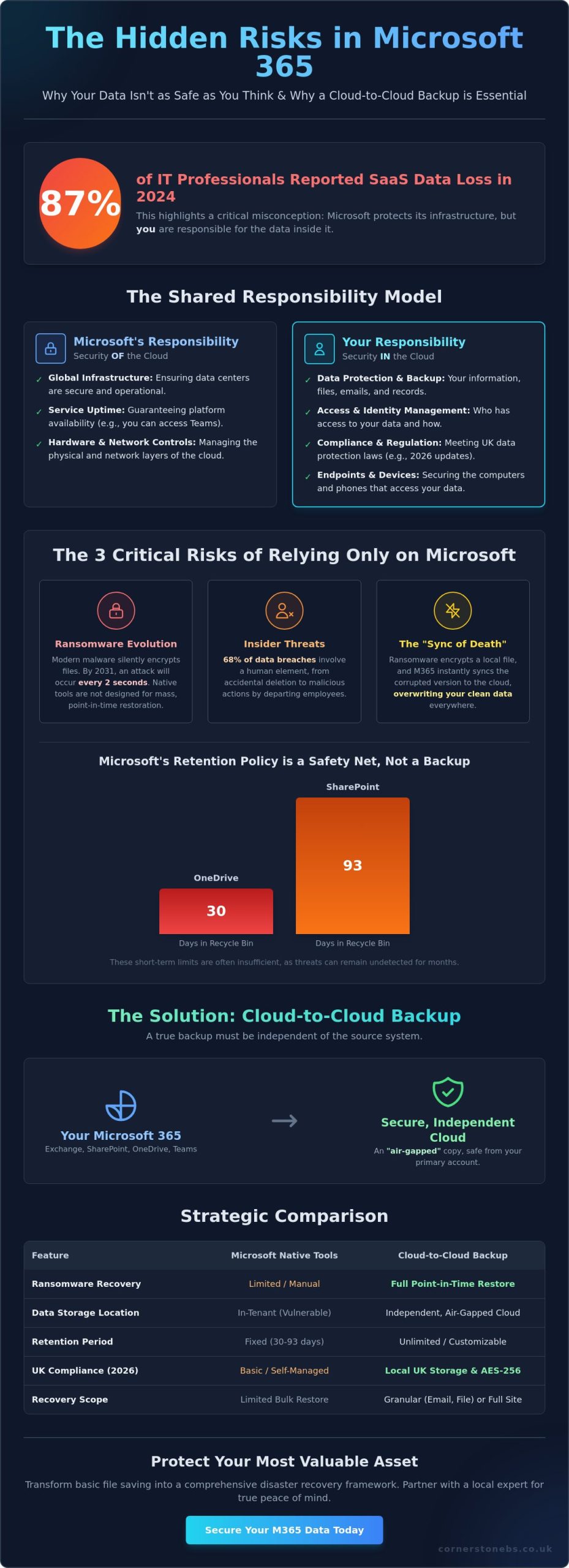
Did you know that 87% of IT professionals reported data loss within their SaaS applications in 2024? It is a startling figure that highlights a common misconception: the belief that Microsoft is solely responsible for your data. While Microsoft manages the platform infrastructure, you own the information inside it. If a ransomware attack encrypts your files or a team member accidentally deletes a critical folder, the default 93-day retention limit for SharePoint can expire before you even notice the gap. That is where a proactive cloud to cloud backup for Microsoft 365 becomes your most valuable asset.
We understand the pressure you face to stay compliant with the UK’s latest 2026 data protection updates while keeping your business resilient. It is natural to feel anxious about recovery limits, but you don’t have to face these risks alone. This guide explains exactly why third-party protection is essential for your business continuity and how to secure your Exchange and SharePoint environments. We will walk you through the Shared Responsibility Model and show you how to build a recovery plan that offers true peace of mind for your local team.
Key Takeaways
- Clarify the Shared Responsibility Model to understand exactly where Microsoft’s duties end and your data protection responsibilities begin.
- Protect your business from ransomware and internal errors by implementing a dedicated cloud to cloud backup for Microsoft 365.
- Evaluate the strategic benefits of storing backups in an independent cloud versus relying on native in-tenant retention policies.
- Stay ahead of 2026 UK compliance requirements by ensuring your sensitive data is stored locally and protected by AES-256 encryption.
- Learn how partnering with a local expert transforms basic file saving into a comprehensive disaster recovery framework for long-term stability.
The Shared Responsibility Model: Why Microsoft 365 Data Isn’t Automatically Safe
Many business owners believe that moving to the cloud solves every security headache. While it certainly simplifies your IT setup, it doesn’t remove your responsibility for the data itself. In 2026, the shared responsibility model remains the most important concept to understand. This framework clearly divides duties between you and Microsoft. They handle the “security of the cloud,” while you handle the “security in the cloud.” That is why cloud to cloud backup for Microsoft 365 is no longer optional for modern firms.
What Microsoft Guarantees (And What It Doesn’t)
Microsoft focuses heavily on uptime and service availability. They are world-class at ensuring you can log in to Outlook or Teams whenever you need to. But availability is not the same as data protection. If a file is deleted, Microsoft only holds it for a limited time. SharePoint data stays in the Recycle Bin for 93 days, while OneDrive data often disappears after just 30 days. These are short-term safety nets, not a backup strategy. If a ransomware attack strikes and stays hidden for months, those native tools won’t help you recover. They aren’t designed to combat sophisticated data encryption or malicious internal deletions.
The Definition of Cloud-to-Cloud Backup
A true backup must be independent of the source. Cloud-to-cloud backup works by taking a snapshot of your Microsoft 365 environment and mirroring it to a completely separate, secure cloud. This creates what we call an “air-gapped” copy. If your primary Microsoft account is compromised, your backup remains safe because it lives on a different platform with its own security protocols. Implementing a dedicated cloud to cloud backup for Microsoft 365 ensures your recovery points are stored independently. Cloud-to-cloud backup acts as a strategic safeguard that decouples your business data from the platform where it lives.
We see this as the foundation of business stability. By moving your recovery data to a separate environment, you gain the ability to restore individual emails or entire SharePoint sites within minutes. It’s about emotional security as much as technical necessity. Knowing your data is safe elsewhere allows you to focus on growth rather than worrying about the “sync of death” overwriting your good files with corrupted ones.
The 3 Critical Risks of Relying Solely on Native Retention
While Microsoft’s native tools offer a basic safety net, they aren’t a substitute for a true disaster recovery plan. Relying on them alone exposes your business to vulnerabilities that can lead to permanent data loss. The most dangerous scenario is the “sync of death.” This occurs when ransomware encrypts a file on a local device and Microsoft 365 instantly syncs that corrupted version to the cloud. Without a dedicated cloud to cloud backup for Microsoft 365, you risk losing your clean data forever as the encrypted files overwrite your healthy ones across the entire network.
Ransomware Evolution in 2026
Malware has become incredibly sophisticated and aggressive. By 2031, research from Invenio IT projects that a ransomware attack will occur every 2 seconds. Modern threats don’t just lock your screen; they silently encrypt your OneDrive and SharePoint libraries in the background. Native tools often struggle with mass-encryption events because they aren’t built for bulk, point-in-time restoration. You need the ability to “roll back” your entire digital environment to the exact minute before the infection took hold. This level of granularity is what separates a simple storage tool from a professional resilience strategy.
The Insider Threat: Accidental and Malicious Deletion
Human error remains a constant challenge for local businesses. According to the 2026 Verizon DBIR, 68% of data breaches involve a human element. This isn’t always a simple mistake. Sometimes, a departing employee might maliciously delete folders or purge the Recycle Bin to disrupt operations. Once those items are purged from the native bin, they are gone for good. Hunting for missing data costs your team hours of wasted productivity and unnecessary stress. A robust cloud to cloud backup for Microsoft 365 allows you to restore those assets instantly, regardless of what an individual does to the live environment.
There is also the risk of configuration errors. Many organizations forget that Entra ID (formerly Azure AD) settings and user permissions are just as vital as the files themselves. If these settings are lost or misconfigured, your entire workflow grinds to a halt. When you consider that Microsoft’s default retention for OneDrive is only 30 days, it is clear that native tools rarely meet strict UK compliance needs. Building a strong business case for data backups starts with acknowledging these functional gaps. If you are unsure where your current strategy stands, our team can help you evaluate your Managed IT Support needs to ensure your business resilience is fully up to date.
Cloud-to-Cloud Backup vs. Microsoft 365 Backup: A Strategic Comparison
Choosing between native tools and third-party solutions is a critical decision for your 2026 resilience strategy. Microsoft recently introduced its own native backup storage, which offers impressive speed for massive data sets. However, keeping your backups in the same tenant as your live data creates a single point of failure. If your entire Microsoft environment is compromised or suffers a major outage, your backups might be inaccessible right when you need them most. A dedicated cloud to cloud backup for Microsoft 365 removes this risk by storing your data in a completely independent environment.
We often talk to business owners who are surprised to learn about the “all eggs in one basket” risk. While native tools are convenient, they don’t provide the platform independence required for true disaster recovery. If the platform itself fails, you need a way to access your files from a separate location. This is where the strategic value of third-party services really shines, providing a safety net that operates entirely outside of the Microsoft ecosystem.
Native Microsoft 365 Backup: Pros and Cons
The primary advantage of Microsoft’s native solution is its integration. It lives directly within the Microsoft 365 Admin Center, making it easy for your internal IT team to manage. It is also built for speed, allowing you to recover entire site collections or large Exchange databases rapidly. But there’s a catch. Native storage is priced as a pay-as-you-go service at $0.15 per GB per month. For businesses with large archives, these costs can spiral quickly. More importantly, it doesn’t offer the air-gap protection that many compliance frameworks now require for sensitive data.
Third-Party C2C Backup: The Independent Advantage
Third-party solutions offer a different level of control. They provide much deeper granularity, allowing you to find and restore a single email or a specific version of a document without affecting the rest of the site. These services also capture vital metadata for Teams and SharePoint, ensuring that permissions and structures remain intact after a restore. Many of our clients find that cloud to cloud backup for Microsoft 365 is more cost-effective because it typically uses a flat-rate per-user model rather than charging for every gigabyte of storage.
Beyond just the files, these independent platforms often include advanced discovery tools. You can search across your entire backup history with ease, which is a massive help for legal requests or internal audits. If you are currently planning a Microsoft 365 migration for business UK, this is the perfect time to build independent backup into your new infrastructure. Decoupling your data from the platform it lives on isn’t just a technical preference; it’s a foundational element of business stability and emotional security for your team.
Choosing the Right C2C Solution for UK Compliance
Compliance is not just a box-ticking exercise; it is the backbone of your business’s legal and emotional security. For UK organisations, the regulatory landscape in 2026 has become more defined. On April 29, 2026, the ICO published updated guidance incorporating changes from the Data (Use and Access) Act 2025. These updates place a heavy emphasis on how you manage storage and access technologies. If your cloud to cloud backup for Microsoft 365 stores data in the wrong jurisdiction, you could inadvertently breach UK GDPR requirements. Choosing the right partner means ensuring your data stays within the lines of these evolving rules.
Data Sovereignty and UK Data Centres
Data sovereignty is a non-negotiable priority for local firms. You need to know exactly where your backup files live. Many global providers route data through overseas servers, which can complicate your compliance posture. Prioritising vendors with UK-based data centres ensures your information remains under the protection of UK law. This is a foundational element of our cyber security services. Beyond location, look for solutions that offer AES-256 encryption and mandatory Multi-Factor Authentication (MFA). These features act as a digital vault, keeping your sensitive business information safe from unauthorised eyes.
Evaluating Vendor Reliability and Support
A backup is only as good as its ability to restore. Automated daily backups are standard, but you should also look for on-demand snapshot capabilities for critical periods. During a data crisis, you don’t want to be stuck in a generic support queue. You need experts who understand the urgency of business continuity. We recommend performing a “Restore Drill” at least once a quarter to test your recovery speed and data integrity. This proactive approach ensures your team knows exactly what to do when the pressure is on.
Integration is the final piece of the puzzle. Your backup strategy should work in harmony with your wider managed IT services to create a seamless safety net. This ensures that if a breach occurs, your recovery is handled as a “restore-as-a-service” priority rather than a DIY technical headache. If you are ready to secure your digital assets with a partner who understands the local landscape, we invite you to contact our team for a conversation about your resilience strategy. Getting your cloud to cloud backup for Microsoft 365 right today prevents a compliance catastrophe tomorrow.
Securing Your Digital Assets with Cornerstone’s Managed Backup
Protecting your business data requires more than just a software subscription; it demands a strategy tailored to your specific operations. We don’t believe in one-size-fits-all solutions. Instead, our team builds bespoke frameworks that align with your unique risk profile and operational needs. By integrating a robust cloud to cloud backup for Microsoft 365 into your wider business continuity plan, we move you beyond simple file saving. We create a full disaster recovery framework designed to keep your business running, no matter what challenges the digital world throws your way.
Proactive care is the cornerstone of our service. While many providers wait for you to report a problem, our systems monitor your infrastructure proactively to catch potential issues. We aim to find and resolve glitches before they ever reach your desk or disrupt your team. This proactive stance ensures that your backups are always current, verified, and ready for immediate restoration. It turns a technical necessity into a foundational element of your emotional security, knowing that your digital assets are being watched over by a team that genuinely cares about your success.
Award-Winning Managed IT and Cloud Expertise
Our identity as a trusted regional expert is backed by years of industry recognition and accolades. We maintain strong partnerships with global leaders like Microsoft and Cisco, bringing world-class technology to our local community with a personal touch. Businesses across the UK trust our proactive system monitoring because we combine high-tech sophistication with a friendly, accessible face. Choosing a managed service from a dedicated partner provides the ultimate peace of mind, allowing you to focus on growth while we handle the complexities of your digital safety.
Start Your Resilience Conversation
Getting started is simpler than you might think. We begin with a tailored audit of your current Microsoft 365 environment to identify gaps in your retention policies and security settings. From there, we manage the entire migration to a professional cloud to cloud backup for Microsoft 365, ensuring zero disruption to your daily workflow. Our goal is to make your transition to a resilient infrastructure as smooth and efficient as possible. We invite you to take the first step toward total data security today. Let’s discuss your Microsoft 365 backup strategy and build a plan that protects your business for the long term.
Build Your 2026 Business Resilience Strategy
Taking ownership of your digital assets is the single most important step you can take for your organisation’s future. We have seen how the Shared Responsibility Model places the burden of data protection on your shoulders. You can’t afford to leave your data to chance. Without a dedicated cloud to cloud backup for Microsoft 365, your business remains exposed to ransomware syncs and evolving UK compliance risks. True stability comes from decoupling your data from the platform it lives on, creating a secure, air-gapped safety net for your team.
As a multi-award-winning IT provider and Microsoft Certified Partner, we pride ourselves on being a dedicated partner for local firms. Our proactive 24/7 system monitoring ensures your recovery points are always verified and ready for action. We invite you to secure your business data with a professional Microsoft 365 backup audit. It’s time to replace technical anxiety with the confidence of a professional disaster recovery framework. Let’s start a conversation today to ensure your business stays protected and resilient.
Frequently Asked Questions
Does Microsoft 365 back up my data automatically?
Microsoft does not provide a traditional point-in-time backup for your data. They focus on service availability and infrastructure resilience, ensuring the platform stays online. You are responsible for protecting the information you store within that platform. Without an external solution, data lost to user error or malicious intent can become unrecoverable once native retention windows close. This is why we recommend a proactive approach to data ownership.
How long does Microsoft keep deleted emails and files?
Retention periods depend on the specific application you are using. SharePoint and OneDrive typically keep deleted items in the Recycle Bin for 93 days before they are purged forever. Exchange Online usually holds deleted emails for 14 days by default, though this can be extended to 30 days. Once these periods expire, Microsoft cannot recover your files, making a separate recovery plan essential for long-term safety.
What is the difference between archiving and backup in Microsoft 365?
Archiving moves older data to a separate storage area within the live system, while backup creates a completely independent copy elsewhere. Archiving is great for managing mailbox quotas and keeping your workspace tidy. However, if the live environment is compromised, your archives are often at risk too. A true backup ensures your data survives even if the primary platform suffers a major failure or security breach.
Can cloud-to-cloud backup protect against ransomware?
Yes, a professional cloud to cloud backup for Microsoft 365 provides a vital layer of protection against ransomware. It stores an “air-gapped” copy of your files in a separate cloud environment that malware cannot infect. If your live data is encrypted, you can simply roll back to a clean version from a previous point in time. This allows your business to recover quickly without paying a ransom or losing weeks of work.
Does cloud-to-cloud backup include Microsoft Teams chats and files?
Yes, high-quality backup solutions protect your entire Teams environment. This includes the files shared in channels, conversation histories, and SharePoint site data associated with each team. Because Teams is a complex mix of different Microsoft services, a dedicated backup ensures all these moving parts are captured. You can restore specific chats or entire channels, keeping your collaborative projects on track even after an accidental deletion or malicious purge.
Is third-party backup a requirement for GDPR compliance?
GDPR requires organisations to have a plan for restoring access to personal data quickly after a technical incident. While the regulation doesn’t specify a brand of software, it places the responsibility for data availability on your business. Using an independent backup is the most effective way to demonstrate you have taken “appropriate technical measures” to protect sensitive information. It provides the documented recovery process that UK regulators expect to see from a responsible business.
What happens to my data if my Microsoft 365 subscription expires?
Your data is typically purged by Microsoft 90 days after a subscription is cancelled or expires. This deprovisioning process is permanent, and there is no way to retrieve files once the window closes. An independent backup allows you to keep a historical record of your business data for as long as you need. This is especially useful for meeting long-term retention requirements or managing business transitions smoothly without losing your digital legacy.
How often should cloud-to-cloud backups be performed?
We recommend performing backups at least three times every day to ensure your recovery points are as accurate as possible. Frequent snapshots reduce the amount of work your team has to redo if a restore is needed. Our cloud to cloud backup for Microsoft 365 runs automatically in the background, so you don’t have to worry about manual updates. This consistent rhythm is what builds true business resilience and emotional security for your local team.