The best brainstorming tool for a hybrid team may not be its main collaboration platform. The right choice depends on whether your team needs a shared visual space for ideas or wants brainstorming to sit alongside everyday conversations and project work. Choosing collaboration tools for hybrid teams is less about finding one app for everything and more about making the tools work smoothly together.
It makes sense to want one straightforward setup. Too many separate platforms can make discussions harder to follow, while relying on meetings for every decision can leave colleagues working at different times out of the loop. A clear mix of tools helps everyone contribute, wherever they work.
This comparison explains how different options support brainstorming, file sharing, meetings and project work. You’ll see where Microsoft Teams and Zoom fit, how file collaboration differs from task management, and what to consider when choosing tools for your team. The goal is a practical setup that suits how your people collaborate without adding unnecessary complexity.
Key Takeaways
Choose tools around how your team shares ideas, communicates and makes decisions, rather than expecting one app to do everything.
Separate everyday team conversations from task tracking so responsibilities, deadlines and progress stay clear.
Match file-sharing settings to the sensitivity of your documents, using access controls and version history to support safer collaboration.
Balance live meetings with asynchronous updates, and consider Managed IT Support or Microsoft 365 support when you need help making your setup work reliably.
Which team collaboration tools work well with Microsoft Teams and Zoom?
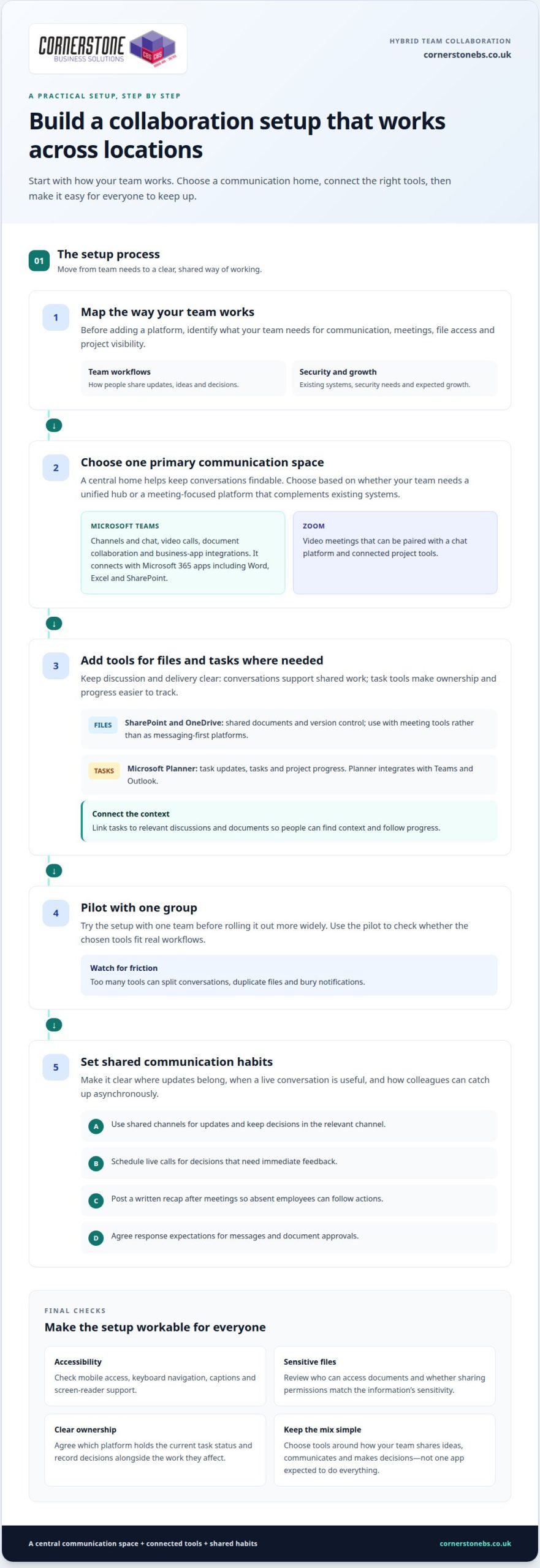
A strong setup pairs a central communication platform with tools for your team’s specific tasks. For hybrid teams, compare channel discussions, meetings, file access and project visibility before adding another app.
Channel-Based Messaging
Slack and Microsoft Teams organise conversations into channels, helping employees find updates by project or subject. Teams also brings chat, meetings, document collaboration and business-app integrations together for Microsoft 365 organisations. The best collaboration tools for hybrid teams enable people to contribute asynchronously, rather than requiring everyone to join live meetings. Set clear response expectations for messages and document approvals, then keep decisions in the relevant channel. This gives remote colleagues a useful record to follow.
Unified Communications and Video Conferencing
Microsoft Teams and Zoom support live communication, while Teams can also connect chat, files and business apps. Teams integrates with Microsoft 365 apps including Word, Excel and SharePoint; Planner integrates with Teams and Outlook. These options suit different needs: a unified hub reduces switching, while a meeting-focused platform can complement existing systems. UK subscription costs vary by plan, billing term, user count and included features. Compare current per-user pricing against the tools your team will actually use.
Microsoft Teams offers chat, video calls, file collaboration and project visibility in one environment. For video meetings, chat, file sharing and project work together, Teams can combine these functions with Microsoft 365 and Planner.
Communication Across Locations
For a team split between offices and remote work, use shared channels for updates and schedule live calls for decisions that need immediate feedback. Post a written recap after meetings so absent employees can follow actions. Before rolling out platforms, map team workflows, choose a primary communication space, pilot it with one group, then publish response protocols. Too many tools can split conversations, duplicate files and bury notifications. When assessing accessibility, check mobile access, keyboard navigation, captions and screen-reader support.
Option
Messaging
Meetings
Files and projects
Microsoft Teams
Channels and chat
Video calls
Microsoft 365, Planner
Zoom
Pair with a chat platform
Video meetings
Use connected project tools
SharePoint and OneDrive
Not messaging-first
Use with meeting tools
Shared documents and version control
Microsoft Planner
Task updates
Use with meeting tools
Tasks and project progress
Choose a platform that fits your existing systems, team workflows, security needs and expected growth.
What is the difference between team collaboration tools and project management tools?
Collaboration platforms support communication and shared work; project management tools organise delivery. The best collaboration tools for hybrid teams bring these functions together where useful, with integrations linking discussions to tasks and documents.
Collaboration Tools
Shared workspaces help employees exchange messages, develop ideas and keep documents together. Teams can use one space for brainstorming, feedback and asynchronous updates without turning every discussion into a tracked task. Knowledge management provides a lasting reference point, keeping project notes, decisions and process documents available after a conversation ends. Digital handbooks and collaborative training documents also give new starters resources they can access remotely.
Project and Task Management Tools
Project management tools focus on the work itself: tasks, owners, due dates, dependencies and milestones. A shared task board, for example, can show which design tasks await approval and who owns the next step. Unlike a chat thread, it makes responsibilities easier to track. Link tasks to relevant discussions so employees can find context and follow progress.
Workflow Visibility
Workflow views make progress and bottlenecks visible across locations. A project lead can group work by stage, such as planned, underway and awaiting review, then update each status as work moves forward. Real-time updates and notifications help colleagues see changes without relying on a meeting or direct message. Agree which platform holds the current task status, and record decisions alongside the work they affect. This keeps updates from becoming scattered during hybrid work.
A practical setup of collaboration tools for hybrid teams supports discussion and shared knowledge, then adds project management features when ownership, sequencing or progress tracking needs more structure. If integrations or day-to-day IT management are creating friction, managed IT support can help keep business systems working together.
Secure file sharing and document collaboration
For UK GDPR, assess whether files contain personal data, who can access them, and how sharing permissions and security are managed. Default settings may not protect sensitive information, so review access controls before sharing documents.
Secure File Sharing
Cloud storage lets employees access files from different locations and devices, but permissions should match each person’s role. A project team, for example, may need a shared folder, while payroll documents require narrower access. Use password protection, encryption and role-based access controls for sensitive business or customer information. These safeguards offer more control than email attachments, which can spread beyond the intended workflow.
Real-Time Document Collaboration
Real-time editing allows colleagues to work on the same document, see updates and avoid maintaining separate copies. In Microsoft 365, Word files can be shared through OneDrive or SharePoint for collaborative editing. Version control records changes and can help teams retrieve previous versions when edits need review. For a policy update, for instance, contributors can work in one shared file while reviewers track changes and resolve comments.
Collaborative Document Editing
Editing tools support comments, tracked changes and review workflows, while PDFs can preserve a layout during feedback. A team can annotate a PDF proof, then apply approved changes to the editable source document. Keep the review copy separate from the final version, and label files clearly so employees know which document is approved. This distinction helps manage training materials, procedures and client-facing documents.
Before rollout, map document types to access groups, set sharing permissions, and decide how to label updates and final versions. Link files to the relevant task management workflow so employees can find the current document and its review status. Revisit permissions when project responsibilities change, especially for folders containing personal or commercially sensitive data.
Synchronous, asynchronous, in-person and remote work
Hybrid teams need both live collaboration and ways to move work forward between meetings. Match each activity to a format that helps employees participate and keeps decisions visible.
Synchronous Work
Synchronous work happens live, through video calls, in-person sessions or virtual workshops. It suits small teams across one or two time zones when decisions need quick discussion. For brainstorming, a virtual whiteboard lets colleagues add and organise ideas together. Keep online meetings active by giving participants something to do every 10 to 15 minutes, such as adding ideas to shared boards or responding to a prompt.
Asynchronous Work
Asynchronous updates let employees contribute at different times, reducing the need to schedule every discussion. This is especially useful when synchronous collaboration is difficult across more than about four hours of time-zone spread. Rotate inconvenient meeting times, then post a written recap on the same day. Include decisions, owners and next steps so remote colleagues can act without waiting for another call.
Remote and Distributed Work
Distributed teams need reliable access to digital workspaces, project updates and onboarding materials. Virtual Desktop Infrastructure can provide remote access to employees’ work environments without storing data locally on personal devices. Project platforms, time-tracking software and automated reports can show milestones. Set clear objectives and reporting expectations to make productivity visible without constant oversight.
For remote workshops, send an agenda and board link before the session, then record decisions and actions afterwards. Use in-person time for activities that benefit from direct discussion, while digital documents and recorded guidance support onboarding between visits. This approach keeps workflows connected across locations and gives employees more than one way to contribute.
Cornerstone Business Solutions provides a whole service solution to help businesses make collaboration work reliably across office and remote environments. Its IT Support and Cloud Solutions support teams dealing with access issues, disconnected platforms or concerns about sharing files securely.
Managed IT Support can help keep the technology behind daily collaboration running smoothly. Microsoft 365 provides a foundation for shared documents and communication, while Cyber Security helps businesses protect their systems and data. The right combination depends on your existing tools, workflows and security needs.
For a joined-up approach to hybrid work, discuss how your current setup supports meetings, file access and day-to-day teamwork. Contact Cornerstone Business Solutions to talk through your collaboration needs.
Make your next collaboration decision count
Choose a setup your team can sustain, not simply the platform with the longest feature list. Start by identifying one point of friction, such as scattered updates or unclear document access. Then agree how your team will communicate, where shared work lives and how decisions are recorded. A small, deliberate change can make collaboration easier to manage as working patterns evolve.
Reliable systems underpin that progress. Cornerstone Business Solutions offers Managed IT Support, Microsoft 365 and Cyber Security to help businesses manage the technology behind their collaboration tools. The right support can help align platforms, access and security with the way your employees work.
Turn your comparison into a practical next step. Contact Cornerstone Business Solutions to discuss an approach that fits your business and helps your hybrid team work together with confidence.
Frequently Asked Questions
What is the best team collaboration tool for brainstorming?
A shared virtual whiteboard is a strong choice when a session centres on generating and grouping ideas. A product team, for example, can collect suggestions, sort them into themes and mark priorities before agreeing next steps. If brainstorming involves reviewing a document or making a decision together, use a platform that lets participants work directly with that material. Match the format to the activity, not just the meeting software.
How can remote teams ensure accountability without micromanaging?
Make outcomes, owners and deadlines visible, then review progress at agreed check-ins rather than tracking every action. For example, a team lead can define what “ready for review” means for a report and ask each owner to flag blockers in the project workspace. This gives colleagues room to organise their work while making delays easier to spot. Keep feedback focused on deliverables and the support needed.
How can remote teams manage multiple time zones effectively?
Plan shared work around each person’s working hours, and reserve live sessions for decisions that need immediate discussion. A shared calendar with time-zone displays helps avoid inviting colleagues at unsuitable times. For routine updates, use written posts with clear deadlines and named owners so work can continue while others are offline. Automated reminders for hand-offs can also reduce delays between teams.
What are the features to look for in collaboration tools?
Prioritise features that support your actual work: searchable conversations, clear task ownership, accessible file permissions and reliable mobile access. If your team handles sensitive material, include multi-factor authentication and role-based access controls in your assessment. Check how well the platform connects with existing applications and whether employees can find decisions without searching several systems. A manageable, well-adopted toolkit is more useful than overlapping features.
Why is hybrid team collaboration important?
Good collaboration helps employees in different places contribute to shared goals and understand how their work connects. It also gives people a fair way to share ideas, raise concerns and follow decisions, whether they join in person or remotely. Documenting a decision after a meeting, for example, helps colleagues who weren’t in the room understand the reasoning and act consistently.
What features help hybrid teams collaborate asynchronously across time zones?
Look for searchable, threaded discussions, clear timestamps, notification controls and shared documents that preserve context. These features let someone in another time zone read the conversation, see what changed and respond when they’re working. A hand-off note, for example, can state the completed work, the open question and the next owner. Scheduled messages and shared calendars help teams coordinate without expecting immediate replies.
The best collaboration platform may be the one your team already knows how to use. For a UK business, the Teams vs Slack choice depends less on the number of features than on how you work and which tools you already use. Teams brings chat, video calls and file sharing together with Microsoft 365, while Slack is simpler to get started with. Teams also offers more capability for video meetings and webinars.
It’s understandable to focus on messaging first, but the day-to-day difference often comes down to calls, integrations and how well each platform fits your workflows. This comparison looks at those practical differences, along with security controls, GDPR considerations and UK compliance questions that matter when business conversations and files are involved.
Use the comparison to decide which platform better suits your existing setup and working needs, rather than choosing on feature count alone. It also highlights practical trade-offs so you can make a considered decision about what to use across your business.
Key Takeaways
Choose integrations around the tools your team already uses, and consider how automation could simplify recurring work.
Compare meeting and calling needs alongside chat: Teams brings calls, video meetings and file sharing into a Microsoft 365 hub.
For sensitive conversations and files, assess access controls and retention settings as part of your security and GDPR planning.
Look at how your team organises channels, threads and everyday conversations to find the platform that best fits its working style.
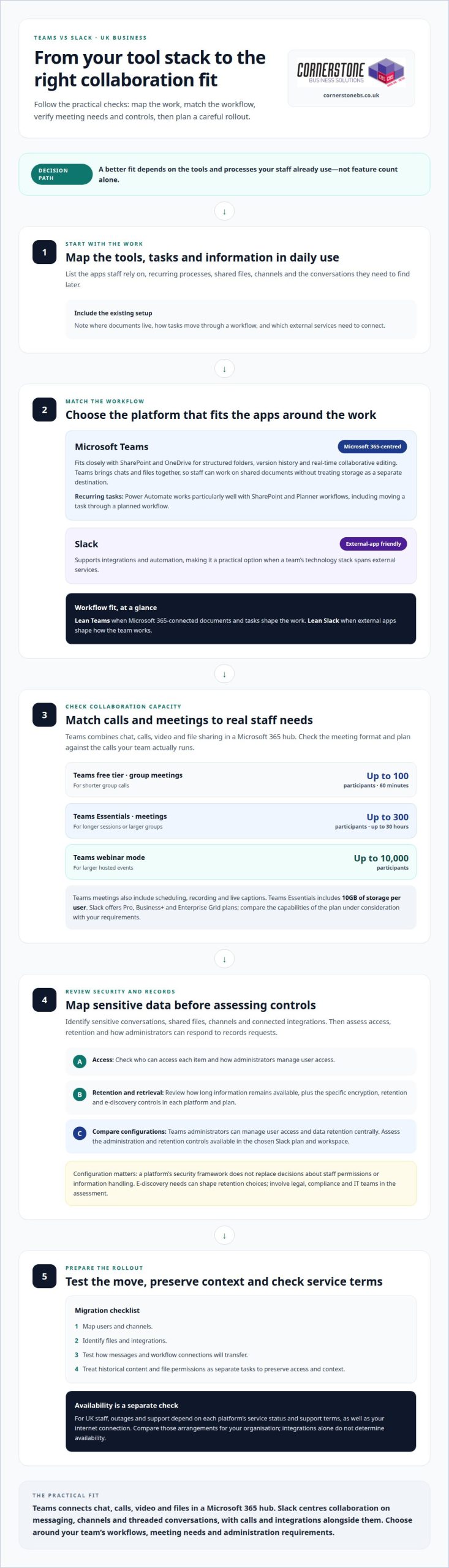
Microsoft Teams fits closely with the Microsoft ecosystem. SharePoint and OneDrive provide structured folders, version history and real-time collaborative editing, while Teams brings chats and files together. Staff can work on shared documents without treating storage as a separate destination.
For recurring tasks, Power Automate works particularly well with SharePoint and Planner workflows. For example, a team can automate the movement of a task through a planned workflow. Slack also supports integrations and automation, making it a practical option for teams whose technology stack spans external services. The better fit depends on the apps and processes staff use each day.
Microsoft Teams Essentials includes 10GB of storage per user and supports meetings up to 30 hours with 300 participants. Slack pricing depends on the selected plan and billing arrangement.
Platform
Integration approach
Workflow fit
Storage and plans
Microsoft Teams
SharePoint, OneDrive and Power Automate
Microsoft 365-centred workflows
Essentials includes 10GB per user
Slack
External apps and integrations
Workflows across a varied technology stack
Plan-based pricing
Choose Microsoft Teams for Microsoft 365-connected document and task workflows; favour Slack when external apps shape how your team works.
For UK staff, outages and support depend on each platform’s service status and support terms, as well as your internet connection. Compare these arrangements for your organisation rather than assuming your choice of integrations determines availability.
Teams Essentials includes 10GB of storage per user and meetings up to 30 hours with 300 participants. Business Basic and Business Standard are Microsoft 365 plans; Teams combines chat, calls, video and file sharing in a Microsoft 365 hub.
Moving from Slack to Teams, or vice versa, involves more than creating accounts. Map users and channels, identify files and integrations, then test how messages and workflow connections will transfer. Treat historical content and file permissions as separate migration tasks, since teams may need to preserve access and context.
Voice, text and video communication features
Microsoft Teams combines chat, calls, video and file sharing in one Microsoft 365 hub. Slack centres collaboration on messaging, channels and threaded conversations, with calls and integrations alongside them. Both support everyday team communication, but Teams connects conversations directly with Microsoft 365 files. Staff can discuss a shared Word, Excel or PowerPoint file while working on it together. A Teams vs Slack for UK business comparison should consider how that fits existing work.
Meeting size can shape the choice. Teams video meetings support up to 300 participants, while webinar mode supports up to 10,000. Meetings also include scheduling, recording and live captions. These options suit businesses that run larger briefings or structured online events through Microsoft software. Slack may better suit teams focused on channel-based discussion and connected external tools, rather than larger hosted events.
For smaller calls, the Teams free tier supports group meetings of up to 100 participants for 60 minutes. Teams Essentials supports up to 300 participants for up to 30 hours. Match the plan to the call: a brief team check-in differs from a full-day session with external attendees. In a Teams vs Slack for UK business decision, consider the meetings your staff actually need to run.
Slack offers Pro, Business+ and Enterprise Grid plans, with features tailored to different organisational needs. Compare the collaboration and administration capabilities of the plan you’re considering with your requirements. Plan names alone won’t tell you whether a setup suits external calls, group discussions or file sharing.
Map a typical working day: a quick message, a project discussion, then a customer meeting. Check whether staff can find the related conversation, call and shared documents without switching between disconnected tools. Teams suits workflows centred on Microsoft 365; Slack offers a channel-led approach that can connect external software.
If phone systems also shape staff communication, explore business VoIP options as part of your collaboration planning.
Security, GDPR and UK compliance considerations
For UK organisations, start the security comparison by mapping the data in each workspace. Identify sensitive conversations, shared files, channels and connected integrations before choosing a collaboration tool. Then assess who can access each item, how long it remains available and how administrators can respond to records requests.
Microsoft Teams administrators can manage user access and data retention centrally. They can also monitor access to the service, which can support GDPR compliance work. Assess Slack against the administration and retention controls available in your chosen plan and workspace. In both platforms, configuration matters: a tool’s security framework does not replace decisions about staff permissions or information handling.
For encryption, retention and e-discovery, compare the specific controls available to administrators in each platform and plan. Teams provides central access and retention controls; assess whether your chosen Slack configuration meets your organisation’s record-keeping and retrieval needs. E-discovery requirements can shape retention choices, so involve legal, compliance and IT teams in the assessment.
Data residency also needs a careful, practical review. Identify where collaboration data is stored and processed, including files shared through external integrations. Review each platform’s relevant service terms and administrative settings, then document how they align with your organisation’s UK data-handling requirements. Don’t assume that choosing a UK business plan means every type of data stays in the UK.
Apply the same security baseline whichever platform you choose. Use multi-factor authentication, restrict access to approved users and review permissions when roles change. For example, remove access when a contractor leaves and limit a project channel to its intended participants. Check retention settings against business record needs, and make sure integrations don’t expose files beyond their intended audience.
Microsoft’s enterprise-grade security and compliance framework may suit organisations with more complex requirements. The deciding factors are your data’s sensitivity, retention requirements, access oversight and evidence needs. A structured review of these controls helps your team use either platform more deliberately.
Messaging, channels and threaded replies
Teams and Slack both organise conversations around direct messages and channels. Their interface choices affect how staff connect, find context and share information.
Messaging and Threaded Replies
In Microsoft Teams, staff can message individuals or post in channels, keeping project discussions alongside related work. Slack also combines direct messages with channels, and threaded replies let people respond to a particular message without adding every detail to the main conversation. For example, a team can keep a question about a shared document attached to its original post instead of scattering replies across the channel.
User and Channel Organisation
Teams groups channels within teams, which can represent departments, projects or client work. Slack organises conversations in workspaces and channels, offering a channel-based structure for topics and groups. Administrators can manage user access centrally in Teams. In either platform, set clear naming conventions, assign membership according to people’s work and review access when someone changes role.
Structure matters more as channels grow. A channel called “Project Updates” gives staff a clearer destination than using one broad discussion for every task. Keep announcements separate from questions, and use threads for replies to a specific post. These habits make the interface easier to scan and help new colleagues find the right conversation.
Consider where documents already live. Microsoft 365-centred teams may prefer conversations organised around their Teams and channels. Teams working across tools such as Google Docs should decide how to keep links and decisions easy to find. In both cases, agree which channel holds the current discussion and where the final shared document belongs.
Before changing platforms, map key users, groups and active channels. Remove redundant spaces, assign owners to important conversations, then communicate the new naming and posting conventions. This gives staff a clear route to the right discussion and reduces confusion during the change.
If channel access, user setup or day-to-day platform management needs attention, get help with managed IT support to organise collaboration around how your team works.
Cornerstone Business Solutions
Cornerstone Business Solutions can help you connect your collaboration platform choice with the wider needs of your business. If you’re weighing Teams against Slack, consider how each fits your existing Microsoft 365 setup, user access requirements and security priorities.
Turn to the team when platform decisions raise wider IT questions, such as managing accounts, supporting staff or strengthening cyber security. Managed IT Support, Microsoft 365 and Cyber Security can help address those foundations, while Business Mobile and Business VoIP support other parts of workplace communication.
For businesses that need a joined-up view of their technology, an approachable conversation can clarify the next steps. Contact Cornerstone Business Solutions to discuss your requirements.
Make your collaboration choice work long term
Choosing between Teams and Slack for a UK business also means deciding how you’ll support staff, manage change and protect working information over time. Focus on the platform your people can use consistently and on processes that keep access, communication and support well organised.
Cornerstone Business Solutions can help connect that decision with your wider IT requirements. Its Managed IT Support helps businesses manage their IT environment, while Microsoft 365 and Cyber Security address important parts of the platform and protection picture. The aim is a practical fit for your organisation, not extra complexity for its own sake.
If you’re ready to talk through your setup and next steps, contact Cornerstone Business Solutions. A clear plan can help your team move forward with confidence and make collaboration easier to manage.
Frequently Asked Questions
What Is Microsoft Teams?
Microsoft Teams is a collaboration platform for workplace conversations and meetings. Staff can organise work into teams and channels, separating a department’s updates from a specific project discussion. For example, a finance team could use one space for routine coordination and a project channel for a system change. This structure gives colleagues a shared place to follow decisions and find relevant conversations.
Which is best for calls with clients and external people?
Microsoft Teams is well suited to scheduled client calls, particularly when a meeting needs a clear agenda or several external attendees. Send a calendar invitation with joining details, then agree who will present and where follow-up documents will be shared. Slack can suit quick conversations when participants already use it. The better fit depends on whether your client meetings are structured events or informal discussions.
How do Teams and Slack integrate with Microsoft 365, Google Workspace and other business apps?
Teams has a close connection with Microsoft 365, including SharePoint and OneDrive for shared files. Slack can connect conversations with external business apps, while either platform’s practical fit depends on your existing tools. For Google Workspace, map where staff create documents, manage calendars and store files, then assess which supported integrations preserve that workflow. Test an everyday task, such as sharing a document and notifying its owners.
What are the latest UK prices for Microsoft Teams and Slack business plans?
Slack pricing varies by plan and billing arrangement.
What if the “free” version of your business communication tool is actually costing you more in lost time than a premium subscription? Many UK business owners ask us, is microsoft teams free, hoping to streamline their operations without adding to the monthly overhead. It’s a sensible question, especially when you’re balancing growth with the reality of UK inflation rates that have fluctuated around 2% to 4% over the last few years. You want tools that work hard, stay secure, and don’t let you down when a client is on the line.
At Cornerstone, our award-winning team believes in giving you total peace of mind through clarity. We’ll show you the 60 minute meeting limits and the 5GB storage caps that often catch growing firms by surprise. This guide breaks down the real world differences between the free and paid tiers to ensure your data stays GDPR compliant and your meetings never cut out early. We provide a clear roadmap for scaling your collaboration tools so you can focus on running your business with confidence.
Key Takeaways
Distinguish between the basic free version and Microsoft 365 subscriptions to ensure your team has the right tools for long-term growth.
Learn why the answer to “is microsoft teams free” depends on your specific requirements, particularly regarding the 60-minute meeting cap and participant limits.
Explore how professional branding and seamless client interactions are often compromised by the technical limitations of using personal Microsoft accounts for business.
Identify the best-value Microsoft 365 plans for UK firms, including Teams Essentials, to provide your remote team with a robust and reliable platform.
Discover how partnering with an award-winning managed IT provider ensures your communication systems remain secure, updated, and tailored to your business needs.
The Short Answer: Is Microsoft Teams Really Free?
The straightforward answer is yes. Microsoft provides a free version of its communication platform, but there’s a significant catch for growing businesses. While is microsoft teams free is a common search query for UK start-ups looking to save on overheads, the “free” tag typically applies to personal use or very small community groups. For a professional North East business, the free version acts more like a limited-feature entry point than a long-term solution.
Our award-winning team at Cornerstone Business Solutions often speaks with local business owners who feel restricted by these basic features. We focus on providing peace of mind through technology that actually works for you. Using a free tool might save a few pounds today, but it often creates a bottleneck that slows down your entire team tomorrow. When your staff can’t collaborate effectively, those “free” savings vanish through lost billable hours.
The Two Versions of Microsoft Teams
Microsoft currently maintains two distinct paths for users. The first is Microsoft Teams (free), which is best suited for personal chats, family organising, or small community groups. The second is the version included with Microsoft 365 Business subscriptions, designed for professional environments. Since its official launch in March 2017, Microsoft Teams has evolved into a robust hub for teamwork, but the free tier remains highly restricted.
Microsoft Teams (free): Includes basic video calling and file sharing with a strict 60-minute limit on group meetings.
Microsoft Teams for Business: Offers seamless integration with Word, Excel, and Outlook, alongside advanced security and much larger storage capacities.
Who is the Free Version Actually For?
The free version works well for solopreneurs or freelancers who only need to jump on a quick call with a single client. If you’re a one-person operation in Teesside, it might be all you need to get started. However, we don’t recommend it for any company with more than 5 employees. Managing a growing team requires centralised control and proactive security that the free version simply doesn’t provide.
Professionalism is another major factor to consider. The free version doesn’t allow you to use your own professional @company domain for your account. In the competitive UK market, sending an invite from a generic address can undermine your credibility. Clients expect to see a tailored, professional presence. If you’ve been asking is microsoft teams free for your new venture, it’s vital to look at the hidden costs of reduced brand trust. Investing in a proper subscription ensures your brand looks established and trustworthy from the very first interaction.
Understanding the Limits: Free vs. Paid Versions
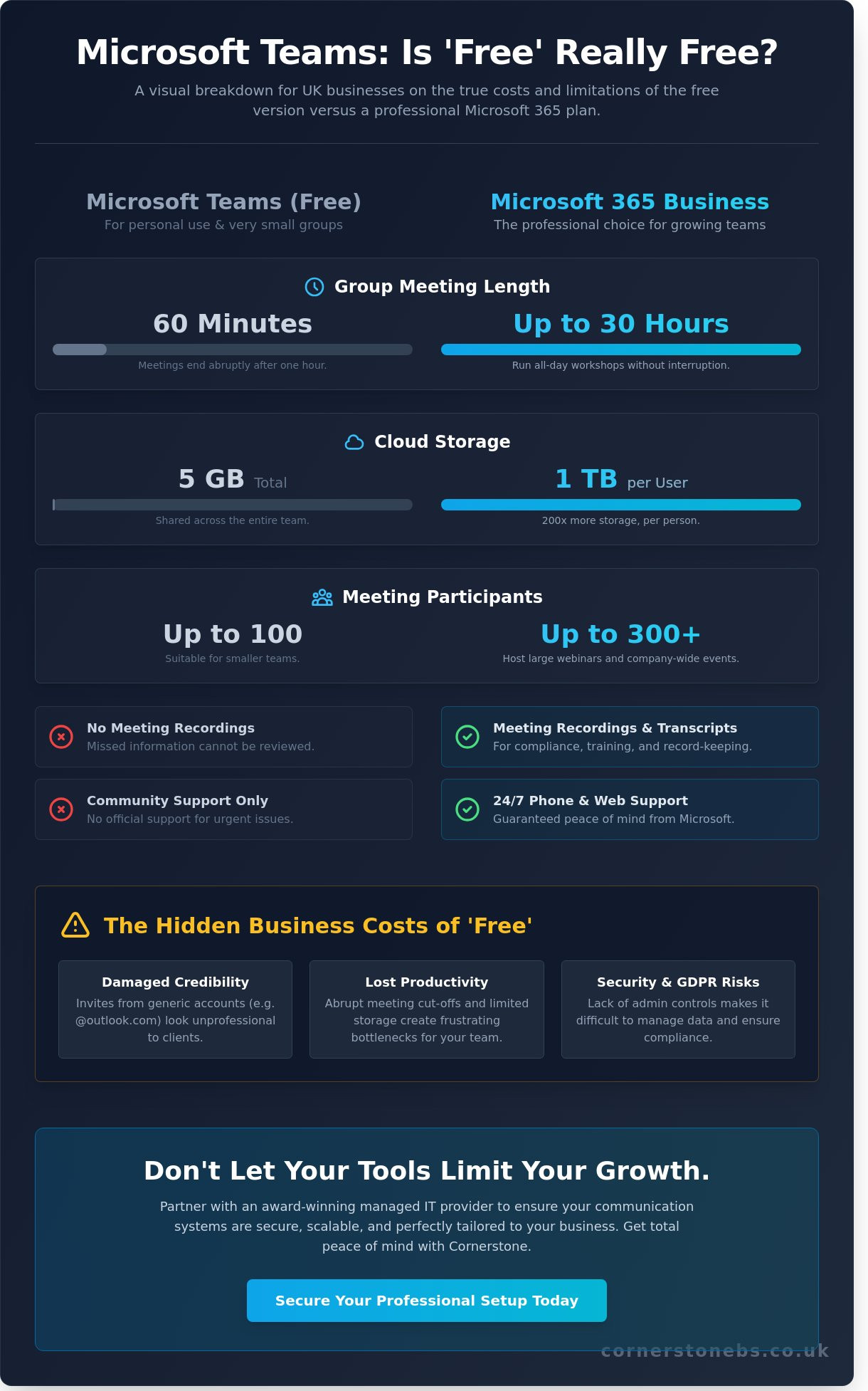
While the question “is microsoft teams free” has a simple “yes” for basic users, the reality for a professional UK business is more complex. The free tier serves as a useful entry point, but it lacks the heavy-lifting capabilities needed for seamless growth. Our award-winning team often sees local firms struggle when they hit the 60-minute meeting limit mid-presentation. In contrast, paid versions allow meetings to run for up to 30 hours. This ensures your project catch-ups never get cut short during a critical discussion.
Storage capacity is another area where the versions diverge sharply. Free users get 5GB of cloud space. This might sound adequate initially, but it quickly fills up with shared documents and chat history. Paid plans provide a massive 1TB per user. This 200-fold increase offers genuine peace of mind for businesses handling large volumes of data. When you consider that a paid plan also includes meeting recordings, the value for compliance and training becomes clear. Without these recordings, your business misses a vital tool for keeping accurate records of client agreements.
Feature Comparison Table
Feature
Free Version
Paid Business Plans
Meeting Length
Up to 60 Minutes
Up to 30 Hours
Participant Capacity
100 People
300 to 1,000+ People
Cloud Storage
5GB Total
1TB per User
Technical Support
Community Forums Only
24/7 Phone and Web Support
Meeting Recordings
Not Available
Included with Transcription
Administrative and Security Controls
Managing a team effectively requires oversight that the free version simply cannot provide. It lacks a centralized admin console, meaning you can’t easily manage user permissions or security policies from a single dashboard. If a staff member leaves your company or a laptop is left on a train to London, you need the ability to protect your company data immediately. Paid subscriptions allow IT administrators to wipe data remotely and enforce strict access rules. For a technical breakdown of these gaps, this in-depth analysis of the differences highlights why the free version can sometimes cost you more in lost productivity and risk.
Security is a cornerstone of any robust North East business. We always recommend following a Microsoft MFA guide to ensure your logins stay secure. The paid version of Teams integrates these security layers far more effectively than the free alternative. It allows for advanced identity management that keeps your intellectual property safe. If you’re feeling restricted by the basic version, we’re always happy to have a quick chat about how a tailored Microsoft 365 setup can support your long-term goals.
The Business Case: Why “Free” Might Cost You More
Many North East business owners ask our team: is microsoft teams free for my company? While the initial price tag of zero is tempting, the hidden costs often outweigh the savings. You might think your team only needs basic video calls, but relying on a limited tool creates friction. Free versions restrict your cloud storage to just 5GB per user. Compare that to the 1TB available in the award-winning Microsoft 365 Business Basic or Standard tiers. This massive gap leads to fragmented file sharing. Staff often resort to personal Dropbox or WeTransfer accounts to move large files, which creates a messy digital footprint that slows down your daily operations. Efficiency drops when your people spend 20 minutes searching for a document hidden in a personal chat instead of a centralised hub.
Security and GDPR Compliance
Data security is a foundational element of business peace of mind. The free version of Teams doesn’t offer the robust protection required by modern UK regulations. Paid tiers allow for UK data residency, ensuring your sensitive information stays within British borders to satisfy GDPR requirements. You also miss out on “Legal Hold” and eDiscovery features. These are vital if your business ever faces a legal dispute or a formal subject access request. Without these tools, your team might inadvertently delete crucial evidence. Using personal accounts also fuels “Shadow IT” problems. This happens when company data lives on apps you don’t manage, leaving your business vulnerable to 80% of common cyber threats that target unmanaged accounts. Our proactive approach ensures your data remains under your control at all times.
Professionalism and Client Perception
First impressions define your success in the UK market. There’s a distinct lack of professionalism when a high-stakes client meeting abruptly ends because of the 60-minute free limit. It’s awkward and kills your sales momentum. If you’re still wondering is microsoft teams free enough for your needs, consider the value of trust. Using a custom email domain instead of a generic @outlook.com address builds immediate credibility with your partners. Our clients find that integrated calendars and Outlook synchronisation save them roughly 15 hours of admin per month across a small team. This seamless flow ensures you never double-book a consultation or miss a follow-up. A paid license isn’t just a technical necessity. It’s an investment in a proactive way of working that impresses your clients and protects your bottom line.
Choosing the Right Microsoft 365 Plan for Your Business
Finding the right balance between cost and capability is vital for any North East firm. While many start by asking is microsoft teams free for their specific setup, they quickly find that business growth demands more than the basic version offers. We help our partners select plans that scale alongside their headcount without wasting budget on unused features.
Microsoft Teams Essentials serves as a solid middle ground for small firms. For approximately £3.30 per user per month, you get 30-hour meeting limits and 300 participants. It’s a massive jump from the 60-minute cap on the free tier. If your team needs more storage, Microsoft 365 Business Basic is often the best value at around £4.90 per user. It provides 1TB of cloud storage and professional email hosting. For those who prefer the traditional desktop versions of Word and Excel, Business Standard is the gold standard at roughly £10.30 per user. It keeps your team productive regardless of their internet connection. If you’re unsure which tier suits your organisation, our Microsoft license guide for UK businesses provides a definitive breakdown of every plan available in 2026.
When to Upgrade from Free to Paid
You’ll know it’s time to move on when storage warnings start appearing or your 60-minute meetings get cut off mid-sentence. These interruptions hurt your professional image. While the answer to is microsoft teams free is technically yes for individuals, the commercial limitations often stall momentum. Upgrading allows you to consolidate your tech stack into one robust cloud solution. This reduces the number of separate subscriptions you manage. Our award-winning team ensures the transition is a seamless Microsoft 365 migration for business UK rather than a “start from scratch” headache. We protect your existing chats and files throughout the process.
Licensing Simplified for UK SMEs
Many businesses fall into a licence trap by paying for features they never touch. We’ve seen firms waste up to 30% of their IT budget on redundant software seats. A proactive audit from a managed service provider identifies these gaps immediately. We recommend flexible monthly billing over rigid annual contracts for our local clients. This approach lets you add or remove users as your project load changes. It provides peace of mind that your overheads always match your current team size. You don’t want to be locked into a three-year deal for a seat that is no longer occupied. Working with the right IT suppliers ensures your licensing strategy is built around your actual business needs rather than a vendor’s sales targets.
Maximising Microsoft Teams with Managed IT Support
Choosing the right software is a great start, but true efficiency comes from expert management. As an award-winning partner for Microsoft 365, Cornerstone Business Solutions transforms how you use these tools. We don’t just set up an account and leave you to it; we act as your proactive technology partner. While the question is microsoft teams free often leads businesses to explore the basic version, professional management ensures you get the most out of whichever tier you choose. When you ask is microsoft teams free, you’re usually looking for value, and our managed support provides exactly that by significantly reducing downtime.
Our team provides a robust layer of security that basic setups often lack. We monitor your systems 24/7 to prevent breaches. In 2024, the average cost of a cyber breach for a UK small business reached approximately £1,200, making proactive protection a financial necessity. We ensure your Teams environment is always updated with the latest patches and security protocols. If your staff encounter audio or visual glitches during a critical client pitch, our dedicated helpdesk is ready to troubleshoot. We solve 95% of support tickets remotely, getting your team back to work without the frustration of technical delays.
Tailored Technology Solutions
Get Started with a Professional Consultation
It’s time to stop worrying about tech hurdles and start focusing on your vision. We’d love to have a chat about your current IT setup and show you what’s possible with the right support. Investing in an award-winning managed IT service is about more than just fixing bugs; it’s about gaining genuine peace of mind. We take the weight of IT management off your shoulders, allowing you to reap the rewards of a secure, professional digital workplace. Book your free IT audit with Cornerstone Business Solutions today!
Take Control of Your Business Communication Today
Choosing the right platform is about more than just avoiding costs. While the question is microsoft teams free remains a popular starting point, the reality for UK businesses in 2026 is that the free version’s 60-minute meeting cap and limited storage can stall productivity. Moving to a professional Microsoft 365 plan unlocks 1TB of secure cloud storage and robust administrative controls that protect your data. It’s the difference between just getting by and truly scaling your operations. When you’re ready to make that move, following a proven Microsoft 365 migration for business UK strategy ensures your team stays productive and your data remains secure throughout the transition.
Cornerstone Business Solutions is here to simplify that transition. As a multi-award-winning IT provider and Microsoft Gold Partner, we’ve spent years helping North East companies find their perfect technical fit. Our proactive UK-based helpdesk support ensures you’re never left waiting for answers. We focus on the technical details so you can focus on leading your team with total confidence. Let’s have a chat about your goals and get your infrastructure ready for the future.
Your business deserves a partner that cares as much about your success as you do. We’re ready to help you thrive.
Frequently Asked Questions
Is there a free version of Microsoft Teams for businesses?
Yes, Microsoft offers a free version of Teams specifically designed for small businesses and individuals. This version provides essential tools like one-on-one and group video calls, 5GB of cloud storage per user, and unlimited chat messages. It’s an excellent way for North East startups to start collaborating without an initial financial commitment.
What are the main limitations of the free version of Teams?
The free version limits group meetings to a maximum of 60 minutes and caps participant numbers at 100 people. You also miss out on advanced features like meeting recordings, transcripts, and integration with the full suite of Microsoft 365 desktop apps. When considering is microsoft teams free enough for your firm, these time limits often become a hurdle for growing teams.
Can I use my own company email address with the free version of Teams?
You can sign up for the free version using any professional or personal email address. This allows you to keep your business identity consistent when communicating with clients or partners. It’s important to remember that using your email for the free app doesn’t grant you a hosted business mailbox, which requires a paid Microsoft 365 subscription.
How much does the cheapest paid version of Microsoft Teams cost in 2026?
Microsoft Teams Essentials currently costs £3.30 per user each month, excluding VAT. While Microsoft occasionally adjusts their global pricing, this has remained the entry-level benchmark for businesses needing more than the free version. Our award-winning team helps local businesses navigate these plans to ensure you only pay for the features you actually need to stay productive.
Will I lose my data if I upgrade from the free version to a paid plan?
You won’t lose any data during the transition from a free account to a paid subscription. All your existing chats, shared files, and channel structures move across to the new plan automatically. We focus on making these upgrades seamless for our partners, providing peace of mind that your digital assets remain safe and accessible throughout the process.
Does the free version of Teams include technical support?
The free version doesn’t include direct technical support from Microsoft, leaving users to rely on community forums and online help articles. Paid subscriptions provide 24/7 phone and web support for any technical issues that arise. For many of our North East clients, having a dedicated partner for proactive IT support is what truly ensures business continuity.
Is the free version of Microsoft Teams GDPR compliant for UK businesses?
Microsoft Teams (free) meets standard UK GDPR requirements, but it lacks the granular security controls found in the business editions. Paid versions offer advanced auditing, eDiscovery, and data retention policies that make compliance much simpler for regulated industries. We help firms implement these robust security features to protect sensitive information and maintain local regulatory standards.
Can I record meetings in the free version of Microsoft Teams?
Meeting recording is a premium feature and isn’t available in the free version of Microsoft Teams. You’ll need to upgrade to at least the Teams Essentials plan to record, save, and share your video meetings. This functionality is often essential for businesses that need to document project briefings or provide training materials for staff who missed the live session.