

Your IT team shouldn’t have to touch a new laptop to get it ready for a new hire. For many local businesses, the traditional imaging process is a hidden drain on productivity. It involves high shipping costs to bring devices to headquarters and hours of manual software installation. You’ve likely felt the frustration of a new starter waiting around because their device wasn’t configured correctly or didn’t arrive on time. It’s a clunky way to work in a world that demands speed and reliability.
We believe technology should empower your growth, not slow it down. By setting up Microsoft Autopilot, you can transform your hardware deployment into a seamless, zero-touch cloud process that works from anywhere. This complete 2026 guide will show you how to reduce IT overhead and ensure every employee enjoys a perfect “day one” experience. We’ll walk through the latest Windows 11 26H1 requirements, the new Device Preparation method, and how to navigate the July 2026 licensing changes. You’ll gain a clear roadmap to a more efficient, cloud-native future for your business infrastructure.
Key Takeaways
- Eliminate the manual burden of imaging by transitioning to a zero-touch, cloud-native deployment strategy.
- Identify the essential Microsoft 365 licensing and Entra ID configurations you need to have in place before you begin.
- Follow a clear, step-by-step process for setting up Microsoft Autopilot that includes hardware registration and custom profile creation.
- Get practical solutions for common enrollment errors and network bottlenecks to ensure a smooth setup for every remote worker.
- See how professional IT support simplifies the logistics of hardware lifecycle management as your business grows.
Understanding Microsoft Autopilot and the Zero-Touch Revolution
Microsoft Autopilot isn’t just another IT tool; it represents a fundamental shift in how we handle business hardware. Traditionally, IT teams spent days “imaging” laptops. They would wipe the factory software and manually install a custom build. Windows Autopilot changes this entirely by using the cloud to configure the device that’s already in the box. When you’re setting up Microsoft Autopilot, you’re moving away from manual labor toward a dynamic, automated system. It turns a generic laptop into a secure, business-ready workstation in minutes. This process is proactive and designed for the speed of modern commerce.
The Death of Traditional Device Imaging
Maintaining “Golden Images” or WIM files used to be a full-time job. IT managers had to capture a perfect snapshot of a system and force it onto every new machine. This worked when every laptop was the same model, but today’s hardware fleets are diverse. Driver compatibility issues often break these static images, leading to blue screens and wasted hours. Autopilot kills this cycle. It leaves the OEM-installed Windows version intact and simply layers your apps, settings, and security policies on top. It’s cleaner, faster, and far more resilient for your team.
The Zero-Touch Deployment Concept
The “zero-touch” dream is now a reality for businesses across our region. Imagine ordering a laptop from a vendor and having it shipped directly to a new hire’s home. They open the lid, connect to Wi-Fi, and sign in. The cloud takes over from there. It automatically installs Microsoft 365, applies your Cyber Security protocols, and configures your Network Infrastructure access. There’s no need for the device to ever visit your office first. This removes the “middleman” of the IT department for basic setup tasks. It’s the gold standard for hybrid teams because it ensures every device is consistent, regardless of where it’s unboxed.
By 2026, the transition to Windows 11 is largely complete for most professional organizations. With the 2025 end-of-life for older systems now in the rearview mirror, the focus has shifted to modern management. Setting up Microsoft Autopilot is the final piece of that modernization puzzle. It reduces shipping costs by eliminating “double-handling” and ensures your team stays productive from their very first hour on the job. We see this as a foundational element of business stability and emotional security for your employees. They get a premium “day one” experience, and you get the peace of mind that their device is secure and ready for work.
Essential Prerequisites: What You Need Before Setting Up Autopilot
Before you begin setting up Microsoft Autopilot, you need to ensure your digital foundation is rock solid. It’s incredibly frustrating to start a deployment only to hit a licensing wall or a network block halfway through. We focus on getting these details right from the start to ensure your transition to modern management is predictable and stress-free. Think of this as the “site prep” before you build your new cloud-native office. It’s about creating a stable environment where your technology works for you, not the other way around.
Navigating the Microsoft Licensing Maze
Microsoft offers several paths to unlock Autopilot, but they aren’t all created equal for small and medium enterprises. While Enterprise E3 and E5 plans are robust, Microsoft 365 Business Premium is often the most cost-effective choice for our regional partners. It bundles Intune, Entra ID P1, and advanced security features into one cohesive package. You should also be aware that several Microsoft 365 plans, including Enterprise E5, are scheduled for a 9% price increase effective July 1, 2026. To use Autopilot in 2026, you must have a subscription that includes both Microsoft Intune and Microsoft Entra ID P1. You can find the full list of Autopilot software and licensing requirements on the official documentation site to double-check your specific tenant.
Configuring Your Entra ID and Intune Environment
Your identity provider is the brain of the operation. Microsoft Entra ID handles the device identity while Intune acts as the engine that pushes your apps and policies. You’ll need to set your MDM user scope to “All” or a specific group within the Intune portal to allow devices to enroll automatically. This ensures that when a user signs in for the first time, the system recognizes them and triggers the deployment profile. If you’re feeling overwhelmed by these backend configurations, our team specializes in tailored cloud solutions that take the complexity out of the process.
Network stability and hardware compatibility are your final hurdles. Your firewall must allow traffic to Microsoft’s deployment endpoints; otherwise, the process will stall during the initial handshake. Finally, ensure your hardware is running a professional version of Windows 11, such as Pro, Enterprise, or Education. Home editions don’t support the management features required for a true zero-touch experience. Getting these prerequisites in order provides the emotional security of knowing your systems are built on a firm foundation. If you’d like an expert eye to review your current environment, we’re always here for a friendly conversation about your IT strategy.
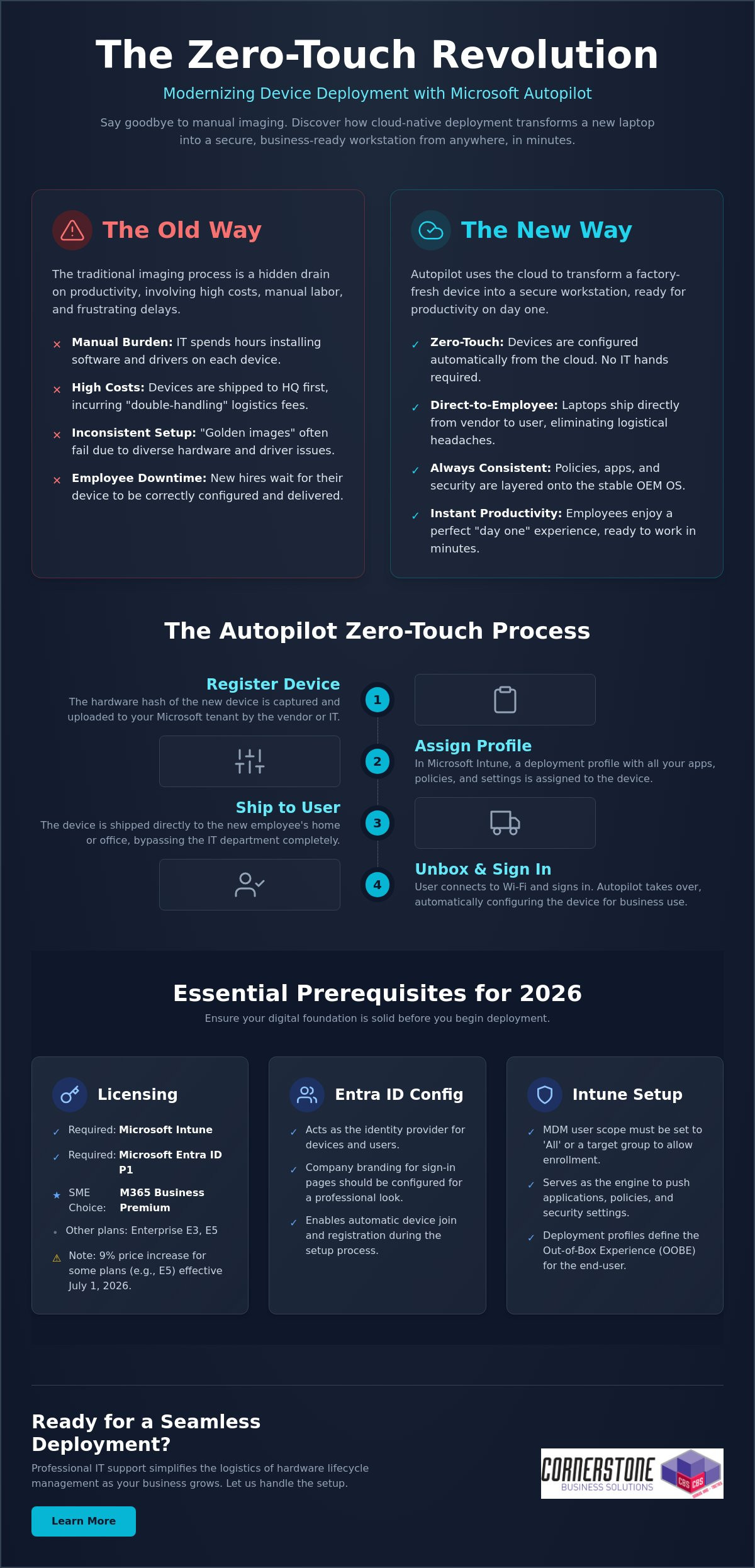
Step-by-Step: Setting Up Microsoft Autopilot for Your Business
The journey from a boxed laptop to a fully configured workstation follows a specific, logical path. When you’re setting up Microsoft Autopilot, clarity is your best friend. By breaking the process into manageable steps, you ensure that no security policy or application is left behind. We often help local firms bridge the gap between technical theory and practical implementation, ensuring their IT systems are as reliable as a firm handshake. Follow this structured workflow to get your deployment off the ground:
- Step 1: Gathering and uploading device Hardware Hashes. This is the unique digital fingerprint for every laptop.
- Step 2: Creating and assigning Autopilot Deployment Profiles. These profiles define exactly how the device behaves when it’s first turned on.
- Step 3: Configuring the Enrollment Status Page (ESP). This provides a visual progress bar for the user while apps and policies install.
- Step 4: Assigning devices to specific user groups. Use Entra ID groups to ensure the right people get the right software.
- Step 5: Testing the deployment with a “pilot” device. Never roll out to the whole team without a successful dry run.
Creating Your First Deployment Profile
Your deployment profile is the blueprint for the user experience. For most professional environments, “User-driven” mode is the standard choice. It allows the employee to sign in with their own credentials while the system handles the rest. If you’re configuring shared kiosks or digital signage, “Self-deploying” mode is better. You can use these profiles to hide tedious Out-of-Box Experience (OOBE) steps like privacy settings and EULAs. You can even automate device naming conventions, such as “UK-LAPTOP-%SERIAL%”, to keep your inventory organized without manual data entry.
Managing Hardware Hashes and OEM Partnerships
The “Hardware Hash” is often the biggest hurdle for IT managers. For devices you already own, you can use a PowerShell script, specifically Get-WindowsAutopilotInfo, to extract this data into a CSV file for upload. However, the most efficient way to manage this is through an OEM partnership. Major vendors like Dell, HP, and Lenovo can upload hashes directly to your tenant when you purchase new IT Hardware. Once a device shows as “Autopilot Registered” in your Intune portal, it’s officially linked to your organization. This proactive approach eliminates manual registration and ensures that even if a device is wiped, it will always return to your business’s control. It provides a level of emotional security that traditional imaging simply cannot match.
Testing is the final, vital piece of the puzzle. Grab a spare laptop, reset it to factory settings, and walk through the process as if you were a new hire. This allows you to spot any network timeouts or missing app dependencies before they affect your staff. If the pilot goes smoothly, you’re ready to scale your zero-touch deployment across the entire company.
Troubleshooting and Optimising the Autopilot Experience
Even with a solid plan, technology sometimes throws a curveball. We know how frustrating it is when a “seamless” process hits a snag. Troubleshooting isn’t just about reading logs; it’s about understanding the logic of the system. Most issues when setting up Microsoft Autopilot stem from three areas: network stability, app packaging, or timing out during the Enrollment Status Page (ESP). By identifying these early, you can keep your deployment moving without losing hours to guesswork. Our goal is to provide the reassurance that every technical hurdle has a logical solution.
One common headache is the network timeout. If a user is on a slow home connection, the device might give up before the essential apps finish downloading. You can optimize this by only requiring “critical” apps during the initial setup. Push non-essential software or secondary creative tools to install in the background after the user reaches the desktop. This simple shift speeds up the “day one” experience and gets your team working faster. It’s a proactive way to manage expectations and reduce the emotional friction of a new tech rollout.
The “Red Screen” of Death: Fixing ESP Failures
If you see a red screen during setup, don’t panic. This usually means a specific policy or app failed to install within the allotted time. First, determine if it’s a software or a configuration issue. You can use the “Shift+F10” shortcut at any time during the process to open a Command Prompt. This allows you to check local logs or even run a quick ping test to ensure the device still has an active internet connection. We recommend setting the “Block device use until all apps are installed” feature only for a handful of mission-critical applications. This prevents the entire process from hanging just because one minor update failed to sync. It’s a small change that makes a massive difference in reliability.
Best Practices for App Deployment
Consistency is the foundation of business stability. We recommend using Microsoft 365 Apps for Enterprise as your primary productivity layer. For more complex software, the Intune Management Extension is your best friend. It allows you to package Win32 apps, such as custom accounting software or legacy tools, so they deploy just as smoothly as a modern cloud app. Getting this mix right is a key part of our it company solutions, ensuring your infrastructure is both flexible and secure. We focus on these technical details so you can focus on running your business.
If you’re seeing persistent error codes like 0x800705b4, it’s often a sign that your security baselines are conflicting with the Autopilot profile. These technical hurdles are exactly why many local firms partner with us to manage their deployment lifecycle. If you want to ensure your next hardware rollout is error-free and professionally managed, reach out to our local team today for expert support.
Why Managed IT Support is the Key to Seamless Device Deployment
While setting up Microsoft Autopilot provides a powerful foundation, maintaining that momentum as your company grows requires a different level of oversight. Many local businesses find that managing hardware hashes and complex deployment profiles becomes a significant drain on internal resources. We see IT management as a dedicated partnership where we handle the technical heavy lifting so you can focus on your regional growth. A managed approach ensures that your device deployment isn’t just a one-time project, but a sustainable, secure part of your business continuity plan.
We take the stress out of the hardware lifecycle by managing the direct relationships with major OEMs. Whether you’re ordering five laptops or fifty, we ensure they’re registered in your tenant before they even leave the warehouse. This proactive coordination is the secret to our “Ready to Work” device guarantee. It means your employees receive a machine that is fully configured and integrated with our cyber security services, providing emotional security for your team from the moment they power on. You get the confidence of an expert-led rollout without the typical IT headaches.
Beyond Setup: Ongoing Management and Security
True stability comes from what happens after the unboxing. We use advanced Intune reporting to monitor device health and compliance in real-time. If a security patch fails or a device falls out of sync, we often know about it before your user does. This level of automation is a natural extension of a successful Microsoft 365 migration for business UK, turning your digital infrastructure into a silent, reliable engine of productivity. We manage the updates and the security baselines so your systems remain as strong as the day they were deployed.
Partnering with Cornerstone for Your Microsoft Strategy
As a multi-award-winning team with deep roots in our local community, we pride ourselves on being more than just a service provider. We’re your dedicated technology partner. We bring the clarity of an expert to the complexities of setting up Microsoft Autopilot, ensuring your business stays ahead of the 2026 technology curve. Our proactive attitude means we’re always looking for ways to streamline your operations and strengthen your hardware defenses. We invite you to experience this level of care firsthand by booking a no-obligation technology audit with our local experts. Let’s have a friendly conversation about how we can make your next hardware deployment your easiest one yet.
Ready to Modernise Your Business Hardware Deployment?
As a multi-award-winning Microsoft Certified Partner, we’re here to ensure your technology works as hard as you do. We provide the proactive 24/7 monitoring and expert support needed to keep your systems stable and your employees productive. You don’t have to navigate these technical complexities alone. We’d love to help you build a deployment strategy that feels effortless and secure. Book a Free Microsoft 365 Strategy Session with Cornerstone today and let’s get your business moving forward. Your journey to a more streamlined IT environment starts with a simple conversation. We’re ready when you are.
Frequently Asked Questions
What is the difference between Microsoft Autopilot and Intune?
Autopilot is the technology used to customise the initial unboxing and setup experience, while Intune is the engine that manages the device once it’s running. Think of Autopilot as the automated process that prepares the laptop for work and Intune as the ongoing manager that pushes updates and security policies. They work together to ensure your hardware is always compliant and secure without manual IT intervention.
Can I use Microsoft Autopilot with existing older laptops?
You can use Autopilot with existing devices as long as they support a compatible version of Windows 11. Since these older machines weren’t registered by the manufacturer at the time of purchase, you’ll need to manually harvest their hardware hashes using a PowerShell script. This is an excellent way to modernise your current fleet and bring older kit under a unified, cloud-native management system.
Do I need a specific Microsoft 365 license to use Autopilot?
Yes, you must have a subscription that includes both Microsoft Intune and Microsoft Entra ID P1. For the local businesses we support, Microsoft 365 Business Premium is usually the most cost-effective path. Other valid options include Microsoft 365 Enterprise E3 or E5, and various Academic or Frontline worker licenses. These plans provide the foundational security and management features required for a professional deployment.
How long does a typical Microsoft Autopilot setup take for a user?
A typical deployment usually takes between 20 and 60 minutes from the moment the user connects to Wi-Fi. The exact duration depends on the speed of their internet connection and the total volume of apps you’ve assigned. By only requiring mission-critical software during the initial phase, you can get your employees to their desktop quickly while secondary tools install quietly in the background.
What happens if a device is stolen? Can Autopilot help?
Autopilot provides a powerful layer of theft protection by hard-coding the device to your organisation’s tenant. Even if a thief performs a full factory reset, the laptop will automatically recognize it belongs to your business as soon as it hits the internet. When setting up Microsoft Autopilot, you gain the peace of mind that you can remotely wipe sensitive data and keep the hardware locked to your company.
Can I deploy non-Microsoft apps like Zoom or Chrome via Autopilot?
You can deploy almost any third-party application your team relies on, including Chrome, Zoom, or bespoke industry software. These are typically packaged as Win32 apps and pushed through the Intune management extension. This ensures that every tool your staff needs for their specific role is pre-installed and ready to go, creating a seamless “day one” experience for every new hire.
Is Microsoft Autopilot available for Mac or only Windows?
Microsoft Autopilot is a Windows-only technology designed for PC deployment. While you can manage Mac devices using Intune, the specific “zero-touch” unboxing experience for Apple hardware requires a different system called Apple Business Manager. We often help our partners integrate both platforms to ensure their entire hardware fleet is managed through a single, cohesive cloud strategy.
What is a hardware hash and why is it necessary for Autopilot?
A hardware hash is a unique digital fingerprint generated from a device’s internal components. It acts as a secure identifier that tells Microsoft’s servers that a specific machine belongs to your business. This is a critical step in setting up Microsoft Autopilot because it allows the cloud to trigger your custom deployment profile the moment the device is powered on for the first time.