Posted on: August 11th, 2026 by Cornerstone
Did you know that 65% of medium-sized UK businesses identified a cyber attack in the last 12 months? It is a sobering statistic from the latest Government breach survey, and it makes implementing robust microsoft 365 security best practices for uk business more critical than ever. You likely feel the pressure of staying compliant with the new Data (Use and Access) Act 2025 while trying to decode which Microsoft licenses actually offer the protection you need. It is frustrating to manage complex settings when you should be focusing on leading your team.
We believe security should be proactive and empowering, not a source of constant stress. You deserve to know your data is safe from the £17.5 million fine potential of the ICO without spending every weekend in an admin portal. As a multi-award-winning partner, we are here to simplify the technical jargon into a strategy that actually works for your specific regional operations and goals.
This 2026 guide will help you master your security configurations from the ground up. We will cover everything from NCSC-backed passwordless logins to the latest Microsoft Teams protection updates. By the end, you will have a clear, actionable roadmap to ensure your business remains secure, compliant, and resilient in a changing digital landscape.
Key Takeaways
- Identify the critical gaps in your current setup by mastering microsoft 365 security best practices for uk business that move beyond standard, out-of-the-box settings.
- Learn how to implement phishing-resistant authentication and essential Conditional Access policies to secure your business identity against AI-driven social engineering.
- Ensure your data governance strategies align with the latest UK Data (Use and Access) Act 2025 to maintain compliance and avoid significant financial penalties.
- Discover the difference between MAM and MDM to protect sensitive business information on mobile devices while maintaining a smooth experience for your team.
- Understand why proactive, 24/7 monitoring is the only way to move from a “set and forget” mindset to a truly resilient security posture.
The 2026 UK Threat Landscape: Why Standard Microsoft 365 Settings Aren’t Enough
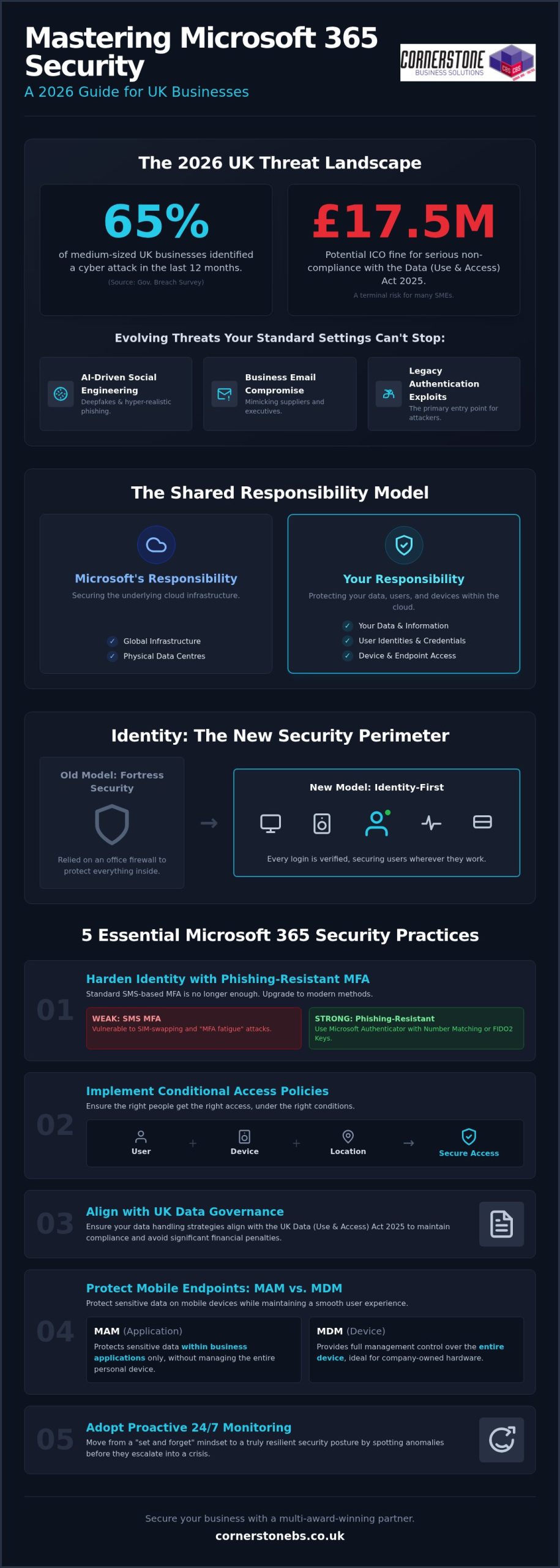
Standard Microsoft 365 settings are built for convenience, not a 2026 threat environment. Relying on “out-of-the-box” configurations leaves your business exposed to sophisticated attacks that simple filters can’t catch. We’ve seen a massive shift toward AI-driven social engineering where hackers use deepfake technology to impersonate executives and trusted partners. Adopting microsoft 365 security best practices for uk business isn’t just a technical task; it’s a vital step to protect your local reputation and bottom line. A breach isn’t just an IT headache. Under the Data (Use and Access) Act 2025, the ICO can issue fines up to £17.5 million for serious non-compliance. For a UK SME, that financial hit combined with a lost reputation can be terminal.
Understanding the Shared Responsibility Model
A common mistake many UK directors make is assuming that Microsoft is responsible for all aspects of cloud safety. This isn’t the case. While Microsoft manages the physical data centres and global infrastructure, you are responsible for the data you store and the people who access it. Learning the basics of cloud security fundamentals helps you see where Microsoft’s job ends and yours begins. Without proper configuration, your sensitive files are essentially sitting in a secure building with the front door left unlocked.
The Shared Responsibility Model is a framework where Microsoft secures the underlying cloud infrastructure while you remain fully responsible for protecting your data, user identities, and device access.
Evolution of Cyber Threats in 2026
The 2026 threat landscape is dominated by Business Email Compromise (BEC) and “Shadow AI” risks. According to the UK Government Cyber Security Breaches Survey 2025/2026, 65% of medium-sized businesses identified a breach last year. Hackers no longer just send “dodgy” links; they use AI to draft perfectly phrased emails that mimic your suppliers. Legacy authentication remains the primary entry point for these criminals, as it lacks the modern safeguards needed to stop credential theft. Integrating professional cyber security services provides the proactive monitoring required to spot these anomalies before they escalate into a full-scale crisis.
Identity is now the new perimeter. We’ve moved past the days when a strong office firewall was enough. In a remote or hybrid world, your users’ credentials are the only thing standing between a hacker and your financial records. If you don’t secure the identity, you don’t have a perimeter. This identity-first approach ensures that every login attempt is verified, regardless of where the employee is working in the UK. It’s about moving from a reactive “on/off” switch to a proactive, identity-first governance model.
Hardening Identity: Implementing MFA and Conditional Access
Identity is the foundation of your digital estate. If a hacker steals a password, they essentially have a key to your office. In 2026, relying on a password alone is a massive risk. Implementing microsoft 365 security best practices for uk business starts with a robust identity strategy that assumes every login attempt could be a threat. We’ve moved past simple security; we now need “Identity-First” governance that verifies every user, every time, from every location.
Phishing-Resistant Multi-Factor Authentication
SMS-based multi-factor authentication (MFA) is no longer sufficient. Cybercriminals now use “MFA fatigue” attacks and SIM swapping to bypass these basic checks. For 2026, we recommend phishing-resistant methods. Microsoft Authenticator with Number Matching is now the standard. It requires the user to enter a specific code shown on the login screen into their phone app. This simple step prevents accidental approvals. For high-privilege accounts, like your global admins, using FIDO2 security keys provides the highest level of protection available. These physical keys ensure that even if a user is tricked by a fake login page, the attacker cannot gain access.
Conditional Access: The “If/Then” of Security
Conditional Access is the most powerful tool in your security arsenal. Think of it as an intelligent security guard that evaluates every login based on specific rules. It uses “If/Then” logic: If a user is logging in from an unknown country, then block access. For most UK SMEs, restricting logins to UK-only IP addresses is a quick win that stops thousands of automated offshore attacks. When planning a Microsoft 365 migration for business UK, auditing your existing identities and setting these rules early is vital for long-term stability.
Every UK business should implement these five essential Conditional Access policies:
- Require MFA for all users: No exceptions, especially for guest accounts.
- Block legacy authentication: Disable older protocols like IMAP or POP3 that hackers use to bypass MFA.
- Geo-blocking: Restrict access to the UK unless your staff are actively travelling.
- Device Compliance: Only allow access from managed, healthy devices that meet your security standards.
- Risk-based sign-ins: Automatically block or challenge “impossible travel” attempts, such as a login from London followed by one from New York ten minutes later.
Eliminating legacy authentication is a non-negotiable step. These older protocols are the #1 entry point for credential theft because they simply don’t support modern MFA. By turning them off, you close a massive door that attackers love to exploit. If you’re unsure where to start with these configurations, our team can help you review your current identity posture to ensure you’re fully protected.
Data governance is often the missing piece in microsoft 365 security best practices for uk business. While hardening your identity stops intruders at the front door, governance ensures that your sensitive information doesn’t slip out through the back. With the Data (Use and Access) Act 2025 now in full effect, the Information Commissioner’s Office (ICO) has enhanced powers to penalise businesses that fail to manage data complaints or protect personal records. Proper configuration within Microsoft 365 isn’t just about safety; it’s about staying on the right side of UK law.
UK GDPR and Cyber Essentials Alignment
Data Loss Prevention (DLP) Strategies
Data Loss Prevention acts like a digital sieve, catching sensitive information before it leaves your network. We recommend setting up specific DLP policies that scan for UK-specific identifiers, such as National Insurance numbers and credit card details. If an employee tries to email a spreadsheet containing these details to a personal address, the system can automatically block the message or prompt for a justification. When we build bespoke cloud solutions for our partners, we prioritise these internal safeguards to mitigate the risk of “insider threats,” whether they are malicious or just accidental mistakes.
To truly master your data lifecycle, you should implement these three core governance tools:
- Sensitivity Labels: Tag documents as “Confidential” or “Internal Only.” These labels follow the file wherever it goes, ensuring encryption remains active even if the document is shared externally.
- Automated Retention Policies: UK GDPR requires that you don’t keep data longer than necessary. Set policies to automatically delete old CVs or project files after a set period, reducing your “data surface area” in the event of a breach.
- Bulk-Download Alerts: Configure Microsoft Defender for Cloud Apps to trigger an alert if a user suddenly downloads an unusual volume of files. This is often the first sign of an employee preparing to leave or a compromised account.
Managing these settings manually can be a full-time job. By automating your retention and labelling, you take the guesswork out of compliance. It gives you the peace of mind that your business is meeting its legal obligations without requiring constant manual intervention from your team.
Endpoint and Collaboration Security: Protecting Teams and Devices
Securing your identity and data is only half the battle. Your employees interact with your business every day through endpoints: laptops, smartphones, and collaboration tools like Microsoft Teams. Implementing microsoft 365 security best practices for uk business means extending your protection to these digital workspaces. In 2026, hackers have shifted their focus to high-trust environments where users are more likely to click a link or download a file without a second thought. This makes the security of your collaboration apps just as vital as your office firewall.
Securing the “New Office”: Microsoft Teams
Microsoft Teams has become the primary hub for UK business communication. However, its default settings often allow external users to initiate contact, opening the door for sophisticated social engineering. As of January 12, 2026, Microsoft Teams automatically blocks high-risk file types by default, but you must still manage your guest access permissions. We recommend using private channels for sensitive department data to ensure that only specific team members can view financial or HR documents. Monitoring for malicious files is essential, as phishing remains the most common attack vector for UK organisations according to the 2026 Cyber Security Breaches Survey.
Managing the Remote Workforce with Intune
The rise of hybrid work across the UK has made the “Bring Your Own Device” (BYOD) model a standard practice. This creates a unique challenge: how do you protect business data on a personal phone? This is where the choice between Mobile Device Management (MDM) and Mobile Application Management (MAM) becomes vital. MDM gives you full control over a company-owned laptop, allowing for “Remote Wipe” capabilities if hardware is lost on a commute or stolen. MAM, however, allows you to secure only the business apps like Outlook and Teams on an employee’s personal device without touching their private photos or messages.
Enforcing BitLocker encryption on all business laptops is a non-negotiable step for 2026. Microsoft Defender for Business now provides enterprise-grade protection for SMEs, identifying vulnerabilities before they are exploited. Managing this level of detail across a growing team can be overwhelming. Our it company solutions simplify this process by automating device enrollment and policy enforcement. This ensures every device that touches your network is healthy and compliant from day one. If you want to ensure your remote team is truly secure, reach out to our local experts for a comprehensive device security audit today.
Proactive Protection: How Managed IT Support Sustains Your Security
Many businesses mistakenly believe that ticking the boxes for MFA and DLP means the security job is finished. It isn’t. Maintaining microsoft 365 security best practices for uk business is an ongoing journey that requires constant adjustments as the 2026 threat landscape shifts. A “set and forget” mindset often leads to configuration drift, where small changes over time create massive gaps in your defense. Proactive management ensures your settings stay hardened against new vulnerabilities the moment they emerge.
The Value of Continuous Security Monitoring
Microsoft 365 produces thousands of log entries every hour. While AI filters catch obvious threats, sophisticated attackers often hide in the “grey area” of legitimate-looking activity. Human expert analysis is what turns raw data into actionable intelligence. By leveraging specialised managed IT services, you gain access to specialists who monitor these patterns around the clock across the UK. This proactive stance slashes your Mean Time to Detect (MTTD), ensuring that if an anomaly occurs, it is neutralised before it can cause reputational damage or lead to a heavy ICO fine. Rapid incident response is the difference between a minor blip and a total system shutdown.
Building a Human Firewall
Your employees are your greatest asset, but they can also be your biggest vulnerability if they aren’t prepared for modern social engineering. We focus on bridging the gap between technical configurations and user behaviour. This involves ongoing security awareness training that feels relevant and accessible, rather than a dry compliance exercise. We use simulated phishing attacks to give your team hands-on experience in spotting the latest AI-generated lures. These simulations identify which staff members might need extra support, allowing us to strengthen your “human firewall” before a real attacker comes calling. Professional IT support is a foundational investment in your business stability and emotional security, providing the expert oversight needed to let you focus on your core goals.
Regular security audits are the final piece of the puzzle. These deep dives ensure your tenant remains aligned with the latest NCSC guidance and UK GDPR requirements. We don’t just look at the switches and toggles; we look at how your people interact with data every day. This holistic approach ensures that your Microsoft 365 environment remains a secure, productive space that supports your long-term growth. If you are ready to move beyond basic settings and embrace a truly resilient strategy, Cornerstone Business Solutions is here to guide you every step of the way.
Securing Your Business Future in a Changing Landscape
Securing your business for the challenges of 2026 is an ongoing journey, not a one-time task. We’ve explored why standard settings aren’t enough and how hardening your identity with phishing-resistant MFA is now a non-negotiable step. By aligning your data governance with the latest UK regulations, you protect both your reputation and your bottom line. Implementing microsoft 365 security best practices for uk business ensures that your team can collaborate safely without the fear of a costly breach.
As an Official Microsoft Partner, we pride ourselves on being more than just a provider; we’re your long-term security ally. Our multi-award-winning IT support team provides proactive 24/7 system monitoring to catch threats before they impact your operations. You don’t have to manage these complex configurations alone. We invite you to Book your expert Microsoft 365 security audit with Cornerstone Business Solutions today and take the first step toward total peace of mind. Let’s work together to build a resilient and secure future for your business.
Frequently Asked Questions
How much does Microsoft 365 security cost for a UK business?
The cost of security is primarily determined by your license choice. As of July 2026, Microsoft 365 Business Premium costs £16.90 per user per month, while Enterprise E5 is £47.80. While basic security features are included in lower tiers, the advanced protection needed for microsoft 365 security best practices for uk business typically requires the Premium or E5 levels. You should also factor in professional management to ensure these tools are configured correctly.
Is Microsoft 365 GDPR compliant for UK companies?
Microsoft 365 provides the tools to be GDPR compliant, but it isn’t compliant “out of the box.” You are responsible for configuring data residency, retention policies, and access controls. With the Data (Use and Access) Act 2025 now in force, you must use Microsoft Purview to manage Subject Access Requests and acknowledge them within 30 days. Compliance is a shared effort between the platform’s infrastructure and your specific internal settings.
What is the difference between Microsoft 365 Business Premium and Standard security?
Business Standard focuses on productivity apps and basic cloud storage. Business Premium is the true security tier for SMEs, adding Microsoft Intune for device management and Defender for Business for endpoint protection. Crucially, Premium includes Conditional Access, which allows you to set “If/Then” rules for logins. This makes it the minimum recommended level for any UK business that needs to protect sensitive data and manage a remote workforce effectively.
Can I secure Microsoft 365 without an IT department?
You can technically enable basic settings yourself, but the complexity of modern threats makes this risky for most business owners. Missing a single toggle in the admin portal can leave your data exposed to AI-driven phishing. Most UK SMEs find that partnering with a local expert is more efficient than hiring a full internal team. It provides the peace of mind that your systems are monitored 24/7 by specialists who understand the 2026 landscape.
How often should we perform a Microsoft 365 security audit?
We recommend a comprehensive security audit at least once a year. However, if you operate in the legal or financial sectors, quarterly reviews are much safer. Frequent audits help you stay ahead of “configuration drift,” where small changes by users or new feature releases create unintended vulnerabilities. Regular check-ups ensure your microsoft 365 security best practices for uk business remain aligned with the latest NCSC guidance and evolving cyber threats.
What is the best way to prevent ransomware in Microsoft 365?
Preventing ransomware requires a multi-layered approach. Start by enforcing phishing-resistant MFA and blocking legacy authentication protocols that hackers use to bypass security. Microsoft Defender for Business plays a vital role by identifying and isolating suspicious file behaviour in real-time. Combining these technical controls with regular employee awareness training creates a “human firewall” that is significantly harder for ransomware groups to penetrate. Proactive monitoring is your best defense against these attacks.
Does Microsoft 365 backup my data automatically?
No, Microsoft does not provide a traditional backup for your data. They ensure the service is available, but they aren’t responsible for data lost due to accidental deletion or ransomware. You need a dedicated Disaster Recovery solution to ensure your emails and files are recoverable. Relying solely on the Recycle Bin is a dangerous strategy that leaves your business vulnerable to permanent data loss if a breach occurs or a file is corrupted.
Is MFA mandatory for UK businesses using Microsoft 365?
While not a legal requirement for all, MFA is now a “pass or fail” requirement for Cyber Essentials certification as of April 2026. This means if you want to bid for government contracts or demonstrate a high level of security to your clients, MFA is mandatory. Beyond certification, the NCSC strongly advises all organisations to adopt it. It is the single most effective way to stop 99% of bulk credential attacks today.
Posted on: August 10th, 2026 by Cornerstone
What if your technology was no longer a source of daily frustration but the engine that drives your company forward? For many leaders, the reality of business IT support often involves a cycle of unpredictable costs and slow helpdesk responses. You want to focus on growth, yet you’re stuck worrying about the next cyber threat or a complex cloud migration. It’s a common feeling; however, in 2026, your IT should provide emotional security rather than a headache.
As Cornerstone Business Solutions, a multi-award-winning provider, we’ve seen how the right strategy transforms businesses from the ground up. This guide will help you master the essentials of modern IT infrastructure. We’ll show you how to transition from reactive models to proactive managed services that ensure seamless business continuity and a robust security posture. You’ll discover how to leverage Microsoft 365 and cloud scaling to create a predictable monthly spend. We’ll also provide expert guidance on choosing a partner who understands the evolving technology landscape and can deliver a genuine return on your technology investment.
Key Takeaways
- Learn why shifting from a reactive break-fix model to proactive system monitoring is the foundation of modern business stability.
- Discover how professional business it support middlesbrough bridges the expertise gap, offering the collective knowledge of a full team for a predictable monthly investment.
- Understand the vital role of integrating Microsoft 365 and Azure within a secure cloud environment to ensure seamless business continuity.
- Master the pillars of digital resilience by managing hardware lifecycles and building a network infrastructure that supports long-term growth.
- See how a collaborative partnership with an award-winning local expert provides the emotional security and technical ROI your business deserves.
Beyond the Helpdesk: Why Modern Business IT Support is Proactive
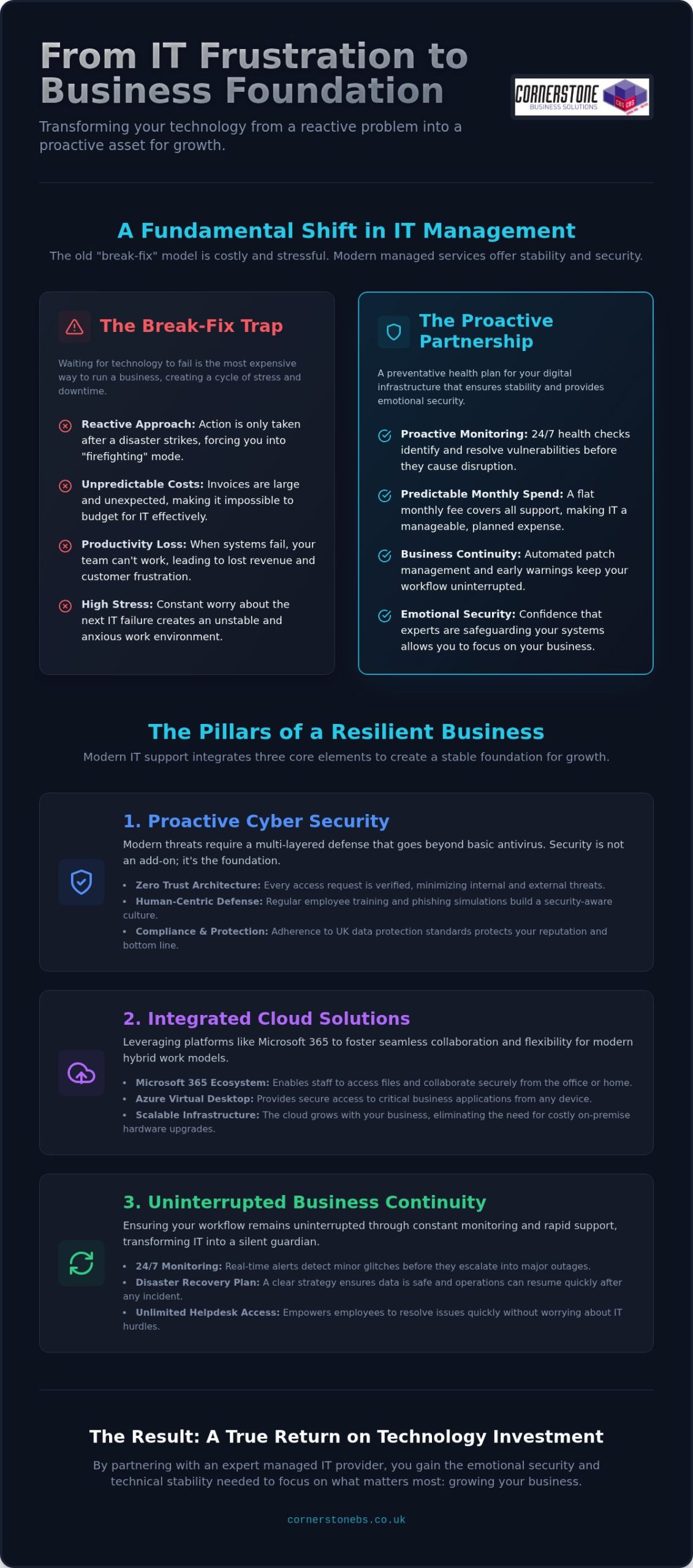
The old way of handling technology was simple but flawed. You worked until something broke, then called a technician to fix it. This “break-fix” model is inherently reactive. It forces you to wait for a disaster before taking action. In contrast, modern Managed Services represent a fundamental shift toward a proactive partnership. Instead of being a cost centre, your technology becomes a stable foundation for growth. For companies seeking business it support middlesbrough, this means moving away from emergency repairs and toward a system that prevents issues before they disrupt your day.
In 2026, the hidden costs of downtime are too high to ignore. When a server fails or a network goes down, you aren’t just paying for the repair. You’re losing staff productivity, missing customer enquiries, and potentially damaging your reputation. Proactive support uses automated patch management and remote health checks to keep systems optimised. These tools identify vulnerabilities and performance bottlenecks in the background, often resolving them before your team even notices a flicker.
The Break-Fix Trap vs. Proactive Maintenance
Waiting for technology to fail is the most expensive way to run a business. It creates a cycle of stress and unpredictable invoices. When you choose a proactive approach, you gain emotional security. You know that your systems are being watched by experts who care about your success. Proactive IT Support is a preventative health plan for your digital infrastructure. This strategy replaces the “firefighting” mentality with a steady, reliable rhythm of maintenance that protects your bottom line.
24/7 Monitoring: The Silent Guardian of Your Workflow
The Pillars of Managed IT: Security, Cloud, and Continuity
Building a resilient organisation requires more than just fixing broken computers. It demands a joined-up strategy where your communication, data, and security work in harmony. For local firms, effective business it support middlesbrough integrates these pillars to create a seamless environment. This isn’t just about technical boxes; it’s about giving your team the tools to excel from anywhere while keeping your digital assets locked tight. When these elements are managed correctly, they provide the foundational stability needed for long term growth.
Cloud Solutions and Microsoft 365 Integration
Moving to the cloud is about more than just ditching on-premise servers. It’s about leveraging the full Microsoft 365 ecosystem to foster collaboration. A successful Microsoft 365 migration for business UK allows your staff to access files securely, whether they’re in the office or working from home. By integrating Azure Virtual Desktop, you can provide secure access to critical business apps from any device. This flexibility is essential for the hybrid work models that have become the standard in 2026. It ensures that your workflow remains consistent, regardless of your physical location.
Cyber Security: More Than Just an Antivirus
In 2026, relying on a basic antivirus is no longer enough. Modern threats require a Zero Trust architecture, where every access request is verified. Your cyber security services must be comprehensive. This includes technical barriers and human-centric defences like phishing simulations and regular employee training. Following established Cyber Guidance for Small Businesses helps ensure your organisation meets evolving UK data protection standards. Security should be a foundational element of your emotional security, not a source of constant anxiety. By treating security as a proactive measure, you protect your reputation and your bottom line.
Disaster recovery ensures your data remains resilient against local disruptions or global outages. It’s about having a plan that kicks in automatically when things go wrong. Similarly, your communications shouldn’t exist in a silo. Business VoIP and mobile solutions should be part of your wider IT roadmap. When your phone system is integrated with your digital workflow, you achieve a level of efficiency that drives growth. If you’re ready to strengthen your foundations, you might want to chat with our team about a more collaborative approach to your business it support middlesbrough.
Comparing Your Options: Outsourced vs. In-House IT Management
Deciding how to manage your digital infrastructure is a pivotal choice for any growing company. You might consider hiring an internal specialist, or you could partner with an external team. When looking for business it support middlesbrough, it’s vital to understand the true cost of these two paths. It isn’t just about the monthly invoice; it’s about the breadth of expertise and the long term stability of your operations. A single hire brings one set of skills, but a managed partner brings a collective powerhouse of knowledge.
The Financial Reality of In-House IT
Hiring an internal IT Manager involves significant overhead that often stays hidden until the first payroll run. Beyond the base salary, you must account for National Insurance contributions, pension schemes, and recruitment fees. There’s also the ongoing cost of professional training and the specialised software tools they need to monitor your systems effectively. A major risk is the “single point of failure.” If your sole IT person is on holiday or falls ill, your business is left vulnerable to technical hitches. For the typical cost of one senior IT hire, you can usually secure a full managed service contract that provides 365 day coverage and a multi-layered team of experts.
Why Outsourcing Provides a Competitive Edge
Outsourcing gives you instant access to enterprise-grade technology from global leaders like IBM and Cisco. You get these high-level tools at a predictable monthly fee, avoiding massive upfront capital expenditure on hardware. This financial clarity allows you to pivot quickly using modern cloud solutions that scale as your headcount grows. By offloading technical burdens, you free your internal staff to focus on your core mission: driving growth and serving your customers. You stop fixing printers and start focusing on your technology ROI.
A professional partner provides Service Level Agreements (SLAs) that guarantee response times. This accountability ensures that your issues are prioritised, providing a level of reliability that a single employee simply cannot match. If you already have a small internal team, a hybrid model can work wonders. We can support your existing staff with specialised expertise for complex projects or provide overflow support during busy periods. This collaborative approach ensures your business it support middlesbrough is as flexible and resilient as your company needs it to be.
Building a Resilient Digital Infrastructure for Long-Term Growth
Network Infrastructure and Connectivity
In 2026, your office network must handle massive data loads without a stutter. With ultrafast broadband now covering 85% of premises in the Tees Valley, your internal hardware shouldn’t be the bottleneck. Managed switches and enterprise-grade secure Wi-Fi provide the reliability your team needs to stay productive. By integrating it company solutions, you create a seamless user experience where technology feels invisible. This allows your staff to focus on professional client interactions rather than troubleshooting connection drops or slow file transfers. A well-designed network is the silent engine of a high-performing company.
Strategic Hardware Procurement
Strategic IT roadmapping aligns your technology with your three-year business plan. You shouldn’t just buy gadgets; you should invest in tools that drive your specific commercial goals. We help you look ahead to anticipate needs before they become urgent, expensive problems. Technology should be a catalyst for growth, not a recurring expense that feels like a burden. This long-term view is what separates a simple supplier from a dedicated partner in business it support middlesbrough. If you’re ready to build a more resilient foundation, you can start a conversation with our expert team to see how we can strengthen your business.
Partnering for Success: The Cornerstone Managed IT Approach
Experience matters when your livelihood depends on the stability of your digital systems. Since 2008, Cornerstone has built a legacy of excellence as a multi-award-winning provider. We don’t believe in transactional relationships where you only hear from us when something breaks. Instead, our collaborative philosophy means we act as your dedicated internal IT department. By delivering high-tier solutions from global leaders like Microsoft, IBM, and Cisco, we bring world-class reliability to your doorstep. This partnership model is the cornerstone of effective business it support middlesbrough.
The Cornerstone Difference
Technology should empower your team, not confuse them. Our managed IT services focus on providing emotional security and foundational business stability. We provide jargon-free, expert advice that respects your time and your intelligence. You won’t find any hidden fees or surprise invoices here. Our unlimited support model ensures we’re focused on delivering results rather than counting billable hours. We take immense pride in our geographical roots, combining global technical expertise with a local, approachable face.
Taking the First Step
Every resilient infrastructure starts with a clear understanding of your current setup. Your journey toward a more efficient environment begins with a comprehensive IT audit and infrastructure review. We don’t offer “off-the-shelf” packages that ignore your unique challenges. Instead, we tailor bespoke technology solutions to match the specific needs of your industry. This review identifies hidden vulnerabilities and highlights opportunities for immediate efficiency gains. It’s a proactive roadmap designed to protect your organisation for the long term.
We invite you to a simple, informal conversation about your business goals. This isn’t a high-pressure sales pitch. It’s an opportunity to meet a local team of experts who genuinely care about the success of your organisation. Whether you need to secure your cloud environment or completely overhaul your network infrastructure, we’re here to guide you. Let’s work together to ensure your business it support middlesbrough becomes a strategic engine for growth rather than a technical necessity.
Secure Your Commercial Future with Proactive Technology
Mastering your digital infrastructure is the fastest way to ensure long term stability. We’ve seen how moving beyond the helpdesk and embracing proactive 24/7 monitoring as standard prevents the hidden costs of downtime. By choosing a unified approach to security and cloud scaling, you turn technology into a strategic engine rather than a technical burden. Professional business it support middlesbrough shouldn’t just solve problems; it should provide the emotional security you need to focus on your core mission.
As a multi-award-winning provider, we’re proud to deliver world-class solutions through our partnerships with Microsoft, IBM, and Cisco. We act as your dedicated long-term partner, bringing regional warmth and expert clarity to every conversation. You don’t have to navigate complex migrations or cyber threats alone. We’re ready to help you build a resilient foundation that supports your three-year growth plan and beyond.
It’s time to stop reacting to IT issues and start leading with confidence. Book your free IT infrastructure audit with Cornerstone today to discover exactly how we can strengthen your organisation. We’re excited to help your business thrive in the Tees Valley.
Frequently Asked Questions
What is included in a typical managed IT support contract?
A standard contract provides proactive system monitoring, unlimited helpdesk access, and routine maintenance. It also covers patch management and backup oversight to ensure your digital foundations remain stable. By choosing business it support middlesbrough, you gain a partner that manages your Microsoft 365 environment and network infrastructure as part of a single, predictable monthly agreement.
How much does business IT support cost per user in 2026?
Costs vary significantly based on your organisation’s size and the specific level of security you require. Factors include the number of users, the complexity of your cloud environment, and whether you need basic helpdesk access or premium monitoring. We recommend a full infrastructure audit to get a bespoke quote that reflects your actual technology needs and growth goals.
Can a managed service provider help with cyber security compliance?
Yes, we guide you through the complexities of modern regulations like the UK Cyber Security and Resilience Bill. We help implement the necessary controls for Cyber Essentials certification and ensure your data handling meets current UK standards. This proactive approach protects your reputation while ensuring you remain compliant with the latest legal requirements and supply chain demands.
What happens if our business experiences a total system failure?
Disaster recovery protocols are activated immediately to restore your systems from secure, off-site backups. Our primary goal is to ensure business continuity with minimal disruption to your daily operations. Because we monitor your servers 24/7, we often identify and resolve potential failure points before they lead to a total outage, providing you with essential emotional security.
Is it better to have an in-house IT person or an outsourced team?
Outsourcing gives you access to a multi-award-winning team of experts for a predictable fee. While an in-house person offers physical presence, they can’t match the collective knowledge of an entire organisation or provide 24/7 coverage during holidays and sickness. Many firms now use a hybrid model to support their internal staff with specialised outsourced expertise for complex projects.
How quickly should an IT helpdesk respond to a critical issue?
Critical issues should be addressed within minutes as defined in your Service Level Agreement. We prioritise high-impact problems that stop your business from functioning to ensure you’re back online as fast as possible. Clear response time guarantees are a foundational element of any professional business it support middlesbrough partnership, ensuring your team stays productive without long periods of downtime.
Does managed IT support include hardware and software licensing?
Managed support includes the expertise to manage your hardware and software licensing, but the actual costs of the licenses or devices are usually separate. We help you standardise your fleet and manage your hardware lifecycle to avoid the obsolescence trap. This ensures you only pay for the licenses your team actually uses while keeping your equipment under warranty and fully supported.
Can you support our business if we use a mix of Apple and Windows devices?
Modern managed services are designed to handle hybrid environments seamlessly. Whether your team uses Windows workstations, Apple MacBooks, or a mix of mobile devices, we provide unified support and security across all platforms. We ensure that your Microsoft 365 and cloud applications work perfectly regardless of the hardware your employees prefer, maintaining a consistent experience for everyone.
Posted on: July 29th, 2026 by Cornerstone
Did you know that over 99% of the 600 million daily identity attacks tracked by Microsoft Entra are simple, password-based attempts? While it’s tempting to think a basic login is enough, implementing microsoft 365 security best practices is now the only way to ensure your business remains resilient in 2026. We know the pressure you’re under. Between the fear of a ransomware attack and the confusion over which license level actually provides the protection you need, it often feels like security is just another hurdle for your staff to clear.
We’re here to simplify the complex and act as your proactive partner. This guide provides a clear, prioritized checklist to help you master the essential configurations that protect your data, identity, and reputation. You’ll gain the confidence that your company is shielded against sophisticated phishing while meeting the latest state-level privacy laws. We’ll walk you through a “Layered Resilience” approach that keeps your team productive and your peace of mind intact.
Key Takeaways
- Implement Multi-Factor Authentication (MFA) to secure your identity perimeter and stop automated account takeovers in their tracks.
- Set up Microsoft Defender to proactively block phishing attempts, which remain the primary entry point for ransomware.
- Apply microsoft 365 security best practices using Data Loss Prevention (DLP) to ensure your business data stays protected regardless of where your team works.
- Secure your brand’s digital reputation by correctly configuring email authentication protocols like SPF, DKIM, and DMARC.
- Move beyond a “one and done” setup with proactive monitoring to combat configuration drift and maintain long-term stability.
Securing Identity: Why MFA is Your Most Critical Defence
Your office walls no longer define your security boundary. With your team working from home, the local coffee shop, or on the move, identity has become the new perimeter. Protecting who is logging into your systems is the first and most vital step in microsoft 365 security best practices. When you secure the identity, you secure the gateway to your entire business infrastructure.
The numbers tell a clear story. Microsoft tracks over 600 million identity attacks every single day. However, implementing Multi-Factor Authentication (MFA) remains incredibly effective. It blocks the vast majority of automated account compromises, providing a massive return on a very small time investment. As a multi-award-winning Microsoft partner, we’ve seen how this one configuration acts as a foundational element of business stability and emotional security for business owners. It’s about knowing that your front door is locked tight.
By 2026, the standard for MFA has evolved. We now recommend moving beyond SMS codes, which can be intercepted through SIM swapping. Instead, we help our partners implement authenticator apps or physical hardware keys. These methods provide a higher level of cloud computing security while keeping the login process quick and punchy for your staff. We believe security should support your team, not hinder them. That’s why we offer unlimited helpdesk access to ensure every employee feels confident using these new tools.
Implementing Conditional Access Policies
Think of Conditional Access as an intelligent gatekeeper that asks the right questions before letting someone in. Rather than a blunt “on or off” switch, it uses “if/then” logic to verify every sign-in. For example, if a staff member logs in from a known office IP address, the system might not require MFA. If they try to access sensitive data from an unrecognized device or a foreign country, the system can challenge the login or block it entirely. While “Security Defaults” are a good starting point, they often lack the customization that growing businesses need to stay productive.
The End of Legacy Authentication
Hackers love “back doors,” and legacy authentication protocols like POP3 or IMAP are exactly that. These older methods don’t support MFA, making them an easy target for credential stuffing and password spraying. Part of our proactive monitoring approach involves auditing your environment to find these outdated login methods. We then work with you to disable them safely. This ensures your modern business tools continue to run smoothly while closing the gaps that attackers exploit to gain a foothold in your network. It’s a simple step that yields significant results for your overall microsoft 365 security best practices posture.
Defending the Inbox: Anti-Phishing and Threat Protection
Phishing remains the single biggest threat to your business continuity. It’s the primary way ransomware finds a path into your network. Relying on basic filters isn’t enough in 2026. You need a proactive shield that anticipates threats before they land in a staff member’s inbox. When we help our partners implement microsoft 365 security best practices, we start by turning the inbox from a vulnerability into a fortress.
Your first move is enabling Microsoft Defender for Office 365. This isn’t just a simple spam filter; it’s a sophisticated suite that uses real-time intelligence to block malicious content. One of the most effective tools within this suite is Safe Links. This feature scans every URL in an email the moment a user clicks it. If the destination is a known malicious site, the system blocks the page instantly. It’s a vital component of Microsoft 365 security best practices because it protects your team even if a dangerous link slips through initial checks.
We also deploy Safe Attachments to add another layer of resilience. This tool opens suspicious files in a secure, isolated “sandbox” environment. It watches how the file behaves before allowing it to reach your user’s device. For high-profile staff like your Finance Director or CEO, we refine anti-impersonation settings. These rules flag emails that look like they’re from internal leadership but are actually “spoofing” attempts designed to trick staff into making urgent payments or sharing data.
Standard vs. Strict Security Presets
Microsoft provides two main policy levels: Standard and Strict. Standard is a great fit for most teams as it offers robust protection without causing unnecessary friction. However, for high-risk departments like Finance or HR, we often recommend the “Strict” preset. The goal is to maximize security without creating “false positives” that disrupt your daily workflow. If you’re unsure which level fits your local team, we’re always here for a quick chat to review your setup.
Automating Phishing Simulations
Security is a team sport. Using Defender to run automated phishing simulations helps educate your staff in a safe, controlled environment. Instead of a “police” action, this is a collaborative effort to build resilience. By analyzing the results, you can see which departments might need a little extra support or training. It turns a potential weakness into a shared strength, ensuring everyone knows how to spot a fake before it causes a problem.
Securing the Data: Governance and Device Management
Data is the pulse of your organization. Protecting it requires more than just locking the front door; you need to ensure security stays with the information wherever it travels. Following microsoft 365 security best practices means moving beyond user-level protection to true data governance. This ensures that even if a file is moved to a personal USB or sent to the wrong recipient, your business remains shielded. We view this level of control as a foundational element of business stability, giving you the freedom to collaborate without the constant worry of a leak.
Data Loss Prevention (DLP) acts as your invisible safety net. It automatically detects sensitive information, such as financial records or customer identifiers, and applies rules to block or encrypt the transmission. It prevents the kind of simple, human mistakes that often lead to significant reputational damage. By setting these parameters early, you create a resilient environment where data is managed by design, not by chance.
Managing the hardware that accesses this data is the next logical step. Whether your team uses company-issued laptops or personal mobile phones, a “Bring Your Own Device” (BYOD) strategy needs a secure framework. Microsoft Intune allows us to manage these endpoints effectively. It ensures that company data stays within a protected container on the device, separate from personal photos and apps. This keeps your business information secure while respecting the privacy of your staff.
Sensitivity Labels and Encryption
Classifying your data is the first step toward total control. We help you set up sensitivity labels like Public, Internal, and Confidential. By automating encryption, we ensure that a file marked Confidential can only be opened by authorized staff, even if it leaves your network. This proactive approach keeps you in line with UK data protection regulations. It provides the peace of mind that your intellectual property is safe from prying eyes.
Endpoint Security with Microsoft Intune
Intune acts as your remote command center for device health. We use it to enforce strong passcodes and full-disk encryption across all company hardware. If a laptop is left on a train or a phone is stolen, the Remote Wipe feature allows us to erase business data instantly. This level of control, combined with standardized software updates, closes security vulnerabilities before they can be exploited. It is a key part of our proactive monitoring approach that keeps your local business resilient.
The Technical Essentials: SPF, DKIM, and DMARC
Email is the primary way you communicate with clients, partners, and your local community. If your domain is hijacked by a scammer, your hard-earned reputation can vanish overnight. This is why technical authentication is a core part of microsoft 365 security best practices. It ensures that when an email arrives from your company, the recipient knows it is genuine. Protecting your brand’s voice is just as important as protecting your data.
Sender Policy Framework (SPF) acts as your authorized guest list. It tells the world which servers are allowed to send mail on behalf of your domain. Without it, anyone could pretend to be you. DomainKeys Identified Mail (DKIM) adds a digital “wax seal” to your messages. This cryptographic signature proves the content hasn’t been altered in transit. Together, these tools form a foundational layer of trust for every message you send.
DMARC is the final instruction set. It tells receiving mail servers exactly what to do if an email fails the SPF or DKIM checks. In 2026, major providers like Google and Microsoft are strictly enforcing these policies. Following the updated DMARCbis specification published in May 2026, non-compliant messages are now being rejected more frequently than ever. If you haven’t configured these records correctly, your legitimate business mail might never reach its destination. As an official Microsoft Partner, we specialize in hardening these settings to protect your brand stability.
Preventing Domain Spoofing
Hackers often use “domain masking” to make an email look like it came from your CEO or Finance Manager. They rely on the fact that many businesses have weak or missing DMARC records. We guide our partners through a phased approach. We start with a “none” policy to monitor traffic, then move to “quarantine,” and finally to “reject.” This “reject” setting is the only way to effectively stop domain impersonation, ensuring fraudulent emails are blocked before they ever reach a user.
Improving Email Deliverability
There is a direct link between your security posture and your email reaching the inbox. If your records are misconfigured, recipient servers see your mail as a risk and send it straight to the spam folder. By aligning your SPF, DKIM, and DMARC, you prove to the world that you are a trusted sender. DMARC is the gold standard for email trust in 2026. If you want to ensure your communications remain reliable, book a conversation with our team to audit your domain records today.
Managed Resilience: Why Proactive Support is the Final Layer
Implementing microsoft 365 security best practices isn’t a “one and done” project. The cloud moves fast. New features roll out constantly, and user habits change. This often leads to “Configuration Drift.” It’s a silent risk where your hardened environment slowly becomes vulnerable. In 2024 alone, Microsoft recorded 176,000 instances of configuration tampering in a single month. By 2026, 65% of organizations report attackers probing their tenants at least weekly. We act as your dedicated long-term partner to ensure your defenses stay as strong as the day they were built.
24/7 Monitoring and Threat Detection
Automated tools are powerful, but they can’t always interpret the nuance of a sign-in risk or a strange data pattern. Our team knows your business inside out. We monitor your environment around the clock to reduce the “Time to Detect” a potential breach. A 2026 report found that 87% of organizations still have MFA disabled for some or all of their administrator accounts. We ensure your most privileged accounts are never left exposed. Instead of a threat sitting unnoticed for months, we aim to spot and stop it in minutes. It’s about providing emotional security alongside technical excellence.
Regular Security Audits and Compliance
Threats evolve every day, so your defense must evolve too. We stay ahead through quarterly security reviews that keep your microsoft 365 security best practices current and effective. This process aligns your environment with our comprehensive Cyber Security Services. It ensures you meet modern compliance standards without the stress of managing the complexity yourself. We’re proud to be a multi-award-winning team that keeps your systems stable and your data resilient. Ready to secure your future? Let’s have a conversation about your IT security.
Build a Resilient Foundation for Your Future
Securing your business in 2026 requires more than a reactive approach. By integrating microsoft 365 security best practices into your daily operations, you transform your digital environment from a vulnerability into a pillar of stability. You’ve seen how to lock down identities with MFA, shield your inbox from phishing, and govern your data with Intune. These steps ensure your reputation and your team’s productivity remain intact.
As a multi-award-winning IT provider and Official Microsoft Partner, we’re here to be more than just a service. Our Microsoft Certified Experts offer proactive 24/7 system monitoring to catch threats before they disrupt your day. We believe in building long-term partnerships rooted in our local community; providing the peace of mind you need to focus on growth. Let’s move beyond transactional support and start a conversation about your long-term resilience.
Secure Your Business with a Proactive IT Partner
Your journey toward a more secure organization starts with a single step. We’re ready to help you navigate the complexities of the cloud with clarity and confidence.
Frequently Asked Questions
Is Microsoft 365 secure enough for my business by default?
No, the default settings in Microsoft 365 typically favor ease of collaboration over maximum security. Microsoft follows a Shared Responsibility Model; they secure the underlying infrastructure, but you are responsible for configuring the settings that protect your specific data and identities. Hardening your tenant is a necessary step to move beyond basic protection and ensure your business remains resilient against modern threats.
How much does it cost to implement these security best practices?
The investment depends largely on your current license level and the complexity of your team’s workflow. Many essential microsoft 365 security best practices can be implemented using the tools already included in your subscription. For advanced protection, moving to a Business Premium license is often the most cost-effective route. This avoids the need for expensive third-party add-ons while providing a comprehensive suite of enterprise-grade security tools.
Will these security measures slow down my employees?
Not if they are configured with your team’s productivity in mind. We use Conditional Access to ensure security checks only trigger when something unusual happens, such as a login from a new device or a different country. Modern tools like the Microsoft Authenticator app or Windows Hello actually make signing in faster than typing a long password. Our goal is to create a seamless, supportive experience for every staff member.
What is the difference between Business Standard and Business Premium security?
Business Standard provides essential productivity tools but lacks the advanced security features found in Business Premium. Premium includes Microsoft Intune for device management and Defender for Office 365 for advanced anti-phishing. It’s designed for businesses that need to meet strict compliance standards and protect sensitive data. This higher tier is the foundation for implementing microsoft 365 security best practices in a modern, cloud-first environment.
Can I manage Microsoft 365 security myself or do I need an expert?
While you can manage basic settings yourself, the ecosystem is incredibly complex and changes almost weekly. An expert partner helps you avoid “Configuration Drift,” where settings slowly become outdated or less effective. We provide the proactive monitoring and strategic analysis that a DIY approach often lacks. This partnership ensures your security remains a foundational element of your business stability without taking up your valuable time.
What happens if we lose a device that is logged into Microsoft 365?
We use Microsoft Intune to perform a “Remote Wipe” of all company data on that specific device. This process is surgical; it removes business emails, files, and applications while leaving the user’s personal photos and data untouched. It provides immediate peace of mind if a laptop is left on a train or a phone is stolen. Your business data stays protected regardless of where the physical hardware ends up.
How does MFA protect us from phishing attacks?
MFA acts as a vital second lock on your digital front door. Even if a staff member accidentally clicks a phishing link and gives away their password, the hacker still can’t access the account. They would still need the secondary approval from a physical phone or a hardware key. It is the most effective way to stop automated account takeover attempts and is a non-negotiable part of modern security.
What are the first three steps I should take to secure my tenant today?
First, enforce Multi-Factor Authentication for every user without exception. Second, disable legacy authentication protocols to close the “back doors” that hackers frequently exploit. Third, set up basic anti-phishing and Safe Links policies within Microsoft Defender. These three actions provide an immediate boost to your security posture. They create a strong baseline while you work through the more advanced configurations in our guide.
Posted on: July 22nd, 2026 by Cornerstone
What if you discovered that Microsoft’s job is to keep the platform running, but keeping your actual business data safe is entirely up to you? Most professionals feel a sense of security moving to the cloud; however, there is a common misunderstanding about where Microsoft’s responsibility ends. To truly protect your operations from ransomware or accidental deletion, you need a dedicated Microsoft 365 disaster recovery plan that goes beyond basic retention policies.
We understand the fear of operational downtime and the headache of navigating complex compliance rules. It is a lot to manage while running a growing business. This guide will show you how to build a robust framework that protects your data beyond the cloud’s native limits. We will explore the shared responsibility model, the vital 3-2-1 backup rule, and the specific steps you can take today to ensure your company survives any major IT incident with confidence. You deserve the peace of mind that comes from knowing your digital foundation is solid and your team is protected.
Key Takeaways
- Understand the critical difference between Microsoft’s platform uptime and your own responsibility for protecting individual files.
- Learn the essential steps to build a Microsoft 365 disaster recovery plan that keeps your business operational during a major service outage.
- Identify how to shield your SharePoint and OneDrive data from sophisticated ransomware attacks that target cloud sync folders.
- Establish clear recovery time objectives and assign specific roles to ensure your team responds quickly and effectively to any incident.
- Discover how integrating proactive monitoring with tailored cloud solutions provides the foundation for long-term business stability.
The Reality of Microsoft 365 Resilience: Uptime vs. Data Protection
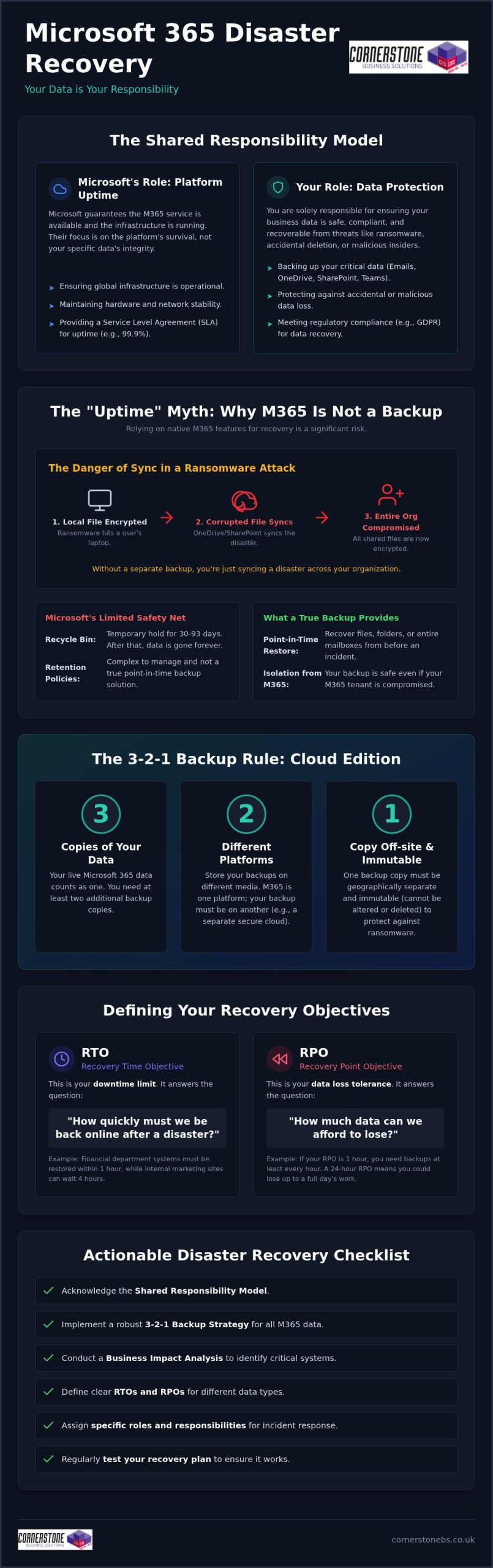
Many business owners believe the cloud is a “set it and forget it” solution. In 2026, with Microsoft increasing commercial plan prices for enterprise and frontline users, expectations for built-in protection are higher than ever. However, the Shared Responsibility Model is the division of duties between the cloud provider and the client. Microsoft guarantees that the service is available; you guarantee that your data is safe, compliant, and recoverable. We see many local partners struggle because they confuse service uptime with a true Microsoft 365 disaster recovery plan.
Relying solely on Microsoft’s Service Level Agreement (SLA) for Exchange Online is a gamble. While they offer service credits if uptime drops below 99.9%, those credits won’t bring back a deleted folder or a corrupted database. This distinction is a fundamental part of IT disaster recovery that every UK business leader must grasp. High availability means the “office” is open and the lights are on. Data backup means you have a spare set of keys and a copy of your files if the building is compromised. They are two different tools for two different jobs.
The “Uptime” Myth: Why Microsoft 365 isn’t a Backup
The native recycle bin is a temporary holding area, not a long-term recovery strategy. Depending on your specific setup, files might only stay there for 30 to 93 days before they vanish. If a quiet breach goes unnoticed for three months, those files are gone forever. Even worse, the “sync” features we rely on in SharePoint and OneDrive can become a liability during an attack. If ransomware encrypts a file on a local laptop, it syncs that corrupted version to the cloud instantly. Without a separate backup, you’re merely syncing a disaster across your entire organisation.
The 2026 Threat Landscape for UK Businesses
Cyber threats have become more targeted and aggressive. Ransomware has evolved to specifically hunt cloud-based files, often bypassing traditional defenses. It isn’t just external hackers you need to worry about; accidental deletion by a busy employee or a malicious act by a departing staff member can wipe out years of intellectual property in seconds. Regulatory pressures like GDPR also demand that you have a demonstrable way to restore personal data quickly. Integrating robust cloud solutions ensures that your compliance is functional rather than just a tick-box exercise on a spreadsheet.
Building Your Microsoft 365 Disaster Recovery Framework
A Business Impact Analysis (BIA) is the foundation of any effective Microsoft 365 disaster recovery plan. It isn’t just about technical settings; it’s about understanding how your business breathes. We start by mapping out every critical dependency within your environment. Your Teams channels might rely on SharePoint for storage, while your sales team depends on third-party CRM integrations. If SharePoint goes down, your collaboration stops. Identifying these links early prevents painful surprises during a crisis.
While Microsoft maintains high standards, as detailed in Microsoft’s Enterprise Resilience and Crisis Management, their focus is on the platform’s survival, not your specific business data. This is where your custom framework takes over. You need to decide which departments need immediate restoration and which can wait a few hours. This allows you to allocate resources where they matter most, keeping your local operations running smoothly even when the unexpected happens.
Defining RTO and RPO for Your Organisation
Recovery Time Objective (RTO) is your “downtime limit.” It’s the maximum amount of time your business can stay offline before the damage becomes critical. Recovery Point Objective (RPO) is your “data loss limit.” If you back up once a day, and a crash happens at 4:00 PM, you’ve lost an entire day of work. RTO and RPO dictate your technical requirements by defining the speed and frequency of your backup systems. Calculating the cost of an hour of downtime helps you prioritise your investments. You might need a near-zero RPO for financial records, while internal chat history could handle a longer gap.
The 3-2-1 Backup Rule in the Cloud Era
The classic 3-2-1 rule still applies, even when your office is in the cloud. Having your data in Microsoft 365 counts as only one “location.” If that tenant is compromised or locked by a malicious actor, you’re stuck. A modern strategy requires three copies of your data on at least two different platforms. One of these must be an off-site, cloud-to-cloud backup that is physically and logically separated from your primary 365 environment. We often recommend immutable backups for our partners. These are “read-only” copies that ransomware cannot encrypt or delete, providing a final line of defense.
Building this framework might feel complex, but it’s the only way to ensure your business stays resilient. If you’re unsure where to start, we can help you integrate these protections into your wider cloud solutions to find the gaps before they become problems.
Common Disaster Scenarios and How to Mitigate Them
It is one thing to have a strategy on paper; it is another to face a live incident. A comprehensive Microsoft 365 disaster recovery plan must account for various failure points, from global platform outages to the quiet, internal errors that can cripple a week’s worth of work. We have seen how easily a single misstep can ripple through a system. Understanding these scenarios is the first step toward building a resilient business that can weather any storm. You need to know exactly how to react when the screen goes dark or the files won’t open.
One of the most common issues we see is the “Ransomware Sweep.” Ransomware often targets the sync clients on individual laptops. Once a file is encrypted locally, OneDrive and SharePoint dutifully sync that “update” to the cloud. This effectively spreads the infection across your shared drives in minutes. Mitigation involves more than just clicking restore. You need a system that can roll back your entire environment to a specific point in time before the encryption began.
Not every disaster comes from an external hacker. A disgruntled employee or a poorly configured third-party app can delete thousands of records or corrupt metadata. If an app with high-level permissions fails, it can overwrite valid data with garbage. Proactive monitoring and granular restore capabilities are your best defense against these internal or automated errors. We prioritize these “quiet” disasters because they are often the hardest to detect until it is too late.
Scenario 1: The Ransomware Attack
Isolation is your priority if you suspect an attack. Disconnect sync clients immediately and lock down affected accounts to stop the spread. While Microsoft offers file versioning, it is not a replacement for a full recovery tool. Versioning often requires you to restore files one by one, which is impossible when thousands of documents are hit at once. This is why our cyber security services focus on both prevention and rapid, automated recovery to keep your team productive.
Scenario 2: The Global Service Outage
Total service outages are rare but devastating when they happen. If Teams and Outlook go dark, how does your team talk? Your Microsoft 365 disaster recovery plan should include an out-of-band communication channel, such as a secondary VoIP system or a secure messaging app. We also recommend keeping offline or secondary cloud copies of your most vital “emergency” documents. This ensures that even if an entire Microsoft region is offline, your staff can still access the manuals and contact lists they need to keep the business moving forward.
Implementation Checklist: Crafting Your Actionable DR Plan
A technical backup is only half the battle. Your Microsoft 365 disaster recovery plan needs a pulse. It needs people who know exactly what to do when the systems fail. We often see businesses with great software but no “Incident Commander” to lead the charge. You must assign clear roles today. Who has the authority to trigger the recovery? Who handles the communication? If your primary tools like Teams are offline, you need a communication tree that uses alternative channels like Business Mobile or a secondary VoIP system. This keeps your team connected while we work in the background.
Testing is where the plan becomes a reality. We recommend scheduling regular “Fire Drills” at least twice a year. This isn’t just a technical check; it’s a rehearsal for your entire team. You want to find the friction points in a controlled environment, not during a live ransomware attack. Checking data integrity ensures that your backups aren’t just present, but actually usable. We take pride in helping our local partners move from a state of worry to a state of readiness through these proactive measures.
Step-by-Step Restoration Procedures
Restoring everything at once is rarely the best move. You must prioritise data based on your earlier Business Impact Analysis. Typically, your live Exchange mailboxes and active SharePoint projects come first. Archives can follow later. Every test you run should be timed against your RTO. If you’re missing your targets, refine the steps until the process is lean and efficient. A backup is just a collection of bits until it is verified and restored successfully. This verification is a foundational element of your business stability.
Staff Training and Awareness
Your team is your first line of defence and your primary recovery tool. Every employee should know the “Emergency” protocol. If they see a suspicious file or lose access, they need to know who to call immediately. Our Managed IT services team acts as a central hub during these moments, coordinating the technical restoration while you focus on managing your clients. Proper documentation is also vital. You’ll need a clear log of the incident for insurance claims and GDPR compliance. This level of organisation is what separates a minor hiccup from a business-ending event.
If you’re ready to move from a theoretical plan to a battle-tested strategy, let’s have a conversation about securing your business continuity today.
How Cornerstone Business Solutions Secures Your Business Continuity
Choosing the right partner makes all the difference when your business data is on the line. At Cornerstone Business Solutions, we don’t just provide software; we deliver a multi-award-winning approach to Microsoft 365 management that puts your stability first. We bridge the gap between technical backups and total business resilience by looking at the bigger picture. Our team integrates proactive monitoring with robust cloud solutions to ensure your systems are always under a watchful eye. By partnering with global brands like Microsoft and Cisco, we bring enterprise-grade reliability to our local community.
A Microsoft 365 disaster recovery plan should be a living part of your organisation. We take the complexity out of the process, translating technical jargon into clear business outcomes. You deserve to know exactly what happens during an incident without having to guess. Our role is to provide that clarity and confidence, ensuring your digital infrastructure supports your long-term goals rather than hindering them. We believe in building partnerships that last, rooted in our geographical origins and a genuine interest in your success.
Bespoke Disaster Recovery for Your Organisation
One size never fits all in the world of business continuity. Your operational needs are unique, and your recovery strategy should reflect that. We work closely with you to tailor specific RTOs and RPOs that align with your critical workflows. Whether you need near-instant restoration for financial data or a steady recovery for archives, we build the system around you. You will always have the reassurance of our dedicated, UK-based support team. We are locally based and ready to help, providing a friendly, accessible face for high-tech solutions.
Beyond Recovery: A Foundation for Growth
A solid recovery plan isn’t just a safety net; it’s a springboard for expansion. When you know your data is secure, you can undertake a Microsoft 365 migration with total confidence. This reduces the “emotional cost” of IT management for business leaders, freeing you from the constant worry of “what if.” We believe that technology should be a foundational element of your emotional security. It’s about more than just bits and bytes; it’s about the success of your business and the people who run it. We invite you to a proactive conversation about your resilience. Let’s talk about how we can protect your future together.
Future-Proof Your Digital Workplace Today
Protecting your business in 2026 requires more than just hope; it requires a documented, battle-tested strategy. We’ve explored why Microsoft’s uptime doesn’t equal data safety and how a robust Microsoft 365 disaster recovery plan bridges that gap. By setting clear RTOs and conducting regular fire drills, you move from reacting to crises to leading through them. This level of preparation ensures that your team stays productive and your reputation remains intact, no matter what happens in the cloud.
As a multi-award-winning IT provider and a proud Microsoft Gold Partner, Cornerstone Business Solutions specialises in creating these safety nets for our local partners. Our managed support includes proactive system monitoring to catch threats before they disrupt your day. Don’t leave your continuity to chance. You can book a proactive business continuity audit with our expert team to ensure your operations remain resilient. We are here to help you grow with confidence and peace of mind.
Frequently Asked Questions
Does Microsoft 365 back up my data automatically?
Microsoft focuses on keeping the service running, but they don’t provide a traditional point-in-time backup for your specific data. While they replicate files across data centers to prevent service outages, they aren’t responsible for restoring data you’ve accidentally deleted or lost to a cyber attack. You are the primary owner of your data, and its protection remains your responsibility.
How long does Microsoft keep deleted emails and files?
Retention periods are much shorter than many business owners realize. Deleted emails usually stay in the “Deleted Items” folder for 14 to 30 days, while SharePoint and OneDrive files stay in the recycle bin for up to 93 days. Once these windows pass, the data is permanently purged from Microsoft’s systems. A dedicated backup solution allows you to recover files from months or even years ago.
What is the difference between backup and disaster recovery?
Think of backup as the “what” and disaster recovery as the “how.” A backup is the secure copy of your files stored separately from your main system. Disaster recovery is the documented process of using those copies to get your business back on its feet after a major incident. You need the copy to execute the recovery, but you need the plan to ensure the recovery is fast and organized.
Can ransomware infect my Microsoft 365 files in the cloud?
What are RTO and RPO, and why do they matter for my plan?
These metrics are the foundation of your recovery strategy. Recovery Time Objective (RTO) is the maximum time your business can stay offline before the damage becomes critical. Recovery Point Objective (RPO) is the maximum amount of data loss you can tolerate, measured in time. These figures help us build a system that matches your real-world needs, ensuring you aren’t paying for more than you need or risking too much.
How often should I test my Microsoft 365 disaster recovery plan?
We recommend testing your recovery procedures at least twice a year. A plan that hasn’t been tested is just a document; a plan that’s been rehearsed is a guarantee. Regular “fire drills” help you identify technical gaps and ensure your staff knows exactly how to respond. This practice builds the confidence that your business can survive a major IT incident without panic.
Do I need a third-party tool for Microsoft 365 backup?
Third-party tools are essential for businesses that require rapid restoration and long-term data retention. Microsoft’s native tools are designed for basic compliance and lack the granularity needed for high-speed recovery after a ransomware attack. A dedicated tool allows you to restore a single email or an entire SharePoint site in minutes, which is vital for maintaining business continuity.
How much does a disaster recovery plan cost for a small business?
Pricing varies based on your data volume and how quickly you need to be back in business. We avoid “one size fits all” pricing because every organization has different priorities and critical systems. It’s best to view the cost as an investment in business stability. Protecting your future is always more affordable than the potential cost of a total, long-term operational outage.
Posted on: July 20th, 2026 by Cornerstone
Did you know that the average organization wastes up to 45% of its Microsoft 365 investment on inactive accounts and unassigned seats? For many UK businesses, managing these subscriptions feels like a constant battle against license bloat and administrative complexity. It’s frustrating to watch your monthly bill climb, especially after the July 2026 price hikes for Business Basic and Standard plans. You deserve to know that every penny spent on microsoft 365 license management is actually delivering value to your team rather than funding unused software.
We’re here to help you turn that frustration into a strategic advantage. This guide provides a clear path to eliminating wasted spend and securing your environment against risks from former employees. We’ll explore automated onboarding workflows and the latest 2026 updates, including the new security features bundled into E3 and E5 plans. You’ll gain the confidence that your business is compliant, secure, and only paying for exactly what it uses. Let’s look at how you can streamline your subscriptions and protect your bottom line.
Key Takeaways
- Stop paying for “ghost” seats by identifying and eliminating licenses for inactive users to instantly reduce your monthly overhead.
- Optimize your budget through strategic microsoft 365 license management, tailoring specific tiers to individual job roles rather than using a one-size-fits-all approach.
- Strengthen your cyber security by learning how to revoke licenses from former employees, closing potential entry points for data breaches.
- Follow our step-by-step audit process to regain full visibility of your user-to-license mapping and ensure your business stays compliant.
- Explore the benefits of a managed subscription model that simplifies your billing into a single, predictable monthly fee while removing the admin burden.
What is Microsoft 365 License Management and Why Does It Matter?
Effective microsoft 365 license management is the strategic oversight of your organization’s software subscriptions. It goes far beyond simply checking a box in an IT portal or assigning a seat to a new starter. To understand the scale of this task, it’s helpful to look at What is Microsoft 365 and the vast array of services it encompasses. For a modern UK business, visibility is the primary weapon against rising overheads. In 2026, the market demands an agile approach. You can’t afford to sit on rigid, oversized plans when the economic landscape shifts so quickly. Proactive governance ensures you aren’t just reacting to a bill. You’re directing your resources where they actually drive growth.
The difference between simple administration and proactive governance is significant. Administration is reactive; it’s what happens when someone asks for access. Governance is a mindset of continuous optimization. It involves regular audits, role-based licensing, and a deep understanding of how your team uses technology. By mastering microsoft 365 license management, you transform a monthly expense into a lean, efficient engine for business continuity. We believe that technology should serve your business, not the other way around.
The Hidden Costs of “Set and Forget” Licensing
Many growing firms fall into the “set and forget” trap. They buy seats for a specific project or a hiring surge and then never look back. This oversight creates “zombie” licenses. These are active, paid subscriptions that nobody is using. Over a single year, these small monthly leaks turn into a significant financial drain. Bill shock is a common reality for businesses that don’t have a clear view of their seat count, especially following the July 2026 price adjustments. Beyond the direct cost, the administrative drain of manual tracking is exhausting. Your team spends hours in complex spreadsheets instead of focusing on innovation. It’s a cycle of waste that impacts your bottom line and your team’s productivity.
Beyond the Admin Center: Strategic Governance
True governance moves you past the basic functions of the Microsoft 365 Admin Center. It’s about resource planning. You shouldn’t just assign a seat because someone started a job. You should align that spend with their specific role. Some staff need the full power of Premium, while others might only need Business Basic for email and storage. This level of precision is what makes our cloud solutions so effective for our partners. We help you build a foundation where technology supports your staff requirements perfectly. It’s about creating emotional and financial security through technical stability. When your licensing strategy is intentional, your business becomes more resilient.
Decoding the Microsoft 365 License Matrix for Cost Optimization
Navigating the license matrix shouldn’t feel like a guessing game. Effective microsoft 365 license management is about precision, not just purchasing. Following the July 2026 price increases, the gap between tiers has shifted significantly. While Business Basic rose to $7 and Standard to $14, Business Premium held steady at $22. This change makes the decision process more nuanced for UK business owners. Microsoft often nudges businesses toward the most expensive tiers, but a “one size fits all” approach usually leads to significant waste. You can achieve better results by understanding exactly what each tier offers and where your team’s needs actually lie.
The “Mix and Match” strategy is the most effective way to protect your budget. You don’t have to put every employee on the same plan. Your field engineers or warehouse staff likely only need the $7 Business Basic plan for mobile email and the newly increased 50GB of mailbox storage. Meanwhile, your power users or management team might require the advanced security and desktop applications found in Business Premium. Moving to Enterprise tiers like E3 ($39) or E5 ($60) becomes necessary once you exceed 300 users or require high-level compliance features. If you’re unsure which combination fits your team, our managed IT services experts can help you map out a cost-effective plan that eliminates redundant features.
Right-Sizing Your Subscriptions
Right-sizing starts with mapping user personas to the correct license level. Use your Admin Center usage reports to identify over-licensed users who aren’t utilizing the premium features you’re paying for. If a staff member only uses the web version of Word and Excel, they don’t need a Standard license. By identifying these gaps, you can downgrade seats without affecting productivity. It’s a simple way to reclaim your budget while keeping everyone equipped with the tools they need to succeed.
The Role of Add-ons: Defender, Copilot, and Storage
In 2026, add-ons require careful evaluation. Microsoft Copilot is a powerful tool, with early adopters reporting an average of 11 hours saved per user per month. However, it remains a separate add-on. You must weigh this productivity gain against the extra cost. Managing standalone security licenses versus bundled tiers is also critical. Ensure you aren’t paying for a third-party security tool that overlaps with the Defender features already included in your Premium or E5 seats. Avoiding this “feature overlap” is a foundational part of proactive microsoft 365 license management.
The Security Risks of Poor License Governance
Mastering microsoft 365 license management is about more than just balancing the books. It’s a fundamental part of your business defense. Every active license represents a potential entry point for a cyber attack. If you leave licenses active for employees who have moved on, you’re essentially leaving the back door to your office wide open. This oversight creates a massive attack surface that’s often overlooked until it’s too late. We believe that true security starts with knowing exactly who has the keys to your digital kingdom.
This is why we integrate license oversight into our broader cyber security services. The Information Commissioner’s Office (ICO) expects UK businesses to maintain strict control over user access. If you can’t provide a clear audit trail of who has access to your data, you’re at risk of significant compliance failures. Finding the balance between data retention and license removal is key. You need to keep the data you’re legally required to hold without paying for the privilege of an unmonitored security risk. It’s about protecting your reputation as much as your budget.
Orphaned Accounts and Ransomware Risks
“Zombie” accounts are the primary target for credential harvesting. Because these accounts aren’t being used, suspicious login attempts often go completely unnoticed by the business. Immediate license revocation during offboarding must be a non-negotiable part of your workflow. We recommend automated microsoft 365 license management processes to eliminate the risk of human error. It’s a simple step that provides immense peace of mind for you and your team. When you automate, you ensure that no account is ever left behind to become a liability.
Compliance and Regulatory Alignment
Step-by-Step: Conducting a Microsoft 365 License Audit
Conducting a regular audit is the only way to ensure your microsoft 365 license management remains effective and lean. Start by exporting your user-to-license mapping report from the billing section of your portal. This spreadsheet is your source of truth. You should immediately identify “inactive users” who haven’t logged in for 30 days or more. These accounts are often the primary source of wasted spend. We’ve seen many local businesses reclaim significant portions of their budget by simply cross-referencing this list with their current HR payroll. It’s surprisingly common for licenses to remain active long after a staff member has moved on. Once you have a clear view, you can begin downgrading over-licensed users to tiers that match their actual workload. If you want to stop the “bill shock” for good, our managed IT support team can handle this entire audit process for you.
Consolidating duplicate subscriptions is another quick win. You might find you’re paying for a third-party backup or security tool that’s already included in your Microsoft tier. By removing these overlaps, you simplify your infrastructure and reduce your monthly outgoings. It’s about being proactive rather than reactive. We believe that every pound spent on technology should actively support your business growth. A clean, audited environment is a more secure and cost-effective one.
Analysing Usage Data for Better Decision Making
The “Usage Reports” tool provides a goldmine of information for any business owner. It shows you exactly who uses Teams or OneDrive and who doesn’t. If you spot users who haven’t touched a specific app in months, they’re prime candidates for a lower-cost license tier. This process also helps you identify “Shadow IT”. These are unauthorized third-party apps that staff might be using instead of the tools you already pay for. Setting up automated alerts for license thresholds ensures you never get hit with an unexpected bill when you reach your limit.
The Offboarding Checklist for IT Managers
A structured offboarding process is vital for both security and cost control. Avoid simply deleting a user account. Convert the mailbox to a shared mailbox first. This allows you to retain the data without paying for an active license. Move any critical files to SharePoint before unassigning the seat entirely. We recommend a strict 24-hour protocol for seat revocation once an employee leaves. This quick turnaround secures your data and stops the billing clock immediately. It’s a proactive way to keep your environment lean and protected.
Simplifying Complexity: The Case for Managed Microsoft 365
Direct billing with Microsoft often feels like a transactional burden for busy UK business owners. Managing subscriptions through a massive global portal lacks the personal oversight and strategic direction needed to stay lean. This is why many SMEs are moving away from direct billing in favour of a partnership model. By integrating your subscriptions into managed IT services, you trade administrative headaches for a single, predictable monthly fee. This approach ensures your microsoft 365 license management is handled by experts who spot potential savings before they even appear on your balance sheet. We believe that proactive governance is the only way to truly eliminate waste.
Choosing a managed route allows for seamless integration with broader it company solutions. Your licensing strategy should never exist in a vacuum. It must align with your hardware, security, and cloud infrastructure to create a stable foundation for growth. We take a proactive stance, moving you away from reactive seat assignments toward a model of continuous optimization. This shift provides both financial clarity and the emotional security of knowing your systems are in safe hands. You gain the freedom to focus on your core business while we ensure your technology remains an asset rather than a drain.
CSP vs Direct: Why the Partner Model Wins
The Cloud Solution Provider (CSP) model offers a level of flexibility that direct subscriptions simply can’t match. You gain access to flexible monthly billing, allowing you to scale your seat count up or down as your team changes. Having a local expert who understands your specific business goals is an invaluable advantage. You aren’t just another user in a database; you’re a partner. If you face a technical hurdle, you have one local number to call for all your 365 issues. We provide clear, direct support that respects your time and simplifies the complex nature of cloud licensing.
Cornerstone’s Approach to Microsoft 365 Success
We handle the heavy lifting of your Microsoft 365 migration and ongoing microsoft 365 license management. Our multi-award-winning team is committed to regular audits that keep your costs low and your security high. As a certified Microsoft Partner, we combine industry recognition with a humble, community-focused style. We provide expert guidance on securing your environment from day one, ensuring your business is resilient against 2026’s evolving threats. Our approach is built on trust, reliability, and a genuine interest in your success. We don’t just provide a service; we act as your long-term technology partner.
Take Control of Your Digital Future in 2026
You’ve seen how a strategic approach to microsoft 365 license management can transform your IT from a growing expense into a lean, secure asset. By eliminating “zombie” licenses and matching tiers to specific job roles, you protect your budget and your data. It’s about moving beyond the daily complexity of the Admin Center to a place of total clarity and control. You deserve a system that works as hard as you do without the hidden costs of underutilized seats or the risks of orphaned accounts. Taking these steps now ensures your business remains agile in an ever-changing economic landscape.
As a multi-award-winning, Certified Microsoft Partner, we’re here to ensure your technology always supports your local business goals. We include proactive cost-optimization in our managed fees so you never have to worry about bill shock again. We’re proud of our regional roots and dedicated to being your long-term partner in growth. We invite you to Get a Professional Microsoft 365 License Audit from Cornerstone and discover exactly where you can save. Let’s work together to make your business more resilient, efficient, and ready for whatever 2026 brings.
Frequently Asked Questions
How can I tell if I am paying for unused Microsoft 365 licenses?
You can identify unused licenses by visiting the Billing section of your Microsoft 365 Admin Center and comparing “Total licenses” to “Assigned licenses”. If the numbers don’t match, you’re paying for empty seats that aren’t serving your business. We also recommend checking the Usage Reports tool to find users who haven’t logged in for 30 days, as these are often “zombie” accounts that should be revoked to save money.
What is the difference between unassigning a license and deleting a user?
Unassigning a license stops the monthly cost but keeps the user’s account and data intact for a short period. Deleting a user removes the entire account and all associated files from your system. We usually suggest unassigning the license first so you can move important files to SharePoint or convert the email to a shared mailbox before the account is gone for good.
Can I mix different types of Microsoft 365 licenses in one business?
You absolutely can mix different license types within one business tenant. This “mix and match” strategy is a cornerstone of smart microsoft 365 license management. It allows you to give Premium features to your management team while keeping warehouse or field staff on a more cost-effective Basic plan, ensuring you only pay for the tools each person actually needs to do their job.
How long is data kept after I remove a Microsoft 365 license?
Microsoft typically holds onto your data for 30 days after a license is unassigned. Once that window closes, the data is purged from their servers and can’t be recovered easily. It’s vital to back up important files or convert mailboxes to a shared format before you remove the license to ensure your business continuity isn’t interrupted by accidental data loss.
Is it cheaper to buy Microsoft 365 licenses through an IT partner?
The face value of the license is usually identical to direct pricing, but the real savings come from the partner’s expertise. We provide flexible monthly billing through the CSP model, which avoids the rigid annual commitments Microsoft often pushes. Our proactive monitoring spots waste that direct billing ignores, ultimately protecting your bottom line more effectively than a direct subscription would.
What happens to my email if my Microsoft 365 license expires?
When a license expires, your email service stops working and you won’t be able to send or receive messages. You’ll have a 30-day grace period to renew before the data becomes harder to access. To avoid business disruption, it’s best to set up automated renewals or work with a partner who monitors your subscription status to keep your communication lines open.
How often should a business perform a Microsoft 365 license audit?
We suggest performing a microsoft 365 license management audit at least once every quarter. If your business is growing fast or has seasonal staff, a monthly check is even better. Regular reviews stop small leaks from turning into large annual losses and keep your user list clean, which is essential for both your budget and your overall cyber security.
Does Microsoft 365 Business Premium include cyber security features?
Business Premium is packed with high-level security features like Microsoft Defender for Business and Intune for mobile device management. It’s a significant step up from the Standard tier, offering advanced protection against sophisticated ransomware and phishing attacks. It’s often the best choice for UK businesses that want to combine top-tier productivity tools with robust, built-in security defense.
Posted on: July 12th, 2026 by Cornerstone
UK companies are currently facing an average of 1,988 cyberattacks every single day. It’s a sobering statistic that highlights why simply “having” the cloud isn’t the same as being truly protected. If you feel overwhelmed by complex admin menus or worry that a single data breach could damage your hard-earned reputation, you aren’t alone. Many local leaders find the sheer volume of security settings exhausting. However, mastering microsoft 365 security best practices uk standards doesn’t have to be a headache. It’s about moving from a “set and forget” mindset to a proactive, managed configuration that stands up to 2026’s AI-powered threats.
We agree that your focus should be on running your business, not decoding technical manuals. You deserve the peace of mind that comes from knowing your data is safe. This guide promises to strip away the confusion and provide a clear, NCSC-aligned roadmap to secure your operations. We’ll explore the essential configurations that reduce ransomware risks, clarify which licenses actually offer the best protection, and ensure you stay compliant with the latest UK data laws. By the end of this article, you’ll have the confidence to turn your digital workspace into a resilient fortress.
Key Takeaways
- Understand the 2026 threat landscape and why AI-powered phishing makes a robust security configuration more critical than ever for UK firms.
- Master the microsoft 365 security best practices uk organisations rely on by following the NCSC’s latest framework for secure cloud configurations.
- Evaluate the security gap between Microsoft 365 Business Standard and Premium to ensure your chosen license provides the protection your data deserves.
- Implement five essential security steps, from phishing-resistant MFA to automated device management, to proactively reduce your risk of ransomware.
- Discover why shifting from a DIY setup to a managed security partnership offers the long-term stability and expert support your business needs to grow safely.
The UK Cyber Threat Landscape for Microsoft 365 in 2026
UK companies currently face an average of 1,988 cyberattacks every single day. According to the Cyber Security Breaches Survey published in April 2026, 43% of UK businesses reported a breach in the last year. This figure rises to 65% for medium sized firms. These aren’t just global trends; they are local realities affecting businesses in our own communities. Microsoft 365 is the primary target because it holds the keys to your financial data, client lists, and internal communications. Relying on a reactive “break-fix” approach is no longer sustainable. You need a proactive strategy built on recognized information security standards to keep your operations running smoothly.
The legal stakes have never been higher for local directors. The Data (Use and Access) Act 2025 has tightened requirements for handling data complaints and international transfers, with new rules taking full effect in 2026. A breach isn’t just a technical glitch; it’s a potential legal nightmare under UK GDPR that can result in heavy fines and a permanent loss of client trust. Implementing microsoft 365 security best practices uk leaders trust is the best way to avoid these pitfalls. It moves your business from a position of vulnerability to one of documented resilience.
The Rise of AI-Driven Phishing in the UK
Attackers are now using generative AI to craft incredibly convincing emails that mimic local UK dialects and specific business contexts. In 2026, Business Email Compromise (BEC) is defined as a highly targeted attack where criminals use AI-generated deepfakes or perfectly written messages to impersonate trusted partners and divert business payments. Traditional spam filters often fail to catch these because they lack the obvious spelling errors or awkward phrasing of the past. Relying on basic filters alone is no longer a sufficient defence for your team.
The Impact of Downtime on Business Continuity
Technical security is vital, but emotional security matters just as much. As a business owner, you need to sleep soundly knowing your systems won’t vanish overnight. Ransomware was present in 48% of all data breaches in 2026, often leading to days or even weeks of total paralysis. The hidden costs of this downtime go far beyond the ransom itself. They include lost productivity, missed deadlines, and the immense stress of rebuilding your digital infrastructure from scratch. Our cyber security services focus on preventing this chaos before it starts. By adopting a robust microsoft 365 security best practices uk roadmap, you protect both your bottom line and your team’s peace of mind.
Aligning with the NCSC Secure Configuration Blueprint
The National Cyber Security Centre (NCSC) provides a definitive roadmap called the Secure Configuration Blueprint. While originally designed for government bodies, its latest version (Version 3.0) is a vital resource for any local business aiming to implement microsoft 365 security best practices uk experts recommend. It moves away from generic advice and offers a tiered “Good, Better, Best” framework. Most SMEs should aim for “Better” as a starting point. This level aligns closely with the Cyber Essentials scheme, which was updated in April 2026 to require all critical vulnerabilities to be patched within 14 days. Achieving this certification isn’t just about ticking boxes; it’s a powerful way to prove to your customers that their data is in safe, capable hands.
In the past, security was about building a wall around your office network. In 2026, that wall has disappeared. Your staff work from home, on the road, and in the cloud. This makes identity the new security perimeter. If a criminal steals a password, they are effectively inside your building. Shifting your focus to identity management ensures that only the right people have access to your sensitive information, regardless of where they are working. It’s a proactive shift that follows global information security standards while remaining grounded in the practical needs of a growing UK firm.
Identity and Access Management (IAM) Essentials
Passwords alone are a relic of the past. Today, we use Microsoft Entra ID to provide a sophisticated layer of verification that looks at more than just a string of characters. It evaluates the user’s location, the health of their device, and the sensitivity of the data they’re trying to reach. To meet the NCSC recommendation for administrative account protection, you must ensure that admin accounts are never used for day-to-day tasks like checking email or browsing the web. This simple separation of duties drastically reduces the chance of a high-level breach. If you’re curious about how your current setup measures up, our local team is always happy to help with a quick assessment.
Zero Trust Architecture for UK Businesses
Zero Trust might sound like a harsh term, but it’s actually a very reassuring concept for business owners. It follows a “never trust, always verify” mindset. Instead of assuming everything inside your network is safe, every single request is checked for legitimacy. This prevents a small breach in one area from spreading across your entire company. This architecture is a foundational part of modern cloud solutions that prioritize both growth and resilience. By adopting these microsoft 365 security best practices uk businesses can ensure that even if one account is compromised, the rest of the organization remains shielded.
Microsoft 365 Business Standard vs. Premium: The Security Gap
As of July 2026, the cost of Microsoft 365 Business Standard has increased to approximately £10.75 – £11.70 per user. Meanwhile, Business Premium pricing remains stable at around £16.90 – £18.60. This narrowing price gap makes the upgrade more compelling for local firms than ever before. While Standard provides the essential tools to get the job done, it lacks the advanced protection required to defend against 2026’s sophisticated attacks. Choosing Premium is the most effective way to adopt the microsoft 365 security best practices uk SMEs need for genuine resilience. It isn’t just an expense; it’s an investment in your company’s survival.
One of the biggest differences lies in device management. Microsoft Intune, which is included in the Premium tier, allows you to secure company data on personal phones and laptops. If an employee leaves or a device is lost in the local high street, you can remotely wipe only the business data without touching their personal photos. This balance of privacy and protection is essential for modern business continuity. When you compare the small monthly cost difference to the average financial impact of a breach, the return on investment for Premium is clear. It provides the automated investigation and response capabilities that smaller teams simply don’t have the time to manage manually.
Advanced Threat Protection (ATP) Explained
Defender for Business in the Premium tier introduces Safe Links and Safe Attachments. These tools scan every link and file in real-time, even if they’ve already landed in your inbox. If a link becomes malicious an hour after the email arrives, Premium blocks it instantly. This automated response reduces the burden on your team to be perfect every time they click. Any successful microsoft 365 security best practices uk strategy should start with the right foundation, which is why a Microsoft 365 migration should always include a full security audit to ensure your license tier matches your risk profile.
Information Protection and Data Loss Prevention (DLP)
Protecting sensitive UK client data is a legal requirement under the Data (Use and Access) Act 2025. Business Premium uses sensitivity labels to classify and protect files based on their content. For example, Data Loss Prevention (DLP) policies can automatically detect and block the accidental sharing of National Insurance (NI) numbers or financial details via email. This doesn’t slow your team down; it provides a safety net that catches human error before it becomes a breach. It allows your staff to work productively while you maintain the highest standards of data integrity.
5 Critical Security Steps Every UK Firm Should Take
Securing your digital environment doesn’t have to be an overwhelming task. By focusing on a few high-impact changes, you can significantly reduce your risk profile. These five steps form the backbone of microsoft 365 security best practices uk businesses use to stay resilient in 2026. They align with the NCSC’s Secure Configuration Blueprint and provide a clear path toward Cyber Essentials compliance. Taking these steps proactively ensures your team can work safely from anywhere without compromising your sensitive data.
- Enforce Phishing-Resistant MFA: Move beyond basic passwords and SMS codes to more secure methods like the Microsoft Authenticator app or FIDO2 security keys.
- Secure Every Endpoint: Use Microsoft Intune to manage every laptop, tablet, and smartphone that accesses your data, ensuring they meet your security standards before they connect.
- Apply the Principle of Least Privilege (PoLP): Limit administrative access to only those who absolutely need it, and ensure they use standard accounts for their daily work.
- Enable Audit Logging: Configure your system to record activity across your environment. This allows for proactive monitoring and provides a vital trail if an incident occurs.
MFA: The Single Most Effective Defence
In 2026, SMS-based multi-factor authentication is no longer considered a reliable barrier. Attackers can easily bypass it through SIM swapping or interception. Transitioning your team to the Microsoft Authenticator app or hardware-based FIDO2 keys is a critical upgrade. Conditional Access is a set of rules that determines whether a user is granted access based on their location, device health, and risk level. By implementing these microsoft 365 security best practices uk leaders can ensure that a stolen password isn’t enough to compromise the entire firm.
Securing the Mobile Workforce
The rise of remote work has made “Bring Your Own Device” (BYOD) a standard practice, but it also introduces significant risks. Without proper management, a lost personal phone could mean a major data breach. Microsoft Intune allows you to separate business and personal data, giving you remote wipe capabilities to protect company information if a device goes missing. Managing this hardware effectively requires robust it company solutions that integrate seamlessly with your security posture. If you’re unsure if your current mobile policy is “secure enough,” reach out for a proactive security review with our local experts today.
Why Managed Security is the Proactive Choice for 2026
Managing your own digital defences can feel like a full-time job you never actually applied for. In 2026, the technical landscape moves at lightning speed. A “set and forget” approach to your cloud environment simply isn’t enough to stop modern, AI-driven threats. While the settings we’ve discussed are vital, the real challenge lies in keeping those configurations updated as new vulnerabilities emerge. This is where moving from a DIY mindset to a managed security model makes all the difference for a growing firm. It shifts the burden of constant vigilance from your shoulders to a team of dedicated experts.
As a multi-award-winning UK IT provider and Microsoft partner, we believe that security should be a foundational element of your business stability. We don’t just look at support as a transactional service. Instead, we aim to be your long-term technology partner. By implementing microsoft 365 security best practices uk organisations can trust, we ensure your systems are resilient enough to handle whatever the future holds. This collaborative approach means we work alongside you to understand your specific goals, tailoring our microsoft 365 security best practices uk roadmap to fit your unique regional roots and operational needs.
Beyond the Settings: Proactive Monitoring
Real-time alert monitoring is the difference between stopping a breach in its tracks and discovering a disaster weeks too late. Our managed services provide continuous oversight of your environment, catching suspicious login attempts or unusual data movements the moment they happen. We also provide regular security audits and compliance reporting to ensure you’re always meeting the latest UK data protection standards. This proactive stance allows you to stop worrying about technical glitches and focus entirely on your business growth. You gain the freedom to lead, backed by the emotional security of a protected workspace.
Your Invitation to a Security Conversation
Every bespoke security solution starts with a simple, expert-led discussion. We pride ourselves on offering professional authority with a sense of regional warmth that makes complex tech feel approachable. We’re a local team that understands the challenges faced by UK SMEs because we live and work in the same communities. Our promise is to provide the clarity and reliability you need to feel confident in your digital future. We’d love to hear about your current setup and explore how we can strengthen your posture together. We invite you to start a conversation with one of our specialists today to see how we can build a more resilient business for 2026 and beyond.
Building a Resilient Foundation for Your UK Business
As a multi-award-winning UK IT services provider and certified partner for both Microsoft and Cisco, we specialize in bespoke technology solutions designed for growth. We believe in providing more than just technical support; we offer the emotional security that comes from a dedicated partnership. You don’t have to navigate these complex security menus alone. Secure your business with a multi-award-winning partner, let’s talk about your Microsoft 365 security today. Our local team is ready to help you grow with absolute confidence.
Frequently Asked Questions
Is Microsoft 365 security included in my basic subscription?
Foundation security is included in every subscription, but basic levels often lack the advanced tools needed for 2026 threats. While you get standard anti-spam and basic multi-factor authentication, features like automated threat investigation and remote device wiping are reserved for higher tiers. Relying on basic settings alone can leave your business vulnerable to sophisticated phishing attacks that bypass standard filters.
What is the most common Microsoft 365 security mistake UK businesses make?
The most frequent error is failing to move beyond default “out of the box” settings. Many firms don’t enforce phishing-resistant MFA or block legacy authentication, which accounts for a significant portion of successful breaches. Implementing microsoft 365 security best practices uk leaders recommend means actively closing these gaps through custom policies that reflect your specific risk profile and operational needs.
Does Microsoft 365 comply with UK GDPR requirements?
Microsoft 365 provides the necessary infrastructure for compliance, but the responsibility for correct configuration lies with your business. You must ensure that sensitivity labels and data loss prevention policies are active to meet the standards set by the Data (Use and Access) Act 2025. Properly managed settings allow you to control data residency and access, ensuring you meet your legal obligations to protect client information.
How often should my business perform a Microsoft 365 security audit?
We recommend conducting a full security audit at least every quarter to stay ahead of evolving threats. Regular reviews are essential for identifying inactive accounts, checking for “Shadow AI” usage, and ensuring your configurations still align with the latest NCSC guidance. This proactive rhythm helps you catch minor vulnerabilities before they can be exploited by attackers targeting UK SMEs.
Can I secure Microsoft 365 without hindering my employees’ productivity?
You can definitely maintain a high level of security without slowing your team down. By using Conditional Access, you only require extra verification when a login attempt appears risky, such as from an unrecognized device or location. This creates a seamless experience for your staff during their normal workday while keeping a robust shield in place behind the scenes.
What happens if a UK business suffers a data breach in Microsoft 365?
You are legally required to report significant breaches to the Information Commissioner’s Office (ICO) within 72 hours. Beyond potential fines, a breach often leads to expensive downtime and long-term damage to your professional reputation. Having a managed security plan ensures you have the audit logs and recovery protocols needed to respond quickly and minimize the impact on your business continuity.
Is Cyber Essentials certification required for UK government contracts?
Cyber Essentials is now a mandatory requirement for the vast majority of UK government and public sector contracts. The certification process was updated in April 2026 to include stricter rules on vulnerability patching and device management. Aligning your microsoft 365 security best practices uk with these standards is a practical way to prove your reliability to both the government and private sector clients.
How does Microsoft 365 Business Premium improve my security over Standard?
Business Premium introduces enterprise-grade tools like Microsoft Intune and Defender for Business that are missing from the Standard tier. These features allow you to manage every device that accesses your data and provide automated responses to detected threats. This extra layer of protection is increasingly seen as the minimum viable security baseline for local businesses operating in a high-risk digital landscape.
Posted on: July 6th, 2026 by Cornerstone
Did you know that as of early 2026, the workplace adoption rate for Microsoft 365 Copilot is only 35.8%? This means fewer than four in ten employees with access are actually using the tool. It’s a startling figure that highlights a common challenge for local business owners: paying for powerful technology that sits idle while subscription costs continue to climb. With the July 2026 price increases affecting everything from Business Basic to E5 plans, simply assigning licenses isn’t a viable strategy anymore. To get the most from your investment, you need a proactive Microsoft 365 user adoption plan that turns reluctant staff into confident power users.
We know how draining it is to see your team struggle with fragmented communication or rely on unapproved “shadow IT” apps because they find official tools too complex. It’s more than just a software issue; it’s about business stability and emotional security for your workforce. This guide will show you how to move beyond simple licensing to create a robust framework that ensures your team actually benefits from the suite. We’ll walk you through the steps to achieve full ROI, strengthen your security through official tool usage, and foster seamless collaboration across your entire organization.
- Avoid the “Licence Trap” by ensuring your team uses every capability of your subscription, moving beyond just basic email.
- Discover how a structured Microsoft 365 user adoption plan shifts the focus from technical features to solving your specific business challenges.
- Overcome common barriers like security friction and time constraints through targeted micro-learning and visible executive leadership.
- Implement a proven four-step roadmap to build internal excitement and establish clear governance before your official launch.
- Partner with a multi-award-winning team to turn your IT infrastructure into a foundation for long-term reliability and growth.
Buying a subscription is only the first step. A Microsoft 365 user adoption plan is a structured strategy designed to change user behaviour and maximise the utility of the tools you already pay for. Too many businesses fall into what we call the ‘Licence Trap.’ They invest in premium seats like Microsoft 365 E3 or E5, which saw price increases to $39.00 and $60.00 per user respectively in July 2026, yet their staff only use the software for basic email. Paying for high-end features that go untouched is a significant drain on your resources.
In 2026, the landscape has shifted. Adoption is no longer just about knowing how to use Excel or Word. It now involves mastering AI agents and Microsoft Copilot to stay competitive. Technical deployment is simply the ‘plumbing’ of the system. True adoption is the cultural integration that ensures your team feels confident and capable. To understand this shift, we can look at the Technology Acceptance Model, which highlights that perceived usefulness and ease of use are the primary drivers of whether technology is actually used. Ultimately, a Microsoft 365 user adoption plan is the bridge between technical capability and business performance.
The Hidden Cost of Poor Adoption
When staff aren’t trained properly, they often find their own workarounds. This leads to ‘Shadow IT,’ where team members use personal WhatsApp groups or Dropbox accounts to share sensitive company data. These security vulnerabilities put your business at risk. Additionally, poor adoption creates data silos. Information gets trapped in individual inboxes instead of being accessible in shared SharePoint sites. This fragmented communication eventually hurts employee morale and can even impact staff retention as frustration grows.
Defining Success Beyond the ‘Go-Live’ Date
The ‘go-live’ date is just the beginning of the journey. The first 90 days post-migration are critical for setting the habits that define your long-term success. You need to establish clear KPIs to track progress. We look at several factors to measure real success:
- Usage frequency across key apps like SharePoint, OneNote, and Planner.
- Active participation in Microsoft Teams channels rather than private chats.
- A measurable reduction in internal email volume as collaboration moves to official platforms.
If these metrics aren’t improving, your adoption strategy needs adjustment. Focusing on these outcomes ensures your technology investment delivers the reliable, productive environment your business deserves.
A robust Microsoft 365 user adoption plan relies on more than just high-quality software. It requires a foundation built on human behaviour and clear leadership. Executive sponsorship is the first and most vital pillar. If your leadership team continues to send internal updates via traditional email attachments instead of using Teams or SharePoint, your staff will likely follow suit. When directors lead by example, they validate the new digital workspace. This visibility creates a ripple effect, signaling that the move to a modern environment is a permanent, beneficial shift for the whole company.
Beyond leadership, you must maintain continuous communication to keep the momentum going long after the initial rollout. This is especially true in 2026, as tools like Microsoft Copilot and autonomous AI agents become standard. Keeping the “buzz” alive through regular updates about new features or success stories prevents the technology from becoming stagnant. Building a strong business case for accessibility and user adoption helps justify the ongoing investment in these resources, ensuring that your digital infrastructure remains a source of stability and growth.
Building Your Champion Network
Identifying “tech-forward” employees across every department is a game-changer for long-term success. These Champions shouldn’t just be from your IT team. Look for the savvy administrator in Sales or the organized project lead in Operations. These individuals act as your first line of support, speaking the specific “language” of their departments. By providing Champions with early access to new features and direct lines to technical support, you empower them to solve problems locally. They are perfectly positioned to identify “friction points” in daily workflows that an external consultant might miss. If you want to see how this fits into a broader rollout, our guide to Microsoft 365 migration for business UK provides the necessary groundwork.
Scenario-Led Training vs. Feature Lists
Ditch the long lists of buttons and menus. Modern training must be scenario-based to be effective. Instead of teaching “how to use OneDrive,” show your team “how to collaborate on a client proposal in real-time without version control issues.” This approach focuses on problem-solving rather than technical theory. We aim for “Quick Wins” that save employees at least 15 minutes a day immediately. When staff see a direct benefit to their personal productivity, resistance vanishes. If you are feeling overwhelmed by the technical setup required to reach this stage, our team provides managed IT support designed to simplify these complex transitions for local businesses.

Resistance to new technology is rarely about staff being difficult. Most of the time, it’s about time. We frequently hear the “too busy to learn” excuse from exhausted teams who feel they can’t spare a moment to explore new features while managing their daily workload. To solve this, your Microsoft 365 user adoption plan should lean heavily on micro-learning. Instead of forcing staff into hour-long training sessions, provide bite-sized tips that take less than two minutes to consume. This approach respects their schedule while slowly building their confidence in the new environment.
Technical friction is another major hurdle, particularly “MFA Fatigue” and the confusion surrounding file storage. Users often feel overwhelmed by security prompts or get lost trying to decide whether a document belongs in Teams, SharePoint, or OneDrive. Clear, simple rules are the antidote to this anxiety. Teams is for active collaboration; SharePoint is for your department’s “source of truth”; and OneDrive is for your personal working drafts. Following Microsoft’s official adoption guide can help you establish these boundaries early, ensuring that security doesn’t feel like a barrier to productivity.
You also need to account for the generational gap in your workforce. Digital natives might embrace AI agents and Copilot instinctively, but traditional workers often prefer the reliability of the tools they’ve used for decades. Tailoring your support to meet people where they are ensures that everyone feels included in the transition. When you provide a clear path forward, you remove the fear of the unknown that often drives resistance.
Combating Shadow IT and Unauthorised Apps
When users stray from official tools to use personal WhatsApp groups or Dropbox accounts, it’s usually about convenience, not malice. They use these apps because they feel easier than the “official” way. A successful Microsoft 365 user adoption plan makes the official tools the easiest path for every task. By streamlining your internal processes, you naturally reduce the risks associated with unauthorised software. This transition is a vital component of our cyber security services, as keeping data within your managed environment is the best way to maintain business resilience.
The ‘Old Habits’ Barrier
“We’ve always done it this way” is perhaps the most dangerous phrase in modern business. Breaking these cycles requires more than just a manual; it requires a bit of fun. We recommend using gamification and “Winner, Winner” incentives to reward employees who actively switch to new workflows. Whether it’s a small prize for the first department to move all their internal comms to Teams or a shout-out for the best use of a Copilot prompt, positive reinforcement works wonders. Ultimately, resistance is usually a symptom of poor communication, not poor technology.
Success doesn’t happen by accident. It requires a clear, repeatable process that moves your team from curiosity to competence. A well-structured Microsoft 365 user adoption plan breaks this journey down into manageable stages, ensuring no one feels left behind. By following a proven roadmap, you can transform your digital environment into a powerhouse of productivity and collaboration. It’s about building a foundation that supports your staff while protecting your business interests.
Step 1: Readiness Assessment and Governance. Before you roll out new tools, you must set the rules. This stage involves defining who can create Teams, how data is classified, and what security protocols are in place. Setting these boundaries early prevents the “digital wild west” scenario that often leads to frustration and data leaks. It’s the essential first step in creating a safe space for your team to work.
Step 2: The ‘Buzz’ Phase. You need to sell the benefits to your team before the “Go-Live” date. Use internal marketing to build excitement. Highlight how these tools will solve specific daily headaches, like endless email chains or lost documents. When people understand the “why” behind the change, they’re far more likely to engage with the “how.”
Step 3: Multi-Modal Training. People learn in different ways. Your Microsoft 365 user adoption plan should combine live workshops with on-demand video tutorials and interactive “Learning Pathways.” This variety ensures that whether someone is a visual learner or prefers hands-on practice, they have the resources they need to succeed.
Step 4: Measure and Iterate. Use data to guide your progress. The Microsoft Adoption Score is a vital tool here. As of January 2026, the “Technology experiences” score was retired, meaning the maximum possible score is now 600. Use these metrics to identify which departments are thriving and which might need a little extra support to get over the finish line.
Phase 1: Governance and AI Readiness
Preparing for the future means getting your data ready for Microsoft Copilot today. You must ensure your permissions and policies are watertight so that AI results remain accurate and secure. This isn’t just a technical task; it’s a strategic one. We recommend consulting with it company solutions to align your technical rules with your long-term business goals. If you’re ready to start this journey, reach out to our local team for a conversation about your specific needs.
Phase 2: Launch and Gamification
Make your launch date feel like an event. Involve your leadership team to show that this is a company-wide priority. You can use “digital badges” or small prizes to reward the first team that successfully migrates their files to SharePoint. We also suggest creating a dedicated “M365 Help” channel in Teams. This encourages peer-to-peer support, allowing your internal Champions to shine while reducing the pressure on your formal IT support channels.
Technology should be a foundation for stability, not a source of frustration. At Cornerstone, we position ourselves as your proactive partner, moving far beyond the traditional “break-fix” helpdesk model. A successful Microsoft 365 user adoption plan isn’t a one-time project; it’s a continuous commitment to your team’s growth. We simplify the complex stream of Microsoft updates, ensuring your staff always knows how to use the latest productivity features without feeling overwhelmed by technical jargon.
Our multi-award-winning approach to managed IT services Teesside focuses on real-world outcomes that respect your time. We don’t just hand over the keys and walk away. Through ongoing licensing management and quarterly business reviews, we track your adoption KPIs to ensure you’re getting full value from every subscription. If a department is struggling to move away from legacy processes, we identify the specific roadblock and provide the support needed to clear it. This ensures your investment in Microsoft 365 translates directly into business continuity and efficiency.
Beyond the Migration: Proactive Support
Our support doesn’t stop once your files are moved. We use proactive monitoring to ensure your Microsoft 365 environment remains healthy, fast, and secure. You’ll work with a dedicated team that understands your unique business culture and goals. This personal connection provides the emotional security of knowing that expert help is always reachable and local. We invite you to an informal, no-obligation conversation about your current usage to see where we can unlock more value for your business.
Tailored Solutions for UK Businesses
A “one size fits all” strategy often fails SMEs because it ignores the specific workflows that make your business unique. We’re committed to delivering bespoke technology solutions that drive actual growth rather than just adding technical noise. By aligning your Microsoft 365 user adoption plan with your commercial objectives, we turn a software suite into a strategic asset. Our local experts are ready to help you bridge the gap between simply having the tools and truly mastering them. Let’s work together to build a more collaborative and secure future for your team.
Book a Microsoft 365 Adoption Consultation with Cornerstone Today
Maximise your Microsoft 365 investment with a bespoke adoption plan from Cornerstone.
Your team deserves technology that works as hard as they do. Let’s start building that future today.
What is a Microsoft 365 user adoption plan?
A Microsoft 365 user adoption plan is a structured strategy designed to help your team transition from simply having access to tools to actively using them to solve business problems. It focuses on human behaviour rather than just technical setup. By aligning software features with specific daily tasks, you ensure that your investment in the platform delivers tangible improvements in productivity and collaboration across your entire organisation.
How long does a typical M365 adoption phase take?
Most organisations see significant shifts in behaviour within the first 90 days of a structured plan. The initial “buzz” and training phases usually occur over four to six weeks, followed by a period of reinforcement and habit-building. However, adoption is an ongoing process. As Microsoft releases new features or AI capabilities, your plan should evolve to help staff integrate these updates into their existing workflows seamlessly.
Do we need a user adoption plan if we are already using Office 365?
Yes, because having the tools is very different from mastering them. Many businesses only use a fraction of their subscription, often sticking to basic email and file storage. With the 2026 price increases for plans like Business Standard and E3, a proactive strategy is essential to justify the higher costs. It helps your team move beyond legacy habits and start using advanced collaboration and AI tools effectively.
What are the most common reasons Microsoft 365 rollouts fail?
Rollouts often fail due to a lack of executive sponsorship and insufficient user training. If leadership doesn’t lead by example, staff often view the new tools as optional rather than essential. Other common barriers include “MFA fatigue” and the confusion caused by not having clear governance rules. When employees don’t understand where to save files or how to communicate, they often revert to unauthorised “shadow IT” apps for convenience.
How do you measure the success of a user adoption plan?
Success is measured through a combination of technical metrics and cultural feedback. You can use the Microsoft Adoption Score to track active usage across Teams, SharePoint, and OneDrive. Beyond the data, look for a measurable reduction in internal email volume and the elimination of unauthorised third-party apps. High engagement in your dedicated “Help” channels and positive feedback during quarterly business reviews are also strong indicators of a successful Microsoft 365 user adoption plan.
Can we outsource our Microsoft 365 adoption strategy?
You can certainly partner with an expert to manage the strategic and technical aspects of adoption. Outsourcing to a proactive IT provider allows you to leverage their experience in managing complex migrations and training programs. They can handle the heavy lifting of governance, security setup, and micro-learning delivery. This allows your internal leadership to focus on driving the cultural shift while the technical partner ensures the systems remain fast and reliable.
How does Microsoft Copilot affect our adoption plan in 2026?
In 2026, Copilot has become the primary interface for many users, shifting the focus from manual tasks to AI-driven goal setting. Your adoption plan must now include specific training on prompt engineering and the use of autonomous agents. Since fewer than four in ten employees currently use Copilot actively, your strategy should focus on showing staff how AI can save them time on repetitive administrative work and complex data analysis.
What is the role of a ‘Champion’ in M365 adoption?
A Champion is a tech-forward employee who acts as a local expert and advocate within their specific department. They provide peer-to-peer support, helping colleagues solve minor issues without needing to contact the formal helpdesk. Champions are vital for identifying department-specific friction points and sharing success stories. Their involvement humanises the technology and makes the transition feel more approachable for staff who might otherwise be resistant to change.
Posted on: July 5th, 2026 by Cornerstone
If your team is still spending Monday mornings manually syncing spreadsheets, you aren’t just losing time; you’re paying a “hidden tax” on your business growth. With the global business process automation market projected to reach $22.3 billion in 2026, the competitive gap is widening between efficient firms and those bogged down by administrative tasks. Leveraging Power Automate for business process automation allows you to turn those wasted hours into a strategic advantage by using the tools you already own.
We understand the frustration of seeing talented staff stuck in a loop of manual data entry and approval delays. It’s a common hurdle that drains morale and invites human error into your systems. This strategy guide reveals how to eliminate those repetitive tasks and scale your operations using the Microsoft 365 ecosystem you already trust. As your local partner in IT stability, we’ll walk you through the 2026 roadmap for creating a “hands-off” workflow. You’ll discover how the latest AI agent authoring and self-healing flows can reduce your operational costs while giving you total visibility over your data.
- Learn how to unify your Microsoft 365 apps and third-party tools into a single, cohesive engine for maximum efficiency.
- Understand the difference between API-driven Digital Process Automation and bot-led Robotic Process Automation to choose the right fit for your specific workflows.
- Identify high-impact opportunities for automation, such as instant approval chains and seamless employee onboarding, that immediately reduce manual workloads.
- Master the audit and governance steps required to build a secure roadmap that prevents unmanaged flows and protects your business data.
- Discover why professional monitoring is the secret to scaling Power Automate for business process automation across your entire digital infrastructure.
Power Automate is the digital heartbeat of a modern, efficient office. It’s a low-code platform sitting within the Microsoft Power Platform ecosystem, designed to bridge the gap between your favorite applications. Think of it as the connective tissue that allows Outlook, SharePoint, Excel, and even third-party tools like Slack or Trello to talk to one another. By using Microsoft Power Automate, you can move data across these systems without manual intervention, effectively ending the era of “digital drudgery.”
For many of the local businesses we partner with, the most reassuring fact is that this technology is likely already sitting in your toolkit. Power Automate is included with most Microsoft 365 business licenses, including Business Basic, Business Standard, and Enterprise E3 or E5 plans. You don’t need a massive new investment to start. You just need a strategy to unlock the power you’re already paying for. By shifting from manual entry to proactive, automated workflows, your team can finally focus on the high-value work that actually drives growth.
The Three Pillars: Cloud Flows, Desktop Flows, and Business Process Flows
To master Power Automate for business process automation, you need to understand the three ways it moves your data. Each pillar serves a distinct purpose in your digital infrastructure:
- Cloud Flows: These are the most common automations. They trigger based on specific events in the cloud, such as a new email arriving or a file being updated in SharePoint.
- Desktop Flows: This is where Robotic Process Automation (RPA) comes into play. It’s perfect for older, legacy software that doesn’t have modern connection points. It records and mimics human clicks to handle repetitive tasks on your PC.
- Business Process Flows: These act as a guided roadmap for your staff. They ensure every team member follows the exact same steps in a sequence, like a standardized checklist for a new client intake.
Why 2026 is the Year of the “Automated SME”
The landscape of 2026 has made automation a survival requirement rather than a luxury. The global business process automation market is projected to reach $22.3 billion this year, driven largely by the accessibility of AI. With the integration of Microsoft Copilot and new AI agent authoring tools, building a complex workflow no longer requires a computer science degree. You can now describe the process you want, and the system helps build it for you.
In the UK, rising operational costs and the need for rapid service delivery have made manual processes a liability. Small and medium-sized enterprises are using automation to maintain their competitive edge. It’s about speed and reliability. When you automate a process, it runs the same way every time, 24 hours a day, without the risk of human error. This stability is the foundation of a scalable business.
When you begin your journey with Business Process Automation (BPA), you’ll quickly encounter two distinct paths: DPA and RPA. Understanding the difference is vital for your long term stability. One is a direct conversation between modern cloud systems; the other is a digital bot mimicking human actions on a screen. Most of our local partners find that choosing the right tool for the specific task prevents technical debt and keeps their operations running smoothly.
Using Power Automate for business process automation allows you to mix these two methods. However, we typically recommend a “cloud-first” strategy. By prioritizing modern connections, you build a foundation that is faster, more secure, and significantly easier to maintain as your business grows. If you aren’t sure where your current systems sit, seeking expert IT guidance can help you map out the most cost effective starting point.
When to Use Digital Process Automation (DPA)
Digital Process Automation is the gold standard for modern offices. It relies on APIs to share data behind the scenes. This is the “modern” way to work. It’s the best choice for any task involving Microsoft 365 native apps like Teams, SharePoint, or Excel. DPA is incredibly reliable because it doesn’t rely on what the software looks like on your monitor. If a software provider updates their interface and moves a button, your DPA flow won’t break. It continues to talk to the database directly, ensuring your workflows remain uninterrupted and your maintenance costs stay low.
When Robotic Process Automation (RPA) is Essential
There are times when the modern approach isn’t an option. Robotic Process Automation is your “legacy” bridge. It’s essential for older accounting software, bespoke industry applications, or local government portals that simply don’t have modern connection points. In these cases, Power Automate for business process automation uses “Desktop Flows” to record human actions. The bot will open the app, click the specific fields, and type in the data just like a staff member would.
RPA is particularly useful in two scenarios:
- High-volume data entry: When you have thousands of records to move into an old system that hasn’t changed in a decade.
- Transition periods: RPA acts as a perfect temporary fix during a Microsoft 365 migration. It allows you to keep your old on-premises software functional while you build out your new cloud infrastructure.
By using a hybrid approach, you get the best of both worlds. You can use the reliability of DPA for your daily communications while letting RPA handle the heavy lifting in your older, specialized software. This ensures no part of your business is left behind as you modernize.
Moving from theory to practice is where the real excitement begins. We often see local business owners light up when they realise how much “busy work” can simply vanish. Implementing Power Automate for business process automation isn’t just about high-level tech; it is about fixing the small, daily frictions that slow your team down. By connecting the apps you use every day, you create a seamless flow of information that requires zero manual intervention.
Here are five ways we see businesses transforming their daily operations right now:
- Automated Approval Workflows: Stop chasing managers for signatures. You can set up a flow that automatically pings a supervisor via Teams or email when an expense claim or contract is uploaded. They click “Approve,” and the system moves the file to the next stage instantly.
- Seamless Employee Onboarding: When you hire someone new, a single entry in a SharePoint list can trigger the creation of their user account, order their IT hardware, and send a welcome pack to their inbox.
- Real-Time Data Synchronisation: Forget manual CSV exports. You can keep your contact lists perfectly synced across Outlook, Excel, and your marketing tools so your data is always accurate and ready to use.
- Proactive Status Alerts: Stay ahead of deadlines. Set up a flow to notify your team in a specific Teams channel whenever a high-priority file is modified or a project milestone is approaching.
Streamlining Finance and Invoicing
The finance department often carries the heaviest burden of manual data entry. Power Automate changes this by using intelligent tools to read and process documents. You can set up a system that extracts data from PDF invoices and pushes it directly into your accounting software. AI Builder is an add-on that turns images into structured data. This technology significantly reduces “month-end” stress by automating bank reconciliation alerts and ensuring every penny is accounted for without a staff member needing to type a single number.
Enhancing Team Collaboration
Modern teamwork relies on information being in the right place at the right time. By integrating various cloud solutions into your daily communication, you remove the silos that cause confusion. You can automate “Daily Stand-up” prompts in Microsoft Teams to keep projects on track without hosting another meeting. More importantly, you can ensure all project documents are filed correctly in SharePoint. This happens automatically behind the scenes, so your digital workspace stays organised without any human effort. It makes your business more agile and much easier to manage.
Success with Power Automate for business process automation isn’t about how many flows you can build in a week. It’s about building the right ones securely. We always advise our local partners to start with a thorough audit phase. Look for the “low-hanging fruit.” These are the repetitive, rule-based tasks that consume the most staff hours. By identifying these high-volume bottlenecks first, you ensure your initial automation efforts deliver the fastest return on investment.
Security must be your foundation. You wouldn’t leave your office unlocked, and your digital workflows should be no different. A common mistake is allowing automation to bypass Multi-Factor Authentication (MFA) or existing data permissions. Your automated systems should respect the same security boundaries as your human staff. Once a flow is live, don’t just “set and forget” it. Regular testing and iteration ensure your processes remain efficient as your business evolves.
The Risk of Unmanaged Automation
While the “low-code” nature of Microsoft tools is a massive benefit, it also creates the risk of “Shadow IT.” This happens when employees create their own unmanaged flows without any professional oversight. A poorly designed automation could accidentally share sensitive client data with an external email address or a public folder. To prevent this, you need robust Data Loss Prevention (DLP) policies within your environment. These policies act as digital guardrails, stopping sensitive information from leaving your secure perimeter. Maintaining these high standards is a core part of our cyber security services, ensuring your innovation never compromises your safety.
Creating a “Center of Excellence”
Scaling your automation requires a structured approach. A Center of Excellence is a framework for governing low-code development across your entire organization. It establishes clear rules for who can create, trigger, and modify business-critical flows. This isn’t about slowing things down; it’s about providing a safe environment where your team can innovate. Proper documentation is a vital part of this framework. It ensures that the technical knowledge behind your workflows stays within the company, even if a key staff member moves on. If you’re ready to build a more resilient office, we invite you to start your automation audit with our team of experts today.
Building a workflow is just the start of the journey. To truly scale, you need a system that adapts as your business grows. As your it company solutions change and your team expands, your automated flows must keep pace. Managed IT support provides the continuous monitoring required to catch errors before they impact your customers. When you use Power Automate for business process automation, having an expert eye on your dashboard ensures that every trigger and action remains aligned with your live data.
Scaling means more than just adding more flows. It means ensuring those flows are resilient. We integrate automation into your broader business continuity and disaster recovery strategy. If a cloud service experiences downtime, your managed partner ensures your business processes have a failover or a manual backup ready to go. This proactive approach transforms technical support from a necessity into a strategic advantage. We identify new opportunities for efficiency that you might miss while focusing on your day-to-day operations.
Cornerstone: Your Partner in Proactive Technology
Our team brings multi-award-winning expertise to your Microsoft 365 environment. We’ve moved beyond the traditional “break-fix” model. Instead, we focus on strategic business process optimisation that aligns with your specific goals. By ensuring your automation is backed by robust network infrastructure and expert support, we provide the peace of mind you need to innovate. We pride ourselves on being a local partner that understands the unique challenges of UK businesses. Our goal is to make complex technology feel simple, reliable, and deeply connected to your success.
Getting Started with a Process Audit
The journey toward a “hands-off” workflow begins with a simple, honest conversation. We help businesses across the region identify the manual bottlenecks that are currently draining their resources and morale. Transitioning to an automated future doesn’t have to be overwhelming when you have a trusted expert by your side. We provide the clarity and technical strength needed to modernise your operations without the stress of doing it alone.
We invite you to contact our expert team today for a bespoke technology review. Let’s explore how Power Automate for business process automation can give your team the time they need to focus on what they do best. We are ready to help you build a more efficient, secure, and scalable future for your business.
The shift toward a more efficient office isn’t just about software; it’s about giving your team the freedom to do their best work. You’ve seen how choosing between DPA and RPA can bridge the gap between your legacy systems and the modern cloud. By establishing a secure roadmap with proper data governance, you protect your business while you innovate. Leveraging Power Automate for business process automation allows you to turn these technical tools into a reliable engine for growth.
As a multi-award-winning IT provider and Microsoft Certified Partner, we don’t just set up your flows and walk away. Our managed plans include 24/7 proactive monitoring to ensure your systems remain stable and secure around the clock. We are here to be your long-term partner in technology, helping you navigate the complexities of 2026 with confidence and clarity.
Book a free business process audit with our award-winning team to identify your manual bottlenecks. We’ll help you build a tailored strategy that fits your unique local roots and ambitious growth plans. Let’s start a conversation about making your business more efficient today.
Is Power Automate included in my Microsoft 365 business subscription?
Yes, most Microsoft 365 business subscriptions include a version of Power Automate. Plans like Business Standard or Enterprise E3 allow you to create standard cloud flows within the Microsoft ecosystem. However, advanced features like Robotic Process Automation (RPA) or connecting to certain premium third-party apps usually require a separate Premium or Process license. We can check your current licensing to see exactly what is available to you right now.
Do I need to be a coder to use Power Automate for business process automation?
You don’t need to be a developer to build effective workflows. Power Automate for business process automation uses a “low-code” interface with a visual, drag and drop designer. While complex logic might benefit from professional setup, most business owners can use pre-built templates to handle simple tasks like email notifications or file syncing. It’s designed to empower your team to solve their own daily bottlenecks without writing a single line of code.
Can Power Automate connect to non-Microsoft apps like Salesforce or Slack?
Power Automate connects to over 1,000 different applications, including popular non-Microsoft tools like Salesforce, Slack, and Trello. These connections happen through “connectors” that allow data to flow securely between disparate systems. While many of these are “Premium” and require additional licensing, they are essential for creating a truly unified digital workspace where your CRM and communication tools talk to each other automatically.
How secure is Power Automate for handling sensitive financial data?
Power Automate is built on the enterprise-grade security of the Microsoft Cloud. It inherits the same identity and access management protections you already use, such as Multi-Factor Authentication (MFA). To protect sensitive financial data, we implement Data Loss Prevention (DLP) policies. These guardrails prevent your staff from accidentally sharing internal data with external parties, ensuring your automation remains both efficient and compliant with UK data regulations.
What happens to my automated flows if the person who created them leaves the company?
Flows can stop working if they are tied to a specific individual’s user account who then leaves the company. This is a common pitfall that can disrupt your operations. This is why we recommend using “Service Accounts” or shared environments for business-critical workflows. By setting up your automation under a central company identity rather than a personal one, you ensure that your processes remain stable and accessible regardless of staff changes.
Is there a limit to how many flows I can run in a month?
Microsoft sets limits on the number of “requests” or runs allowed per user, but these are typically high enough for most small and medium-sized businesses. For example, a standard license might allow thousands of actions per day. If you find your business outgrowing these limits, we can help you move to a per-process license. This provides much higher capacity for the complex, high-volume operations that larger organisations require.
Can Power Automate work with my old on-premise servers?
You can absolutely connect Power Automate to your on-premises servers using an “On-premises Data Gateway.” This acts as a secure bridge between your local databases and the cloud. It allows you to automate tasks involving local SQL servers or file shares without moving all your data to the cloud at once. This is a perfect solution for businesses maintaining a hybrid IT environment while they modernise their infrastructure.
How long does it typically take to implement a basic approval workflow?
A basic approval workflow can often be designed and tested within a few hours. Simple tasks, like approving a holiday request or a small expense, use standard templates that require minimal customisation. More complex processes involving multiple departments or legacy software might take a few days of planning and testing. Our goal is always to get you up and running as quickly as possible while ensuring the system is robust and reliable.
Posted on: July 4th, 2026 by Cornerstone
Why does it feel like your most important business documents are always hiding in the one place you didn’t look? If your team is constantly clicking the “Sync” button without a clear strategy, you’re likely facing a digital sprawl that complicates your day and puts your data at risk. Mastering the balance of SharePoint vs OneDrive for business use is no longer just a technical chore. It’s the essential foundation for a secure, organized, and modern workplace.
We know how frustrating it is when a departing staff member’s files seem to vanish or when your team struggles to manage complex permissions. You want a system that stays organized without constant babysitting. This guide will show you exactly how to separate your personal “me” files from your collaborative “we” files to eliminate duplication and strengthen your security.
We’ll walk through the 2026 updates to Microsoft 365, including the retirement of standalone storage plans and the new AI-powered SharePoint experience. By the end, you’ll have a clear roadmap to streamline your collaboration and protect your business’s digital legacy.
- Learn the “Me” vs. “We” framework to distinguish between your personal briefcase and the company filing cabinet.
- Stay ahead of the 2026 Microsoft 365 storage plan retirements and the shift toward integrated AI experiences.
- Protect your organization’s legacy by understanding who truly owns the data when employees depart.
- Simplify your team’s daily workflow by using Microsoft Teams as the central hub for both storage platforms.
- Implement a clear strategy for SharePoint vs OneDrive for business use to eliminate file sprawl and boost productivity.
The way we work has changed. In 2026, we’ve moved past simple file storage into a world of integrated, AI-driven collaboration. Deciding between SharePoint vs OneDrive for business use isn’t about choosing one over the other. It’s about understanding how they work together to protect your data and keep your team moving. Microsoft builds these tools to serve two distinct purposes, yet they share the same powerful DNA.
Think of SharePoint as your company’s master filing cabinet. It’s the central hub for shared resources, departmental data, and every document that belongs to the organization. If a project requires input from three different people, it belongs in SharePoint. This ensures that the collective intelligence of your business stays accessible, even if a specific team member is out of the office or moves on to a new role.
OneDrive for Business is your personal briefcase. It’s a private space for your individual work, early drafts, and personal notes that aren’t ready for the whole team to see. Technically, your OneDrive is a specialized, personal site collection within the broader SharePoint framework. While they look different on your screen, they rely on the same underlying security and infrastructure to keep your files safe.
This division exists to balance privacy with transparency. Microsoft provides both environments because every professional needs a “me” space for focus and a “we” space for results. Without this distinction, your company data becomes a cluttered mess of unfinished drafts and misplaced folders. We help our partners configure these systems so that every file has a logical home from day one.
The Evolution of Cloud Storage
As we move through 2026, cloud standards have evolved far beyond basic file hosting. We’ve seen a massive shift away from traditional local servers toward proactive cloud environments that use AI to help you discover relevant content before you even search for it. The modern workplace is a deliberate blend of universal accessibility and ironclad security.
Common Misconceptions
The “Sync” button is often a trap for the unwary. Many employees believe that syncing every SharePoint folder to their PC is the best way to work, but this often leads to file sprawl and version conflicts. It’s much more efficient to use web access or the integrated “Files” tab in Teams for daily tasks. Additionally, OneDrive for Business is not just a backup for your desktop; it’s a dynamic workspace. Don’t confuse it with the personal OneDrive version you might use for family photos; the business version offers the enterprise-grade security and compliance your organization demands.
Understanding the difference between these two platforms is much easier when you apply the “Me vs. We” framework. It’s a simple mental model that clears up the confusion of where to save a file. As highlighted in this university IT knowledge base article, OneDrive is your personal briefcase, while SharePoint acts as the organizational filing cabinet. When you’re deciding on SharePoint vs OneDrive for business use, you’re essentially deciding who needs to see the work right now.
The “Me” Zone is where your individual productivity happens. It’s the right place for files that only you are working on, such as a rough draft for a proposal or your personal professional development notes. In OneDrive, you are the owner. You control the privacy. While you can share a file with a colleague for a quick sanity check, the document still lives in your personal space. It’s about your tasks and your focus.
The “We” Zone is for everything that belongs to the company. This includes departmental records, client project folders, and company-wide policies. In SharePoint, the organization owns the data, not an individual. This is critical for business continuity. If a team member leaves the company, the files they worked on in SharePoint remain exactly where the rest of the team needs them. It’s the foundation for collective intelligence and long-term security.
The transition point happens when a document’s impact moves beyond your personal task list. Once a draft is ready for departmental review or becomes a formal record, it’s time to move it from OneDrive to SharePoint. This lifecycle management prevents file sprawl and ensures everyone is working from the same “source of truth.” If you need help mapping out these digital workflows, our experts at Cornerstone can help you design a system that fits your specific team culture.
Getting the balance of SharePoint vs OneDrive for business use right means your team spends less time hunting for files and more time actually working. It’s about creating a predictable environment where security and collaboration go hand in hand.
When to Use OneDrive for Business
OneDrive is perfect for drafting documents that aren’t ready for the spotlight. Use it for your private meeting notes, early-stage project ideas, or temporary files you only need to share with one person for five minutes. It’s your digital scratchpad. It keeps your messy drafts out of the clean, organized company archives until they’re actually finished.
When to Use SharePoint Online
SharePoint is the home for permanent company resources. Use it for your brand templates, published policies, and collaborative project sites where multiple people need to edit simultaneously. It’s also the best place to build a company intranet. This keeps everyone informed with news and resources that are accessible from any device, anywhere in the world.
Choosing between SharePoint vs OneDrive for business use isn’t just about where you click “Save.” It’s a fundamental decision about who owns your company’s intellectual property. In SharePoint, the organization is the legal and technical owner of every file. In OneDrive, the data is tied to an individual’s account. This distinction might seem small during a busy Tuesday, but it becomes critical when your team structure changes.
Offboarding remains one of the biggest risks for modern firms. When an employee leaves, their OneDrive account eventually enters a deletion cycle. If they’ve been storing vital project files in their personal briefcase instead of the company filing cabinet, those documents can become “orphaned” or lost forever. SharePoint eliminates this administrative nightmare. Because the site collection exists independently of any single user, the data remains secure and accessible to the rest of the team without interruption.
Centralized control is where SharePoint truly shines for management. It provides a single pane of glass for IT administrators to monitor access levels and compliance. Managing permissions in OneDrive often feels like chasing shadows, as individual sharing links can create security dark spots that are difficult to track. SharePoint allows for broad, group-based permissions that are easier to audit and much harder to mess up. This ensures that your SharePoint vs OneDrive for business use strategy supports long-term growth rather than creating technical debt.
Security Best Practices in 2026
Protecting your digital assets requires a proactive approach. We recommend integrating comprehensive cyber security services with your cloud storage strategy to ensure total resilience. In 2026, we use Sensitivity Labels to wrap security around the data itself, meaning a file stays protected even if it’s moved or shared. Combined with Multi-Factor Authentication (MFA), these tools ensure that only the right people can access your sensitive business information.
External Sharing: SharePoint vs OneDrive
Sharing files with clients or partners requires a delicate touch. SharePoint is designed for this, offering secure Guest access through Microsoft Entra B2B. This allows outsiders to collaborate within a controlled environment without compromising your internal network. Sharing entire folders from a personal OneDrive can lead to “permission creep,” where you accidentally give someone more access than they need. Professional governance is the foundation of business stability.
While we’ve explored the technical differences of SharePoint vs OneDrive for business use, most of your team won’t actually spend their day inside those specific apps. Instead, they’ll use Microsoft Teams. Think of Teams as the single window through which your staff views their entire digital world. It’s designed to bring these two storage engines together into one cohesive experience, reducing the friction that often slows down a busy workday.
There’s a specific logic to how Teams handles files that often trips up even the most tech-savvy managers. When you send a file in a 1:1 or group chat, that document is actually stored in the sender’s OneDrive. It’s a temporary, conversational exchange. However, files uploaded to a Team Channel are stored in a SharePoint site. Understanding this “Chat vs. Channel” logic is the key to maintaining a clean system. It ensures that collaborative project work stays in the “We” zone while quick, informal shares stay in the “Me” zone.
By using Teams as your primary hub, you simplify the daily grind. Your team doesn’t have to jump between browser tabs or hunt through different apps to find what they need. Everything is right there, secured by the same enterprise-grade protection we’ve already discussed. If you’re ready to optimize your setup, our local team at Cornerstone can help you configure a Teams environment that truly works for your business.
Simplifying the User Experience
Teams allows you to browse entire SharePoint libraries without ever leaving the application. This centralisation is a massive win for productivity. It reduces “app fatigue” and provides a unified search experience across your entire Microsoft 365 stack. Whether a file is in your personal drive or a team site, you can find it in seconds using the Teams search bar. This creates a stable and predictable rhythm for your staff, regardless of where they’re working from.
Strategic Migration Planning
Moving from a legacy file server to a modern, Teams-first structure is a big step for any organization. We always recommend a phased approach to prevent employee pushback and ensure data integrity. If you’re planning a move, check out our guide on Microsoft 365 migration for business UK for a step-by-step technical breakdown. A well-planned migration ensures your transition to the cloud is smooth, secure, and built for the future of SharePoint vs OneDrive for business use.
Knowing the theory behind SharePoint vs OneDrive for business use is a great start, but the real value lies in the execution. At Cornerstone Business Solutions, we’ve built a reputation for turning complex cloud hurdles into streamlined business assets. We don’t just hand you a login and wish you luck. Our award-winning team works alongside you to design a bespoke digital environment that reflects exactly how your staff operates. We’re proud of our regional roots and bring that same community-focused dedication to every project we manage.
A healthy file structure requires more than just initial setup; it needs proactive monitoring to stay secure. As your business grows, your data needs will shift. We provide the steady hand and expert analysis required to ensure your systems remain stable and efficient. By positioning ourselves as your long-term technology partner, we take the stress out of managing your digital infrastructure. This allows you to focus on your core business goals while we handle the technical heavy lifting behind the scenes.
We understand that every organization in our region has unique workflows. A generic, “one-size-fits-all” approach to cloud storage usually leads to the very file sprawl we’re trying to avoid. That’s why we prioritize customization. We look at your specific departmental needs, security requirements, and collaboration habits. This results in a system that feels natural to your team and provides the emotional security of knowing your data is exactly where it should be.
Our Proactive Approach to Microsoft 365
We go far beyond simple licensing. Our experts dive deep into governance and permissions to ensure your data stays in the right hands. This proactive configuration is a cornerstone of our managed IT services, providing the resilience you need to maintain business continuity. We also believe in empowering your staff. We provide clear, approachable training so everyone understands which tools to use for specific tasks. This eliminates confusion and builds a culture of digital confidence across your entire firm.
Ready to Organise Your Business Data?
There’s never been a better time to audit your current cloud storage usage. If you’re seeing duplicate files or struggling with “Sync” errors, it’s a sign that your current strategy needs a refresh. We invite you to join us for a collaborative conversation about your IT needs. Let’s look at your current SharePoint vs OneDrive for business use setup and find ways to make it work harder for you. Contact our expert team today to start streamlining your business technology and securing your digital future.
Mastering the balance of SharePoint vs OneDrive for business use is about more than just file storage. It’s about building a resilient foundation where your team can collaborate without friction. By adopting the “Me vs. We” framework and using Microsoft Teams as your primary hub, you eliminate the confusion that leads to data sprawl and security risks. You deserve a system that works as hard as you do, keeping your company’s intellectual property safe and organized for the long haul.
At Cornerstone, we bring over 20 years of experience in delivering bespoke technology solutions to our local business community. As a Microsoft Certified Partner and a multi-award-winning IT services provider, we’ve helped countless organizations navigate the complexities of the modern workplace. We don’t just set up software; we build long-term partnerships that ensure your technical infrastructure supports your growth every step of the way.
Don’t let disorganized data hold your team back. We’re here to help you audit your current setup and implement a strategy that delivers true peace of mind. Book a consultation with our multi-award-winning IT experts today to start your journey toward a more efficient, secure, and collaborative workplace. Let’s work together to make your technology your greatest competitive advantage.
Is SharePoint more secure than OneDrive for business use?
Both platforms utilize the same high-level Microsoft security infrastructure to protect your data. However, SharePoint offers superior governance for the organization. It allows for granular, group-based permissions that are far easier to audit than individual OneDrive sharing links. This centralized management reduces the risk of human error and ensures your business data remains protected even as your team changes. It provides the administrative control that a growing firm needs to stay compliant.
Can I use OneDrive and SharePoint at the same time?
You absolutely should use both simultaneously as part of your daily workflow. OneDrive handles your private drafts and individual notes, while SharePoint serves as the hub for team collaboration and departmental records. Using them together ensures that your personal workspace stays organized and your team projects remain accessible to everyone who needs them. This combined approach is the most efficient way to manage your digital life and maintain a clear SharePoint vs OneDrive for business use strategy.
What happens to my OneDrive files if I leave the company?
When an employee departs, their OneDrive account enters a deletion cycle, typically lasting 30 days by default. Unless an administrator intervenes to move or back up those files, they will be permanently lost. This is why we recommend moving all project-related documents to SharePoint well before an offboarding process begins. It ensures your business’s collective intelligence stays within the company rather than being tied to a single person’s account.
Do I need a separate backup for SharePoint and OneDrive?
Yes, we strongly recommend a dedicated third-party backup solution for both platforms. While Microsoft provides a recycle bin and basic versioning, it does not offer the comprehensive disaster recovery features needed for total peace of mind. A separate backup protects you against accidental deletion, ransomware, and service outages. It is a foundational element of a robust business continuity plan that keeps your data safe regardless of the circumstances.
How much storage do I get with SharePoint vs OneDrive?
Most business plans provide 1 TB of storage per user for OneDrive. SharePoint uses a pooled model, offering a base of 1 TB plus an additional 10 GB for every licensed user in your organization. If you need more space, individual SharePoint sites can scale up to 25 TB. We can help you monitor these limits and purchase additional storage at the 2026 rate of $0.20 per GB if your business requires it.
Can I share SharePoint files with people outside my organisation?
Yes, SharePoint is designed for secure external collaboration. You can invite clients or partners as guests using Microsoft Entra B2B. This allows them to work on specific documents without gaining access to your entire internal network. It’s a much safer alternative to sending email attachments back and forth. You maintain full control over what they can see, and you can set expiration dates for their access to ensure long-term security.
Is SharePoint replacing OneDrive in 2026?
No, SharePoint is not replacing OneDrive. While Microsoft is integrating the two platforms more closely to create a seamless user experience, they still serve two distinct purposes. OneDrive remains the “Me” space for personal work, while SharePoint is the “We” space for organizational resources. The 2026 updates focus on making it easier to move between these two environments without losing your focus, rather than eliminating one of them.
How do I sync SharePoint files to my computer safely?
Use the OneDrive sync client to access SharePoint files directly from your File Explorer. To stay safe and save disk space, we recommend using the “Files On-Demand” feature. This allows you to see all your files without downloading them until you actually need to open them. It keeps your PC fast while ensuring you always have the latest version of your team’s work at your fingertips without cluttering your local drive.
Posted on: July 3rd, 2026 by Cornerstone
The countdown to October 2026 is officially on. By the end of this year, the final security updates for Exchange Server 2016 and 2019 will cease, leaving unsupported systems completely vulnerable to modern threats. If you are currently managing local servers, you likely feel the weight of legacy PST files and the looming fear of business-wide downtime. It’s a common pressure for many UK business owners who want to modernise their infrastructure without risking a single byte of historical data.
We believe that your email should be a foundation for growth, not a source of technical anxiety. This guide provides a clear, proactive roadmap for migrating from on-premise Exchange to Microsoft 365 with total confidence. We’ll show you how to achieve zero data loss and minimal user disruption while unlocking the robust security and remote access capabilities your team needs. You will get a transparent look at the July 2026 licensing updates and the exact migration paths our local experts use to transition businesses into a high-performance cloud environment.
- Understand the 2026 security landscape and why moving to Microsoft 365 is vital for protecting your business against modern threats.
- Choose the right path for your organisation by comparing Cutover, Staged, and Hybrid migration methods based on your user count.
- Learn how to streamline migrating from on-premise Exchange to Microsoft 365 through a data-cleaning audit that prevents common technical pitfalls.
- Implement a proven communication plan and timing strategy to ensure your team experiences zero downtime during the transition.
- Discover the long-term benefits of a managed migration, turning a complex server move into a strategic advantage for your regional business.
The deadline is no longer a distant date on a calendar. By October 2026, Microsoft will end the final “Period 2” Extended Security Update program for Exchange Server 2016 and 2019. For UK businesses, this represents a definitive turning point. Staying on legacy hardware after this date means operating without security patches, leaving your company data exposed to an increasingly aggressive threat landscape. Migrating from on-premise Exchange to Microsoft 365 is the only way to ensure your communication infrastructure remains supported, secure, and resilient.
This transition marks a strategic shift from capital expenditure (CapEx) to operational expenditure (OpEx). Instead of facing massive upfront costs for server refreshes every few years, you move to a predictable monthly subscription. This model keeps your technology current without the financial shocks of hardware failure. Beyond the balance sheet, the move unlocks a suite of integrated cloud apps. You aren’t just getting email; you’re gaining a platform where Teams, SharePoint, and OneDrive work together to drive productivity. It’s a fundamental upgrade to how your team collaborates, whether they are in the office or working remotely across the region.
The Real Cost of Maintaining Legacy Servers
Running a physical server 24/7 is a heavy commitment that goes far beyond the initial purchase price. You have to account for the mounting electricity bills and the specialised cooling required to keep the hardware stable. There are significant hidden costs in manual labour, too. Every hour your IT team spends on manual patching or physical maintenance is time taken away from high-value projects. Relying on On-Premise Exchange also carries the risk of hardware failure. Without cloud-native redundancy, a single blown power supply or disk error can result in hours of business downtime and potential data loss.
Security and Compliance Advantages
Security is a foundational element of your business stability, not just a technical checkbox. Microsoft 365 provides enterprise-grade protection against phishing and ransomware that local servers often struggle to replicate. These systems are updated in real-time to counter new threats as they emerge. For businesses concerned with UK data protection and industry-specific compliance, the cloud offers built-in tools to manage data residency and privacy. If a local disaster occurs, your data remains safe in the cloud. Disaster recovery becomes a streamlined process of simply logging back in, rather than a frantic attempt to restore data from physical tapes or external drives. Migrating from on-premise Exchange to Microsoft 365 ensures your business stays protected by the same technology used by global enterprises, all managed with a local, personal touch.
Selecting the right strategy for migrating from on-premise Exchange to Microsoft 365 is a decision that impacts every department in your business. It isn’t just about moving data; it’s about choosing a pace that matches your operational needs. The choice typically depends on your current user count and how quickly you need to decommission your local hardware. You should also consider “identity synchronisation” through Microsoft Entra ID. This serves as the bridge between your local office and the cloud, allowing your team to use their existing passwords for a seamless login experience from day one.
When reviewing Microsoft’s official migration methods, you’ll see options ranging from simple transfers to complex, long-term integrations. While native Microsoft tools are highly capable and cost-effective, some businesses opt for third-party solutions like BitTitan. These tools offer extra precision when handling intricate archive structures or vast numbers of legacy PST files. We often recommend these specialised tools when a project requires granular control to ensure every historical email is preserved.
Cutover Migration: The Fast Track
A cutover migration is often the most straightforward approach for smaller organisations. While technical limits allow for up to 2,000 mailboxes, industry best practice usually recommends this path for businesses with under 150 users to ensure the best performance. It involves moving all mailbox data, contacts, and distribution groups in one go, typically over a single weekend. This “clean break” means you can retire your old server quickly. It’s efficient and reduces the time spent in a transitional state, though it requires careful planning to ensure every mobile device and laptop is ready for Monday morning.
Hybrid Migration: The Best of Both Worlds
For larger firms or those with complex requirements, a hybrid migration offers a more gradual transition. This method allows your on-premise server and Microsoft 365 environment to coexist indefinitely if needed. Users can be moved in batches over weeks or months without losing the ability to see each other’s “free/busy” calendar data. It’s an ideal choice if you need to maintain some local control while slowly shifting your workforce to the cloud. This flexibility ensures that even the most data-heavy departments can move at a pace that suits them. If you aren’t sure which path fits your specific setup, our Managed IT Support experts can help you map out the most reliable route for your business.

A successful move starts long before the first mailbox is synced. Think of an audit as a comprehensive health check for your digital infrastructure. When migrating from on-premise Exchange to Microsoft 365, many businesses overlook the complexity of their existing environment. You need to map out every connection, from your local CRM and ERP systems to the office scanner that sends PDFs to email. If these aren’t accounted for, your workflow could grind to a halt on Monday morning. We also look closely at your local bandwidth. Uploading years of historical data requires a stable, high-speed connection to avoid bottlenecks and sync failures.
Our local experts often find that the biggest delays come from “hidden” data. Legacy PST files stored on individual hard drives or server shares are frequently forgotten but contain vital business history. Identifying these early allows us to centralise them, ensuring no data is left behind. This audit phase is your opportunity to build a foundation for business stability. It allows you to transition with the confidence that every technical detail has been handled by a team that understands your specific regional needs.
Data Hygiene and Mailbox Cleanup
Moving messy data only creates problems in the cloud. We recommend a thorough “spring clean” of your mailboxes before starting the transfer. This involves deleting redundant accounts for former employees and removing oversized attachments that no longer serve a purpose. You should also take this time to standardise naming conventions and clean up Active Directory attributes. Data hygiene is the #1 factor in migration speed. By reducing the volume of unnecessary data, you ensure the migration finishes on schedule and significantly reduces the risk of technical errors during the sync.
Licensing and Identity Management
Choosing the right license is about more than just cost. It’s about matching features to your team’s specific requirements. Whether you opt for a Business Premium plan or an Enterprise license, you must ensure your identity management is robust. This is the perfect time to roll out Multi-Factor Authentication (MFA) to close security gaps that are often left open in on-premise environments. For a deeper look at how to align your technical needs with your business goals, read our Microsoft 365 Migration for Business UK strategy guide. Some organisations find that a Minimal Hybrid migration is the most efficient way to handle identity sync without the overhead of a full hybrid setup. This proactive approach turns a technical chore into a strategic advantage for your entire organisation.
IT transitions are as much about people as they are about servers. While the technical sync happens in the background, your team’s experience determines the true success of the project. We recommend starting with a small “pilot group” of tech-savvy staff to test the waters. This allows us to identify any quirks in your specific environment before the full rollout. Communication is your best tool for preventing panic. We provide clear, jargon-free updates so your staff knows exactly what to expect when they log in on Monday morning. Migrating from on-premise Exchange to Microsoft 365 shouldn’t be a surprise to your employees; it should be a celebrated upgrade.
The most critical technical step in this process is managing your DNS changes, specifically your MX records. These records act as the digital address for your email, telling the world where to deliver your messages. By carefully timing the switch, we ensure that no emails are lost during the transition. It’s a precise operation that our team handles with the care your business deserves, ensuring a seamless handoff between your old server and the cloud.
The Cutover Weekend Roadmap
Our “Friday Night to Monday Morning” strategy is designed to keep your business running without a hitch. The process begins on Friday evening with a final data sync to capture any last-minute emails. Throughout the weekend, our engineers validate the migration and flip the DNS settings to activate the new environment. We also provide clear guidance on reconfiguring mobile devices. Whether your team uses the Outlook Mobile app or native mail clients, we ensure they stay connected. On Monday morning, we provide “hyper-care” support. This means our experts are ready to resolve any minor connection issues immediately, giving your staff the confidence to start their week strong.
Post-Migration Support and Training
Moving to the cloud is just the beginning of your digital transformation. Once the initial sync for migrating from on-premise Exchange to Microsoft 365 is complete, the focus shifts to helping your team master new tools. We guide staff through the transition from “just email” to using Teams and SharePoint for real-time collaboration. We also address common “Day 1” frustrations, such as missing autocomplete addresses, by providing simple, proactive fixes. For a broader look at how these tools fit into your growth, see our guide on Cloud Solutions for UK Businesses. If you want to ensure your next move is handled with this level of care, contact our local IT experts for a conversation about your needs.
As a multi-award-winning team, we take the technical weight off your shoulders so you can focus on running your business. Migrating from on-premise Exchange to Microsoft 365 is a significant milestone, but it doesn’t have to be a source of stress. While a DIY approach might seem cost-effective initially, it often leads to hidden complications, such as fragmented data or security gaps. Choosing a managed transition ensures that your move is handled with the precision and care that only an experienced partner can provide. We don’t just complete a project; we aim to become your long-term Managed IT Support partner, ensuring your systems remain stable and secure long after the migration is finished.
Our proactive approach prioritises business continuity above all else. We understand that for a regional business, your reputation relies on your ability to communicate reliably with your clients. We frame our technical support as a foundation for your emotional security, giving you the peace of mind that your data is protected. By combining our deep technical knowledge with a friendly, accessible face, we make high-level cloud technology feel reachable for small and medium-sized enterprises across the region.
Bespoke Migration Strategies
We don’t believe in a one-size-fits-all approach to the cloud. Your business has its own rhythm, and your migration strategy should reflect that. Whether you are dealing with complex legacy environments or need a tailored hybrid setup, we design a roadmap that suits your specific operations. Our team has extensive experience untangling intricate server structures, ensuring that migrating from on-premise Exchange to Microsoft 365 happens on a timeline that works for you. We look at your peak operational hours and critical deadlines to ensure the transition supports your growth rather than hindering it.
Ready to Start Your Cloud Journey?
The first step toward a more resilient future is understanding your current standing. We invite you to a professional IT audit and migration feasibility study. This process allows us to identify potential hurdles and outline the most efficient path forward for your team. Our strong partnerships with industry leaders like Microsoft, IBM, and Cisco ensure that you are receiving world-class solutions delivered with local expertise. We are proud of our regional roots and the trust we have built with businesses just like yours. If you are ready to leave legacy hardware behind and embrace a high-performance cloud environment, we are here to help. Book a consultation with our Microsoft 365 experts today to start the conversation.
Transitioning away from legacy servers before the October 2026 deadline is a vital step for any resilient organisation. By migrating from on-premise Exchange to Microsoft 365, you replace the risks of unsupported hardware with the strength of a high-performance cloud environment. You have seen how a strategic audit and a carefully chosen migration path can protect your data and keep your team productive. This move is about more than just email; it is about building a stable foundation for your company’s long-term growth.
As a multi-award-winning IT services provider and an Official Microsoft Partner, we are here to ensure your transition is seamless. We combine our deep technical expertise with proactive 24/7 monitoring and support to keep your systems running smoothly. We take pride in being a trusted regional partner that simplifies complex technology for local business owners. If you are ready to leave the burden of local server maintenance behind, we would love to have a conversation about your goals. Speak to a Microsoft 365 Migration Expert today and take the first step toward a more secure, collaborative future for your team.
How long does it take to migrate from Exchange to Microsoft 365?
The timeline depends on your user count and the volume of data being moved. For small teams of 1 to 20 users, the process typically takes 1 to 2 weeks from start to finish. Larger organisations with over 100 users should plan for a project lasting 5 to 10 weeks or more. This allows enough time for a thorough audit, data synchronisation, and staff training to ensure a smooth transition.
Will our business lose any emails during the migration process?
You won’t lose any data when the move is managed by experts using professional synchronisation tools. These tools mirror your current mailbox to the cloud in the background while your team continues to work. We perform a final sync over the cutover weekend to capture any last-minute messages. This proactive approach ensures every historical email, contact, and calendar entry is waiting for you in the new environment.
Do we need to buy new hardware to move to Microsoft 365?
No new server hardware is required because the service is entirely cloud-based. Microsoft manages the physical infrastructure in their secure data centres, so you can retire your local email server for good. While you don’t need new servers, it is a great time to check if your team’s laptops or mobiles are up to date. This shift significantly reduces your local electricity bills and ongoing maintenance costs.
What happens to our old on-premise Exchange server after the move?
Your old server is decommissioned once the migration is verified and your team is settled in the cloud. We typically recommend keeping the old hardware in a “read-only” state for a short period as an extra safety net before performing a secure data wipe. Retiring the hardware removes a major security vulnerability from your local network. It’s a satisfying final step toward a modern, lean IT environment for your business.
Can we still use our existing version of Outlook with Microsoft 365?
You can continue using Outlook as long as you have a modern version, such as Outlook 2016 or newer. If your team is using an older, unsupported version, most Microsoft 365 subscriptions include the latest desktop apps as part of the monthly cost. This ensures everyone has access to the newest features and security patches. It’s a simple way to modernise your software without the shock of a large upfront purchase.
How much downtime should we expect during the cutover?
We aim for zero downtime during your business hours by scheduling the final switch over a weekend. While the global DNS records update, there’s a small window where email delivery might pause, but this happens while your office is closed. Your team can leave on Friday afternoon and return on Monday morning to find their new cloud mailboxes active. It’s a seamless handoff that respects your busy schedule.
What is the difference between Exchange Online and Microsoft 365?
Exchange Online is the specific cloud service that hosts your email and calendars. Microsoft 365 is the complete suite that includes Exchange Online along with Teams, SharePoint, and OneDrive. Most businesses choose a Microsoft 365 plan because it offers a connected workspace for collaboration. Migrating from on-premise Exchange to Microsoft 365 gives you the full toolkit to support a modern, flexible workforce rather than just a mailbox.
Is Microsoft 365 more secure than our on-premise server?
Microsoft 365 is much more secure because it benefits from real-time threat intelligence and automatic updates. Local servers often fall behind on manual patching, leaving doors open for ransomware and phishing attacks. The cloud environment includes enterprise-grade protection that is constantly monitored by Microsoft’s global security team. We also implement Multi-Factor Authentication (MFA) during the transition to provide a foundational layer of security that local servers often lack.