

What if your most sensitive client records walked out the front door the moment an employee handed in their notice? It’s a scenario that keeps many local business owners awake at night, and for good reason. Managing employee leavers in Microsoft 365 isn’t just a bit of admin work; it’s a critical security protocol that protects your reputation and your bank balance. We understand the frustration of paying for licenses that nobody is using or the sheer panic when you realize a former staff member still has access to the company SharePoint.
You deserve a process that’s as reliable as your best team member. This guide shows you exactly how to revoke access, secure your data, and optimize your licensing costs before the July 1, 2026 price increases take effect. We’ll also cover the vital new 93-day OneDrive retention policy to ensure you never lose important client history. By the end of this article, you’ll have a clear, repeatable offboarding plan that brings total peace of mind to your digital workspace.
Key Takeaways
- Understand why a standard password reset fails to secure your data and how to properly revoke access across every connected device.
- Follow our professional 5-step workflow for managing employee leavers in Microsoft 365 to preserve critical client history and maintain compliance.
- Reduce your monthly overheads by using the “Shared Mailbox” method to keep important emails accessible without paying for an active license.
- Learn how to remotely wipe corporate data from personal mobile devices and close security gaps in third-party “Shadow IT” applications.
- Discover how partnering with Managed IT Support can automate your offboarding, removing the risk of human error and ensuring a secure, repeatable process.
The Hidden Risks of Poor Employee Offboarding in Microsoft 365
When a staff member moves on, it’s tempting to think a quick password reset solves everything. It doesn’t. In fact, relying solely on a password change is one of the most common mistakes we see when businesses are managing employee leavers in Microsoft 365. Modern cloud environments are complex. Active sessions on laptops, tablets, and phones can remain open for days or even weeks without requiring a new login. This creates a massive security gap where sensitive company data remains accessible to someone who no longer has a right to see it. It’s a risk your reputation simply can’t afford.
Beyond security, there’s a significant commercial impact to consider. With Microsoft 365 price increases taking effect on July 1, 2026, every unused license is a direct hit to your bottom line. A team of 50 on Business Standard will see costs rise by $900 per year. Paying that for an empty desk is simply bad business. From a compliance perspective, The Employee Offboarding Process must align with UK GDPR. You’re legally required to ensure personal data is handled correctly, which means you can’t just leave “zombie” accounts sitting in your tenant indefinitely.
Security Vulnerabilities and “Zombie” Accounts
Zombie accounts are identities that stay active long after the human user has left. These are prime targets for hackers because nobody is monitoring them. If you use Microsoft 365 for Single Sign-On (SSO), an ex-employee might still have access to:
- Your cloud-based accounting software
- Customer CRM databases
- Industry-specific project tools
- Internal communication channels
You must revoke active tokens and kill all sessions immediately. This forces every device to disconnect, ensuring your digital perimeter stays tight. It’s about proactive protection rather than reacting to a breach after it happens. We want to see your business stay secure and resilient through every transition.
Data Sovereignty and Client Relationships
Your data is your most valuable asset. When someone leaves, their email history in Exchange Online and their files in SharePoint must remain under your control. There’s a real danger of “orphaned” files; documents stored in a personal OneDrive that nobody else can access once the account is deleted. Under the new policy effective January 2025, OneDrive data is only kept for 93 days after a license is removed. If you don’t act fast, that intellectual property is gone forever. We help you move that data to a secure, central location so your team stays productive and your client history remains protected.
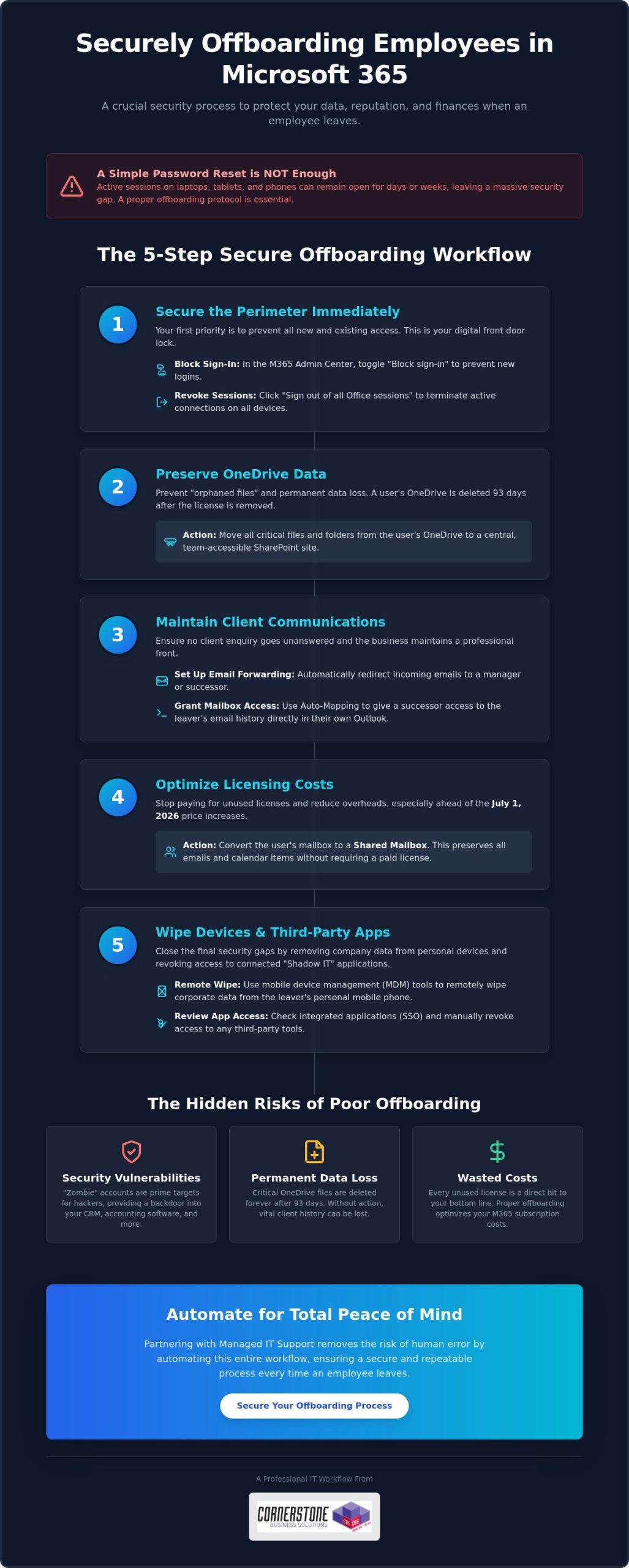
The 5-Step Workflow for Managing Leavers in Microsoft 365
Creating a secure, repeatable process is the only way to ensure nothing slips through the cracks. This five-step workflow is the gold standard we recommend for managing employee leavers in Microsoft 365. It moves beyond simple admin tasks to provide a robust security framework that protects your business from the moment a resignation is handed in. By following these steps, you maintain control over your intellectual property while keeping your overheads lean.
Step 1: Securing the Perimeter
Your first priority is stopping unauthorized entry. Within the Microsoft 365 Admin Center, the “Block sign-in” toggle is your most effective tool for immediate defense. This prevents any new logins to the account across all services. To terminate every active session on laptops or mobile phones, simply click the “Sign out of all Office sessions” button within the user’s profile pane. For businesses with more complex setups, using Microsoft Entra ID ensures that access is revoked not just for email, but for every integrated corporate application in one go. It’s a clean, decisive way to secure your digital borders.
Step 2 & 3: Preserving Business Intelligence
Data shouldn’t stay locked in a departing user’s silo. We recommend moving vital OneDrive files to a central SharePoint site where the rest of the team can continue working without interruption. This prevents the “orphaned data” problem we discussed earlier. To keep your client relationships strong, set up email forwarding to a manager or successor so that no enquiry goes unanswered. Using a feature called Auto-Mapping is a brilliant way to grant access; it allows the successor to see the leaver’s email archive directly in their own Outlook sidebar without needing a separate login. Referencing a professional Secure Offboarding Checklist can help you stay organized during these transitions.
Step 4 & 5: Efficiency and Cost Savings
Once the data is secured, it’s time to stop the clock on your spending. Convert the leaver’s account into a Shared Mailbox. This allows you to keep all their historical emails searchable and accessible for free, provided the mailbox is under 50GB. After the conversion is complete, you can safely unassign the paid license. This reclaimed seat is then ready for your next hire, or you can remove it entirely to lower your monthly bill. If you’re looking to streamline these tasks, our Managed IT Support team can help you build an automated system that handles these steps perfectly every time. This proactive approach ensures your business remains agile, secure, and financially efficient.
Delete vs. Deactivate vs. Convert: Choosing the Right Path
Choosing the right path when a team member moves on is a balance between saving money and protecting your business intelligence. Simply hitting the delete button is often the first instinct, but it’s usually the riskiest. If you delete a user account without a plan, their mailbox is purged after 30 days. That’s a very short window to realize you’ve lost a vital client contract or a string of important project emails. For short-term or low-impact roles, deletion might be fine, but for most positions, you need a more considered approach to managing employee leavers in Microsoft 365.
We want to help you make the most cost-effective choice without leaving your data vulnerable. Whether you are dealing with a standard departure or a high-level exit, the strategy you choose today determines how easily you can recover information six months down the line. To see the technical steps for each option, you can consult Microsoft’s guide to removing a former employee, which outlines the official procedures for each path.
The Shared Mailbox Strategy
Shared mailboxes are the “gold standard” for a reason. They allow you to retain every single email from a departing staff member without paying for a monthly license. The process is straightforward: you convert the existing user mailbox into a shared one first, and only then do you remove the paid license. This keeps the data searchable and accessible for your team indefinitely.
There are a few technical rules to keep in mind. Shared mailboxes are free only if they remain under 50GB in size. If the leaver was a “power user” with a massive archive, you might need to trim the data or keep a license active. It’s also important to remember that nobody can log into a shared mailbox directly. You must grant another licensed user “Full Access” permissions to view the contents. This is a brilliant way to maintain continuity while slashing your IT spend.
Litigation Hold and eDiscovery
For directors, senior staff, or roles involving sensitive financial data, a standard conversion might not be enough. In these cases, we recommend using a Litigation Hold. This feature ensures that every item in the mailbox is preserved, even if someone tries to delete individual emails before they walk out the door. It’s an essential tool for legal compliance and internal audits.
Using these advanced features ensures your data remains searchable through the eDiscovery portal long after the user has gone. This level of data sovereignty is a core part of our Cyber Security Services, helping local businesses build resilience and achieve true peace of mind. By choosing the right path for each leaver, you protect your company’s history and its future.
A Checklist for Secure Mobile and Third-Party Offboarding
Managing Mobile Device Management (MDM)
When staff use their own phones for work, often called Bring Your Own Device or BYOD, you need a way to reclaim company data without deleting their personal photos. This is where the distinction between a “Full Wipe” and a “Selective Wipe” becomes vital. Using Microsoft Intune, you can perform a selective wipe that targets only corporate emails and files, leaving the user’s private data untouched. It’s a respectful yet secure way to handle departures. You must also revoke all Multi-Factor Authentication (MFA) app registrations. Removing these registrations ensures that a former employee cannot use their personal device to bypass security prompts if they somehow obtain a colleague’s credentials.
Beyond the Microsoft Ecosystem
Many employees sign up for third-party SaaS tools using their corporate email address. This creates “Shadow IT” that often goes unnoticed until a breach occurs. You need to audit logins for industry portals, research tools, and even shared social media accounts. Changing shared passwords immediately is a non-negotiable step for protecting your brand’s online presence. Integrating these checks into your wider Microsoft 365 Migration strategy ensures that your entire infrastructure remains clean and organized from day one.
Don’t forget the small administrative details that can lead to big headaches. To keep your communication channels clear, make sure to complete the following:
- Update internal directories to reflect the current team structure.
- Remove the leaver from “All Staff” and “Management” distribution groups.
- Deactivate access to physical security systems or key fobs if linked to IT profiles.
- Clear any delegated permissions they had over other staff mailboxes.
Taking these steps prevents sensitive internal announcements from landing in the inbox of someone who no longer works for you. It also maintains a professional, up-to-date directory for your current staff. If you’re feeling overwhelmed by these moving parts, contact our team today to discuss how we can secure your business through expert managed IT support.
How Managed IT Support Automates the Leaver Process
Manual offboarding is a high-wire act for any busy manager. Even with the best intentions, a single missed step can leave a gap in your defenses. When you’re managing employee leavers in Microsoft 365, the stakes are simply too high for “best efforts.” We’ve seen businesses accidentally leave global admin access active for months simply because it wasn’t on the primary checklist. This is where professional Managed IT Support turns a stressful manual task into a seamless, background operation that protects your business every time.
By using automated scripts, we ensure that every single action happens in the correct order. From blocking Entra ID sign-ins to converting mailboxes and wiping mobile devices, automation removes the risk of human error. This isn’t just about speed; it’s about building a fortress around your business data. You can rest easy knowing that as soon as an employee leaves, their digital presence is secured and their access is completely severed.
Peace of Mind Through Standardization
We help you create a formal “Leaver Protocol” that triggers automatically as soon as notice is given. This proactive approach prevents “access creep,” a common issue where long-term employees accumulate permissions for various folders and apps that are never fully revoked. Our expert helpdesk is always on hand to manage data requests, ensuring that managers get the files they need without compromising security. It’s about giving you the freedom to focus on your team while we handle the technical heavy lifting.
Optimising Your Cloud Investment
The commercial side of Microsoft 365 is just as important as the technical one. With the price increases effective July 1, 2026, paying for licenses that aren’t being used is a drain on your resources that no business should tolerate. We perform monthly license audits to keep your costs lean and predictable. If an employee leaves and isn’t replaced immediately, we don’t just leave the seat active. We unassign and remove it to save you money from day one.
Our team provides strategic advice on when to upgrade to tiers like Business Premium for better security or when to downgrade to save costs on low-impact roles. We position ourselves not just as a service provider, but as a long-term partner invested in your growth and stability. If you want to move away from transactional IT and toward a more secure future, we invite you to have an informal conversation about our Managed IT Services. Let’s work together to make your offboarding process a foundation of emotional and digital security.
Take Control of Your Digital Offboarding
Securing your business shouldn’t feel like a constant battle against technical complexity. By mastering the art of managing employee leavers in Microsoft 365, you protect your intellectual property while significantly reducing unnecessary licensing costs. We have explored how converting accounts to shared mailboxes and automating your revocation protocols are the most effective ways to maintain continuity without draining your budget. Closing the gaps in mobile access and third-party apps ensures your data stays exactly where it belongs: under your control.
As a multi-award-winning IT services provider and Microsoft Certified Partner, Cornerstone Business Solutions brings the clarity and expertise you need to stay ahead of regulatory and pricing changes. Our team provides 24/7 proactive system monitoring to give you total peace of mind. You don’t have to navigate these transitions alone. We are here to act as your dedicated long-term partner, ensuring every departure is handled with precision and care. Book a Microsoft 365 Security Audit with Cornerstone Business Solutions Today and let’s build a more resilient future for your business together. Your team and your data deserve nothing less than professional, local support you can trust.
Frequently Asked Questions
How long should I keep a former employee’s Microsoft 365 data?
You should generally retain data for at least 90 days to ensure a smooth transition, though your specific industry compliance rules might require longer. Under the policy effective January 2025, Microsoft only keeps OneDrive data for 93 days after a license is removed. We recommend moving vital files to SharePoint immediately to avoid losing intellectual property. This proactive step ensures your business stays compliant with UK GDPR while keeping your historical records accessible.
Can I still access a leaver’s OneDrive after I delete their account?
No, deleting the account starts a countdown that eventually purges the data forever. You cannot easily access OneDrive files once an account is fully deleted and the 30-day grace period expires. It is much safer to delegate access to a manager or move the files to a central SharePoint site before you hit delete. Managing employee leavers in Microsoft 365 effectively means securing the data first so you don’t risk losing orphaned files.
Do I need to pay for a license to keep a former employee’s email active?
You don’t need to keep paying for a license if you convert the user’s mailbox into a Shared Mailbox. This is a brilliant way to keep all historical emails searchable without the monthly overhead. As long as the mailbox stays under 50GB, Microsoft won’t charge you for the storage. It’s a simple, cost-effective strategy that helps you manage your IT budget while preserving important business intelligence for your team’s future use.
What happens to a user’s Microsoft Teams messages when they leave?
Teams messages sent within public or private channels remain visible to the rest of the team even after the user is gone. However, their one-on-one private chats are tied to their specific account and can be harder to retrieve without using advanced eDiscovery tools. We recommend setting up clear communication policies so that vital project decisions are always recorded in shared channels rather than private messages. This ensures your business continuity remains unbroken.
How do I stop a leaver from accessing the company’s mobile apps?
The most effective method is performing a selective wipe through Microsoft Intune, which targets only your business data. This removes corporate emails and files while leaving the employee’s personal photos and apps untouched. You must also revoke their Multi-Factor Authentication (MFA) tokens to prevent them from logging back in. This clean break is essential for maintaining your digital perimeter and protecting sensitive client information on the move, regardless of where the device goes.
Can I convert a former employee’s account to a Shared Mailbox after deleting them?
You must convert the account while it is still active or within the 30-day “soft delete” window. Once that period passes, the mailbox is purged and cannot be converted. Managing employee leavers in Microsoft 365 requires a specific sequence of events to be successful. We always advise our clients to convert to a Shared Mailbox as one of the very first steps in their offboarding checklist to ensure no vital data is lost.
What is the fastest way to block a disgruntled employee’s access?
The fastest route is to block their sign-in status and reset their password immediately within the Admin Center. You should also click the “Sign out of all Office sessions” button to kill any active connections on their laptops or phones. This decisive action prevents them from accessing SharePoint or sending emails within minutes. It provides the immediate security you need during sensitive departures, giving you total control over your digital environment when it matters most.
Is it possible to automate the leaver process in Microsoft 365?
Automation is the best way to ensure consistency and remove the risk of human error during offboarding. We use custom scripts that handle everything from license reclamation to data migration the moment a leaver is reported. This standardized approach means no “zombie” accounts are left active and no licenses are wasted. It’s a proactive way to manage your infrastructure, providing both emotional security for you and technical stability for your growing business.
Tags: Cybersecurity, Data Protection, Employee Offboarding, IT Security, License Management, Managed IT, Microsoft 365