
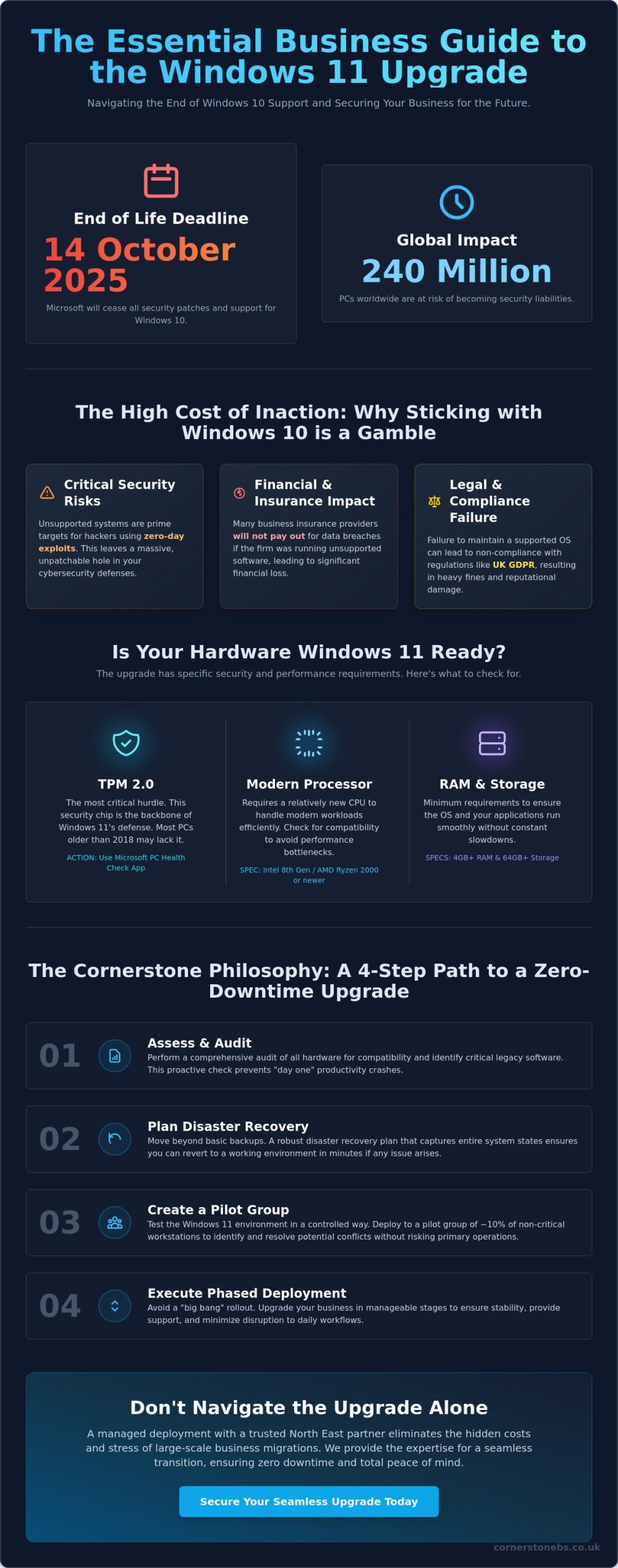
With Microsoft ending support for Windows 10 on 14 October 2025, approximately 240 million PCs worldwide risk becoming security liabilities if they aren’t transitioned correctly. You likely understand that sticking with an outdated OS isn’t an option, yet the fear of legacy software failing or your team facing hours of downtime is a genuine concern. It’s frustrating to face hardware hurdles like TPM 2.0 when you just want your tech to work. Our award-winning team at Cornerstone believes technology should empower your growth, which is why we’ve simplified the process of how to upgrade to windows 11 for our local partners.
We’ve designed this guide to show you a proactive, step-by-step approach that prioritises your data security and operational stability. You’ll discover a clear path to a modern, robust infrastructure that delivers total peace of mind for your North East business well into 2026. We will walk you through hardware compatibility checks, software testing protocols, and the deployment strategies we use to ensure a seamless transition for every client we support.
Key Takeaways
- Understand why remaining on Windows 10 is a critical security risk and how transitioning to Windows 11 provides the award-winning protection your business deserves.
- Master the technical steps of how to upgrade to windows 11 safely, prioritising the most seamless routes for UK-based small and medium enterprises.
- Move beyond basic backups with a “Cornerstone Philosophy” approach to disaster recovery, ensuring your migration results in zero downtime and total peace of mind.
- Boost your team’s productivity instantly by navigating new interface features like Snap Layouts and securing your infrastructure with proactive post-upgrade checks.
- Discover how a managed deployment with a trusted North East partner eliminates the hidden costs and stress of large-scale business migrations.
Assessing Your Business Readiness for Windows 11 in 2026
Cornerstone, your award-winning North East IT partner, understands that 2026 represents a critical crossroads for your firm’s technology. The Windows 11 operating system is no longer a “new” release; it is the established standard for secure, modern business computing. If your team still relies on Windows 10, they are working on an OS that is now a significant security liability. Transitioning to the current standard provides immediate gains in system speed and a streamlined interface designed for hybrid work. Learning how to upgrade to windows 11 now ensures your business avoids the high costs of emergency migrations and hardware shortages.
To qualify for the upgrade, your hardware must meet specific benchmarks. In plain English, your computers need a relatively modern processor (Intel 8th Gen or newer), at least 4GB of RAM, and 64GB of storage. While these specs seem modest, the security requirements are where most older business fleets struggle. Proactive planning allows you to audit your devices and budget for replacements without disrupting your daily operations.
The Hardware Hurdle: TPM 2.0 and UEFI
The most common barrier to a seamless upgrade is TPM 2.0. This is a dedicated chip that provides hardware-based security functions, acting as a vault for your encryption keys and user credentials. It is the backbone of Windows 11 security. You can verify your fleet’s compatibility using the Microsoft PC Health Check app, which gives a clear “pass” or “fail” for every device. For machines older than 2018, the “repair vs replace” debate is usually simple. Replacing an ageing laptop is often more cost-effective than trying to bypass security requirements, as newer hardware delivers the 20 percent increase in efficiency that modern applications demand.
Windows 10 End-of-Life: The Risk of Inaction
Microsoft has officially retired Windows 10, making it a “legacy” system. End of Life is the date Microsoft ceases all security patches. Operating past this date means your business is exposed to zero-day exploits that hackers specifically design to target unsupported systems. This creates a massive hole in your cybersecurity posture. Beyond the technical risk, inaction impacts your legal and financial standing. Many UK business insurance providers will not pay out for data breaches if the firm was running unsupported software. Similarly, failing to maintain your OS can lead to non-compliance with UK GDPR, resulting in heavy fines. Our team focuses on your peace of mind by ensuring your infrastructure remains robust and fully supported.
Starting a conversation about your transition today prevents a crisis tomorrow. We believe in a partnership that keeps your North East business ahead of the curve, rather than just catching up. Understanding how to upgrade to windows 11 is the first step toward a more secure and efficient workplace.
Strategic Preparation: Ensuring Zero Downtime
Before moving a single live machine, we recommend auditing your entire software stack. Identifying legacy applications early prevents “day one” productivity crashes. We suggest creating a pilot group consisting of roughly 10% of your non-critical workstations. This allows you to test the environment in a controlled way without risking your primary revenue streams. Following the official Microsoft deployment guidance ensures your rollout aligns with industry standards for stability and security. It’s a proactive approach that turns a potentially stressful migration into a seamless transition.
The Pre-Upgrade Audit Checklist
Our award-winning team uses a rigorous checklist to ensure every machine is ready for the switch. You’ll need at least 64GB of available disk space and a stable, high-speed internet connection to download the 4GB+ installation files. Ensure you have full administrative privileges before starting the process. It’s also vital to verify that your cyber security services remain compatible with the Windows 11 kernel to avoid leaving your network exposed. Always secure your critical data to a resilient cloud environment before the installation begins. This provides an essential safety net for your business intelligence.
Managing Legacy Software Compatibility
Most modern apps run perfectly on the new OS, but older bespoke tools might require extra care. You can often use Compatibility Mode to trick older software into thinking it’s still on Windows 10. For mission-critical apps that simply won’t run natively, we often implement Azure Virtual Desktop. This keeps your legacy tools accessible while your main hardware stays secure. Don’t forget to check your printer and peripheral drivers; hardware manufacturers often release specific updates for the 2026 environment. Understanding how to upgrade to windows 11 includes managing these smaller details that keep an office running. If you’re feeling overwhelmed by the technical requirements, feel free to chat with our local experts for a tailored assessment.
Step-by-Step: How to Update to Windows 11 Safely
Upgrading your business infrastructure shouldn’t feel like a gamble. At Cornerstone, our award-winning team helps North East firms manage this transition with zero fuss. To understand how to upgrade to windows 11 without losing a day of productivity, you need to choose the right path for your specific hardware. We typically recommend three primary methods: Windows Update, the Installation Assistant, or the Media Creation Tool.
Windows Update remains the preferred, most seamless route for SMEs. It’s the most stable option because Microsoft only pushes the notification once your specific hardware configuration is verified. Before you start, plug in an Ethernet cable. Relying on Wi-Fi for a 4GB to 6GB download is risky; a single signal drop can corrupt the installer and cause boot errors. For larger firms managing dozens of machines, consulting Microsoft’s official deployment guide provides deeper technical insights into fleet-wide rollouts and compatibility checks.
The actual installation phase is what we call the “Point of No Return.” Once your PC reboots and the blue installation screen appears, the system begins overwriting the old OS architecture. If power is lost here, the machine may become unbootable. Ensure your laptops are plugged into a power source and your desktops are on a stable circuit before you begin the final phase.
Method 1: Using the Windows Update Feature
This is the “set and forget” method that preserves your files and specialised software settings. Open your “Settings” app, click “Update & Security,” and select “Windows Update.” You’ll see one of two things. A blue “Upgrade to Windows 11 is ready” banner means your hardware passed every check. A “This PC doesn’t currently meet all system requirements” message indicates a hardware block, likely your TPM 2.0 chip or an older CPU. If you see the green light, click download and install to keep every spreadsheet and saved password exactly where you left it.
Method 2: The Windows 11 Installation Assistant
Use the Assistant tool manually if the update hasn’t appeared automatically in your settings. This happens often with newer machines that haven’t cycled through the update queue yet. You must run this tool as a local Administrator to avoid permission loops that can stall the process at 99%. After you click “Accept and Install,” the tool handles the heavy lifting in the background. Once the “Restart Now” prompt appears, save your work immediately. The PC will reboot several times as it configures your new desktop environment, so don’t be tempted to force a shutdown if the screen stays black for a few moments.
Post-Upgrade Optimization: Security and Productivity
Completing the initial steps of how to upgrade to windows 11 is only half the battle. To truly see a return on your investment, you need to fine-tune the environment for your specific workflow. Our award-winning team at Cornerstone finds that a standard “out of the box” setup often leaves performance on the table. Start by mastering the centered Taskbar and Start menu. These aren’t just cosmetic changes; they’re designed to reduce mouse travel and eye strain. Use Snap Layouts to organize your screen into quadrants instantly. Research from Microsoft suggests these interface improvements can boost multitasking efficiency by up to 40% for power users.
Performance depends on a clean system. New installations often include pre-installed “bloatware” or trial software that consumes background RAM. Removing these apps can improve boot times by as much as 15%. Once the clutter is gone, ensure your setup is fully integrated with your Microsoft 365 environment. This creates a seamless flow between your local files and the cloud, providing the peace of mind that your team can collaborate from anywhere in the North East or beyond. While the technical process of how to upgrade to windows 11 is straightforward, the post-install configuration determines your long-term stability.
Hardening Your New OS
Security is the foundation of business continuity. You must verify that BitLocker drive encryption is active to protect data if a device is stolen. We recommend enabling Multi-Factor Authentication (MFA) at the OS level immediately. Microsoft’s 2023 Digital Defense Report confirms that MFA blocks 99.9% of identity-based attacks. For your mobile workforce, configure “Find My Device” and test remote wipe capabilities through your management console. Check your privacy settings to ensure diagnostic data sharing aligns with your company’s GDPR compliance policies.
Productivity Hacks for Business Users
Windows 11 introduces “Focus Sessions” within the Clock app. This feature silences notifications and integrates with Spotify to help staff stay in a “flow state” during complex tasks. You can also use Multiple Desktops to separate your “Finance” workspace from your “Client Meetings” setup. This mental compartmentalization reduces burnout. Don’t forget to train your staff on the new Teams integration built directly into the taskbar. It allows for one-click video calls, which is essential for maintaining that local, human connection in a hybrid world.
The Benefits of a Managed Windows 11 Deployment
Upgrading an entire fleet of workstations isn’t as simple as clicking a “check for updates” button. For UK firms, DIY approaches often lead to hidden costs that spiral out of control. A 2023 industry report suggested that poorly managed migrations can cost businesses up to £1,200 per workstation in lost productivity and emergency fixes. This is why partnering with an award-winning team like Cornerstone makes sense for your long-term strategy. We handle the technical heavy lifting so your staff can stay productive. Our managed IT services provide the proactive monitoring required to keep your operations stable long after the initial switch. We understand the North East business landscape, and we know how to protect your continuity during a major transition.
Scalability and Bulk Deployment
Managing a handful of devices is easy, but scaling that process to 50 or 500 machines requires a professional strategy. We use advanced tools like Microsoft Intune to facilitate “Zero Touch” deployment. This allows hardware to arrive at your office, connect to the network, and automatically configure itself with the correct software and security policies. We create standardised images to ensure every staff member has the exact same setup. This consistency eliminates common compatibility issues between different departments. By outsourcing this process, you free your internal team to focus on business growth rather than troubleshooting how to upgrade to windows 11 across dozens of different hardware configurations.
- Reduced Downtime: Automated deployment means machines are ready in minutes, not hours.
- Consistency: Every device meets your specific corporate security and software standards.
- Resource Efficiency: Your IT staff can focus on high-value projects instead of manual installs.
Ongoing Support and Peace of Mind
The first week after a new OS rollout is the most critical period for any business. Even with perfect planning, users will have questions about the new interface or specific application behaviours. Our 24/7 helpdesk provides immediate access to experts who can resolve post-upgrade driver conflicts or simple “how-to” queries instantly. We don’t just install the software and walk away. We stay by your side as a dedicated partner to ensure the transition is seamless. Security is a major part of this peace of mind. Windows 11 requires specific hardware features like TPM 2.0 to be active. We verify these settings on every single device to keep your business data safe from modern threats.
Don’t risk your business continuity on a gamble. If you want to know exactly how to upgrade to windows 11 without the technical headache or the risk of data loss, we are here to help. Chat with our expert team today and let’s get your North East business ready for the 2026 deadline with a robust, professional migration plan.
Future-Proof Your North East Business Today
Windows 10 reached its official end-of-life in October 2025, leaving any remaining legacy systems exposed to critical security threats. By now, you’ll understand that how to upgrade to windows 11 safely involves more than just a simple software update; it requires a strategic audit of hardware and a robust plan for zero downtime. We’ve outlined the essential steps to ensure your transition is seamless, from verifying TPM 2.0 requirements to optimizing your new environment for peak productivity.
As a multi-award-winning IT provider and Microsoft Gold Partner, Cornerstone Business Solutions brings expert clarity to these complex migrations. We provide proactive 24/7 system monitoring to catch issues before they impact your workflow, giving you total peace of mind. Our team is rooted right here in the North East, and we’re ready to act as your dedicated technology partner. Don’t leave your business continuity to chance. Book a consultation with our award-winning IT team for a tailored deployment plan. Let’s make your next big upgrade your easiest one yet.
Frequently Asked Questions
Is the Windows 11 upgrade free for my business in 2026?
Yes, the upgrade remains free for businesses using genuine Windows 10 Pro licenses on compatible hardware. Microsoft hasn’t set a final expiry date for this offer, even though Windows 10 reaches its end-of-support on 14th October 2025. Our award-winning team helps you navigate these licensing requirements to ensure your North East business stays compliant without extra costs.
What happens if my business PC does not meet the minimum hardware requirements?
You won’t be able to install the operating system officially on devices that lack TPM 2.0 or supported processors. If your hardware fails the check, you’ll need to replace the machine or pay for Extended Security Updates, which cost approximately £50 per device for the first year. We suggest a proactive hardware refresh to avoid these recurring fees and keep your operations running smoothly.
How long does the Windows 11 upgrade process actually take?
The installation typically takes between 30 and 120 minutes depending on your office internet speed and the specific hardware in your machines. Older laptops with traditional hard drives will take longer than modern devices with fast SSDs. Learning how to upgrade to windows 11 properly involves scheduling these updates outside of core hours to prevent any disruption to your daily workflow.
Can I go back to Windows 10 if my business software doesn’t work?
You have a 10-day window to use the built-in “Go Back” feature if your legacy applications struggle with the new environment. This process reverts your system to its previous state while keeping your files intact. We always recommend testing your critical software in a controlled environment first. This approach provides total peace of mind for business owners before a company-wide rollout.
Do I need to back up my files before upgrading to Windows 11?
Yes, you must perform a full backup of all business data before starting any major OS transition. While the upgrade is designed to preserve your files, unexpected power cuts or hardware glitches can lead to data corruption. Our local experts use robust cloud backup solutions to ensure your information is 100% secure before we begin the installation process.
What is the “PC Health Check” app and where do I find it?
The PC Health Check app is a free utility from Microsoft that verifies if your hardware meets the necessary security and performance standards. You can download it directly from the official Microsoft Windows website to get an instant compatibility report. Using this tool is the most reliable way to start your journey of how to upgrade to windows 11 across your entire fleet.
Will Windows 11 make my older business laptop run slower?
Windows 11 actually improves performance on most hardware because it prioritises active apps and manages memory more efficiently. If your laptop meets the minimum specs, you’ll likely notice faster wake times and snappier responses. We’ve helped many North East firms see a 25% boost in system stability after moving away from cluttered Windows 10 installations.
Is Windows 11 more secure than Windows 10 for remote working?
Windows 11 provides a much higher level of security for remote staff by mandating hardware-level protections like TPM 2.0 and Secure Boot. Microsoft data shows a 60% reduction in malware reports on devices using these modern security features. As your trusted local partner, we configure these settings to create a seamless, secure connection for your team, no matter where they’re logged in.
Tags: Business Continuity, Cybersecurity, IT Security, Managed IT, SME IT Support, System Upgrade, Windows 10 End of Life, Windows 11